
Granting Admin Consent for an Add-in in Microsoft Entra ID
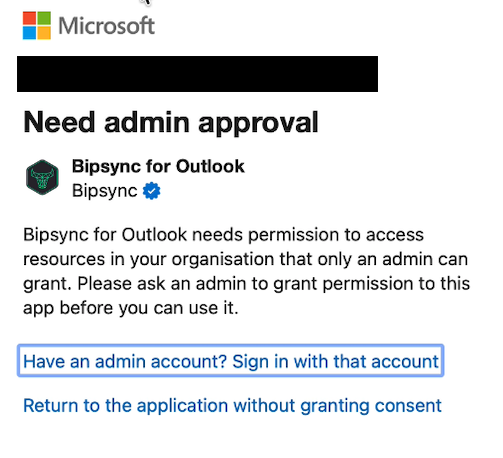
Prerequisites
-
You are a Global Administrator or Privileged Role Administrator
-
The Outlook add-in has been deployed or accessed at least once
(so a Service Principal exists in Enterprise Applications) -
IT teams can manage deployments for their users using the admin centre. See the Deploy an Office Add-in using the admin center section in the docs linked below.
Step-by-Step: Grant Admin Consent (Enterprise Applications)
1. Open Microsoft Entra Admin Center
- Go to: https://entra.microsoft.com
2. Navigate to Enterprise Applications
- Select Applications
- Select Enterprise applications
3. Locate the Add-in
- Use the search box to find the add-in name
- Bipsync for Outlook
- Bipsync for OneNote
- Click the application to open it
If you don’t see it, the add-in hasn’t been consented or deployed yet.
4. Open Permissions
- In the left-hand menu, select Permissions
5. Grant Admin Consent
- Click Grant admin consent for <Tenant Name>
- Review the listed permissions
- Click Accept
Expected result
- Permissions show Granted
- No remaining “Not granted” warnings
Verify Admin Consent
Option 1 – Permissions Page
- All permissions show Granted for <Tenant Name>
Option 2 – User Sign-in Test
- Open Outlook
- Launch the add-in
- Confirm no consent or authorization prompts appear
Important Notes
- Only Delegated permissions are supported in the add-in UI
- Admin consent is tenant-wide when granted here
- Restart Outlook after granting consent
Common Issues
| Issue | Cause |
|---|---|
| App not listed | Add-in not deployed or never launched |
| Grant button disabled | Insufficient admin role |
| Consent granted but still failing | Manifest scopes don’t match |
| Users still prompted | Cached tokens – sign out/in |
Updated 7 months ago