
PDF Annotation for Web
PDF Annotation for Web allows note authors to highlight, draw, and annotate on PDFs uploaded to Bipsync from within the Web App.
Annotations are saved within the PDF and included in all exports, downloads, and archives that contain it.
PDF Annotation for Web is available to Enterprise customers on request. Please contact us if you would like to enable this functionality.
Getting Started
- Create a Note
- Upload a PDF file using the file attachments bar
- When the upload is complete, click on the file to open it in a preview window
- Pick a tool to annotate the PDF: create a text box, draw with the pen tool, create pop up annotations, or select any text and choose to highlight it.
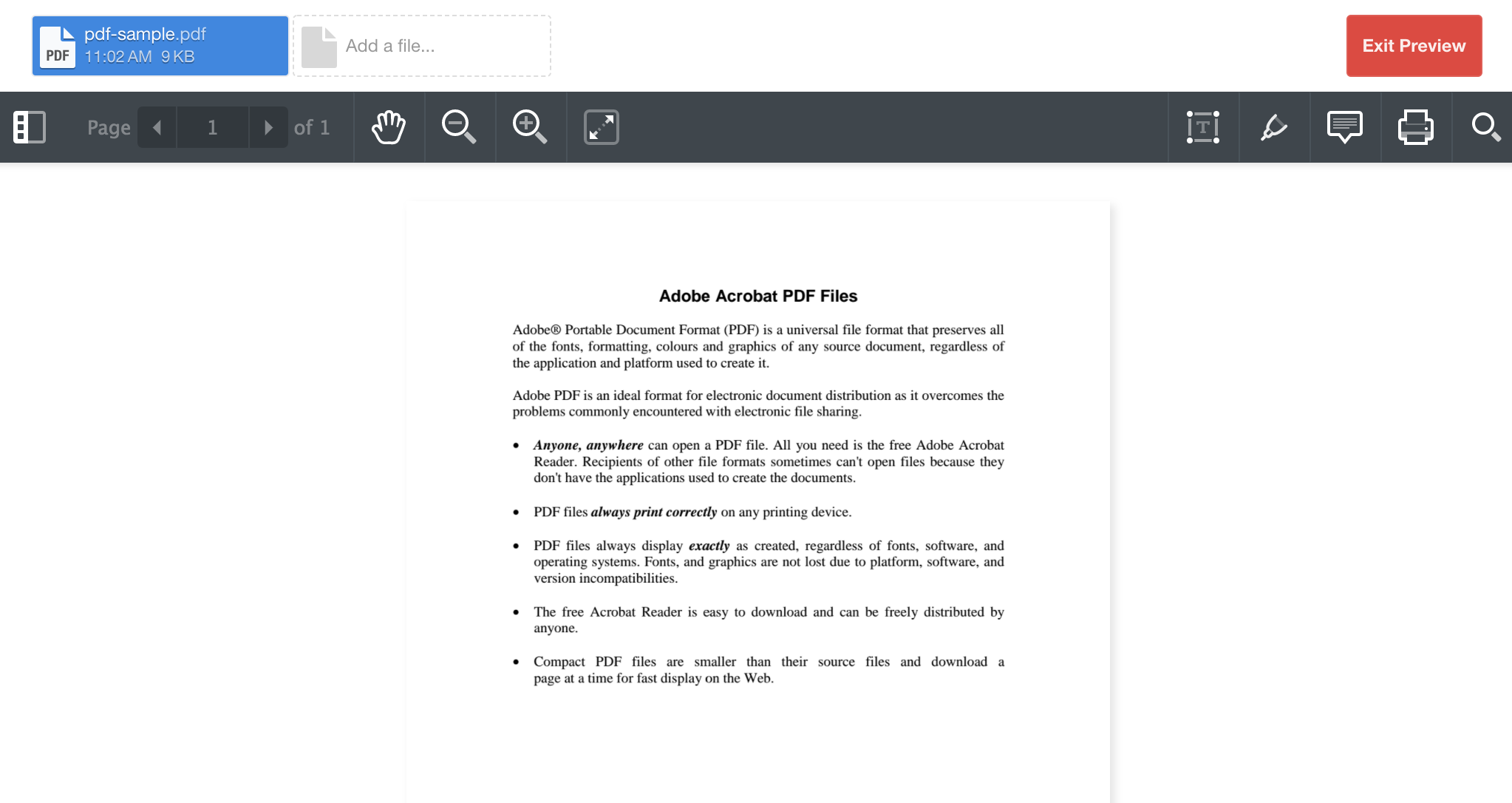
A file preview panel showing PDF annotation tools
Creating and Editing Annotations
When annotating a PDF, your annotations are saved automatically when you close the edit panel of the tool selected. Opening and closing edit panels is as simple as clicking on the icon representing any given tool. The edit panel for the pop up annotation tool looks like this:

The edit panel for creating pop up annotations
Selecting an annotation, by clicking on it, will also open up its edit panel where you can make changes to some aspects of this annotation's properties. Modifying annotations can sometimes be more useful than deleting and re-creating them.
Deleting Annotations
To remove an annotation, after exiting the current edit mode, select the annotation by clicking on it and then click the trash button on the top right of the preview window. You will be prompted to confirm the deletion.
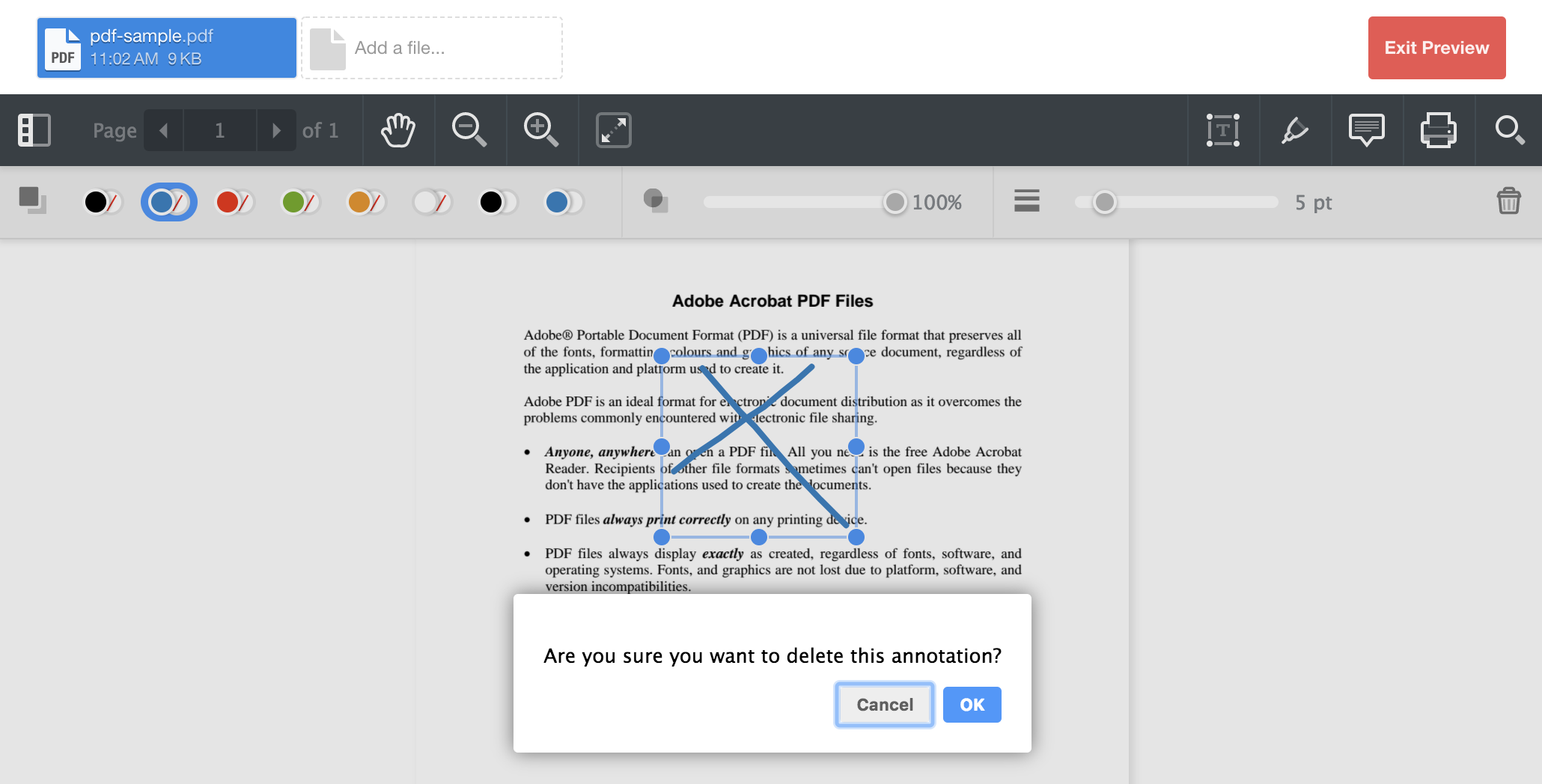
A modal for confirming annotation deletion
Updated about 1 year ago