
Private i Platform Integration
Configuring Bipsync to sync with MSCI's Private i Platform
Bipsync is able to sync investment data from Private i Platform to power investment workflows. The following entities can be created and/or enriched with the data held within Private i:
- Fund Managers
- Funds
- Asset Classes
The data held within these entities can be displayed on Bipsync dashboards within various widgets including grids, fields and charts.
Supported Fields
The following Private i Platform fields can be used by the integration:
Assets
- Asset auditor
- Asset currency
- Asset last closing date
- Asset Geography
- Asset latest fund size
- Asset reporting frequency
- Asset vehicle type
- Asset vintage
Investments
- Asset fund size
- Investment closing date
- Investment commitment amount base
- Portfolio currency
- Investment type
- Investment is Liquid Asset
- Investment is Liquidated
- Investment Liquidation Date
Organizations
- Organization status
- Organization type
Analytics
- Investment IRR
- Investment IRR Calculation End Date
- Investment DPI
- Investment DPI Calculation End Date
- Investment RVPI
- Investment RVPI Calculation End Date
- Investment TVPI
- Investment TVPI Calculation End Date
- Investment Paid-In Capital
- Investment Funding
- Investment Fees
- Investment Distributions
- Investment Recallable
- Investment Valuation
- Investment Valuation Calculation End Date
- Investment Roll-forward
- Investment Unfunded
- Investment Net Capital Contributed
- Investment Adj. Commitment
- Investment Commitment
- Investment Analytics last measured Date
Configuring The Integration
To set up the integration you will need the following credentials:
- Client ID (this can be obtained by contacting MSCI)
- Username
- Password
We recommend that a dedicated integration account is used to ensure uninterrupted service. This can be arranged with MSCI and/or Bipsync.
Configuration is performed in the Bipsync Setup app. From the menu, go to Integrations → Private i. You'll see the following screen:
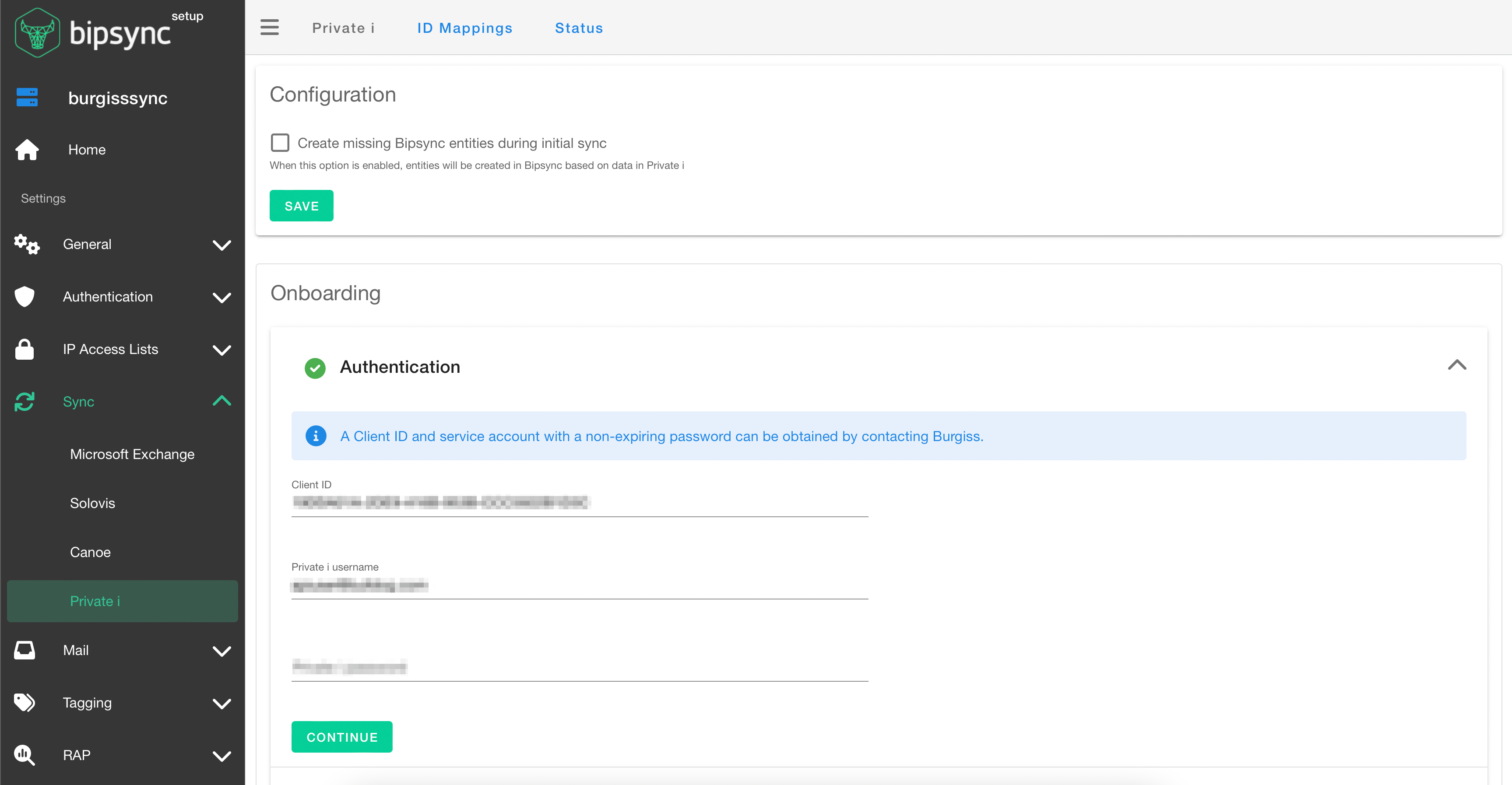
This screen configures the main sync process, within the Configuration and Onboarding sections.
Sync Configuration
In this section you specify how the sync should behave.
Create missing Bipsync entities during initial sync?If you're a new Bipsync customer, you'll probably want to check this option. If you do so, when we sync Fund Managers, Funds and Asset Classes from Private i for the first time, we'll automatically create matching entities in Bipsync which are linked to those in Private i.
If you're an existing customer it's likely that many of your entities will already exist in our database. In that case you won't want to create duplicates, so leave this option unchecked. Instead, see the "Mapping Your Entities" section below to learn how to quickly associate entities between the two platforms.
Sync Onboarding
First, enter your credentials and click the 'Continue' button. Bipsync will attempt to authenticate with your credentials. If successful, you'll then be prompted to choose a profile from the set that are available to your user:
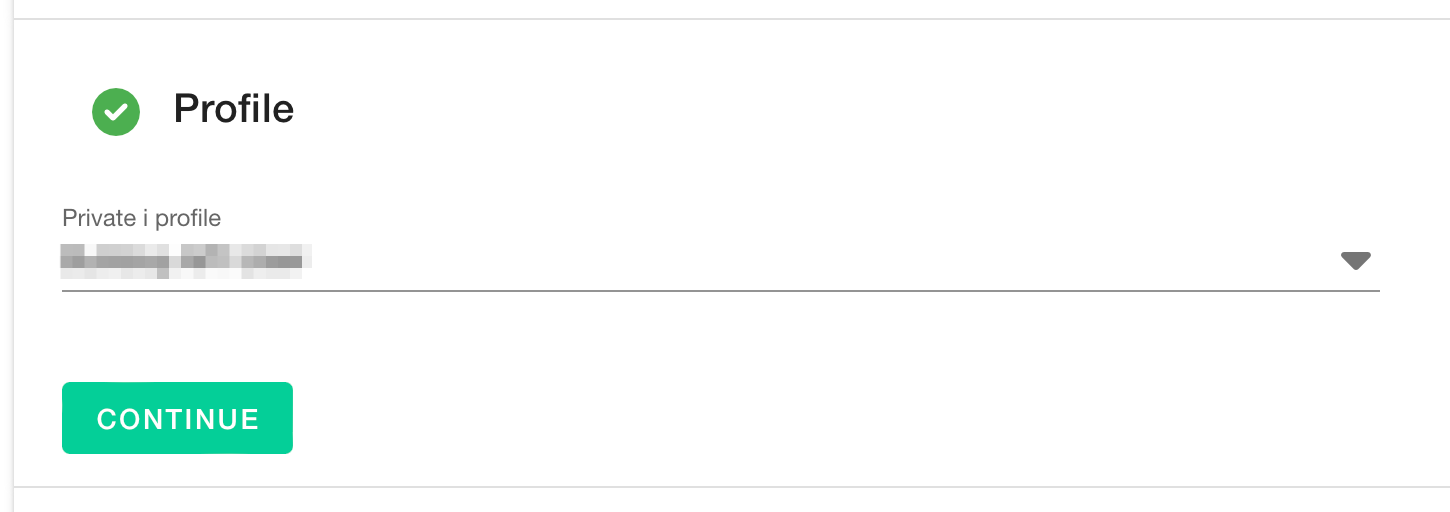
Select the profile you wish to use, and then click 'Continue'. You'll be given the chance to specify exactly what is synced from Private i Platform:
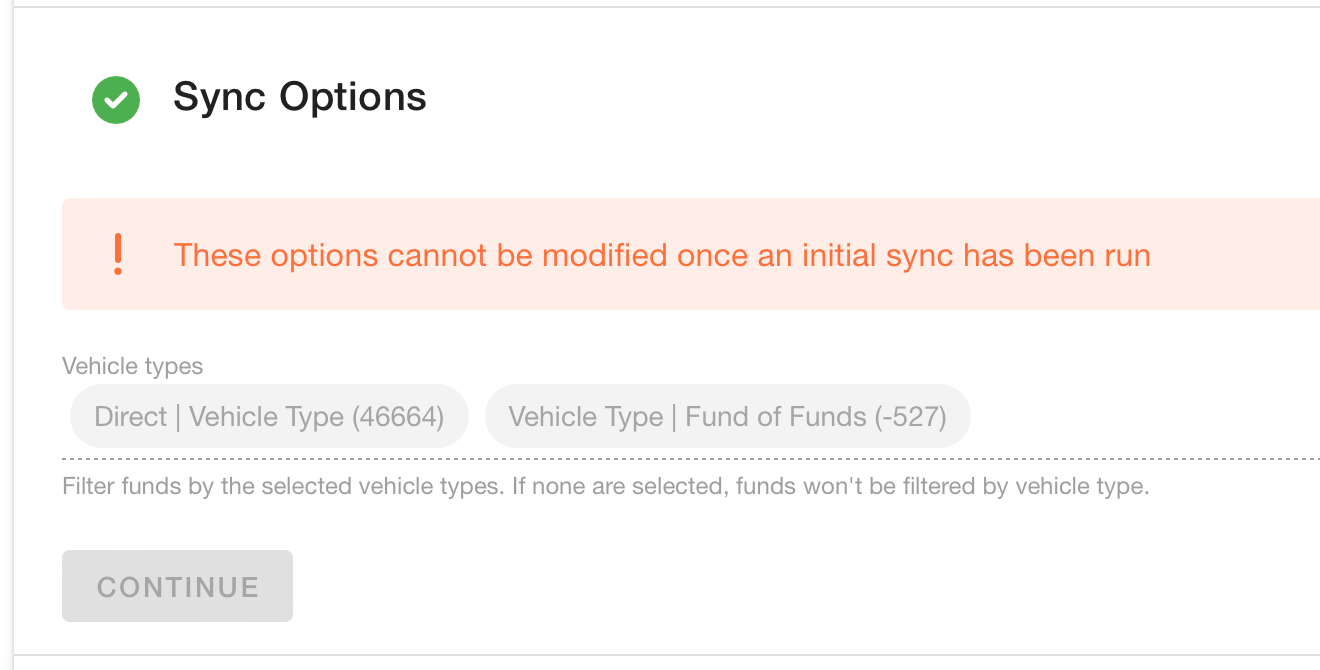
Once you're happy with your configuration, click 'Continue' and Bipsync will sync your data from Private i for the first time. You'll see the following when the sync has completed successfully:
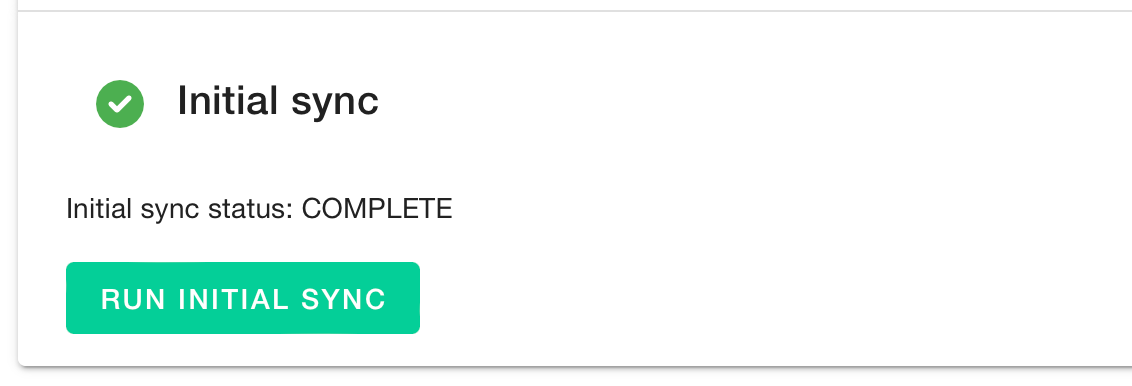
Bipsync is now populated with your Private i entities.
Mapping Your Entities
If you checked the "Create missing Bipsync entities during initial sync" option, the first time Bipsync syncs with Private I we'll automatically create matching entities in Bipsync from those in Private i. From that point on, if you left that option unchecked, you'll need to do the mapping yourself. This can be accomplished in two ways.
Bulk Mapping
The Bulk Mapping area is accessible from the Private i section of the Setup app, by clicking the "ID Mappings" option in the top menu. You'll see the following screen:
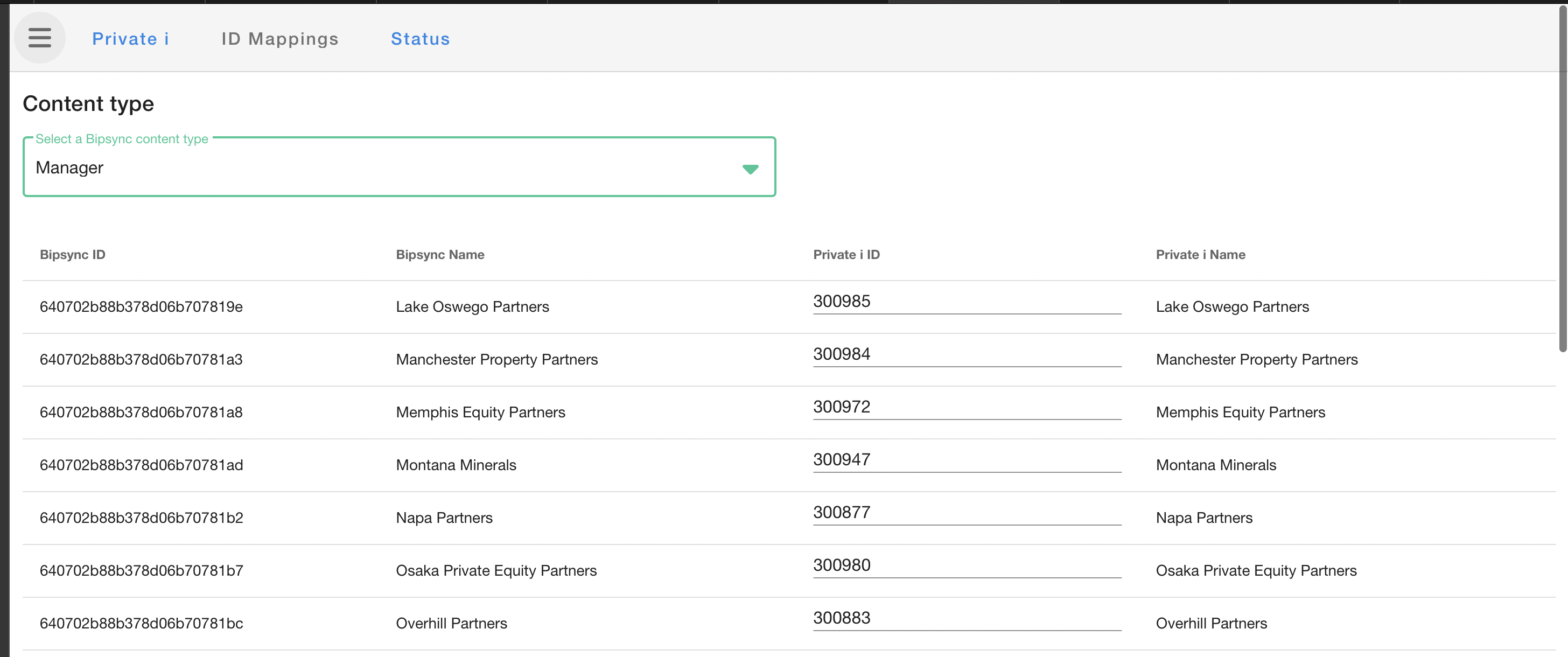
Choose the content type you wish to manage (we've chosen the Manager entity above, which contains Fund Managers in this example) and you'll see a list of the entities which exist in Bipsync. You can then enter the IDs for the matching entities in Private i, and click the Save button to apply your changes.
Individual Mapping
If you'd prefer to set up mappings on a case-by-case basis, this can be done via the RMS app by visiting the dashboard for the entity you wish to map. You'll need the Super Admin permission to perform this function.
From the dashboard menubar, click the "Private i" button to open this dialog:
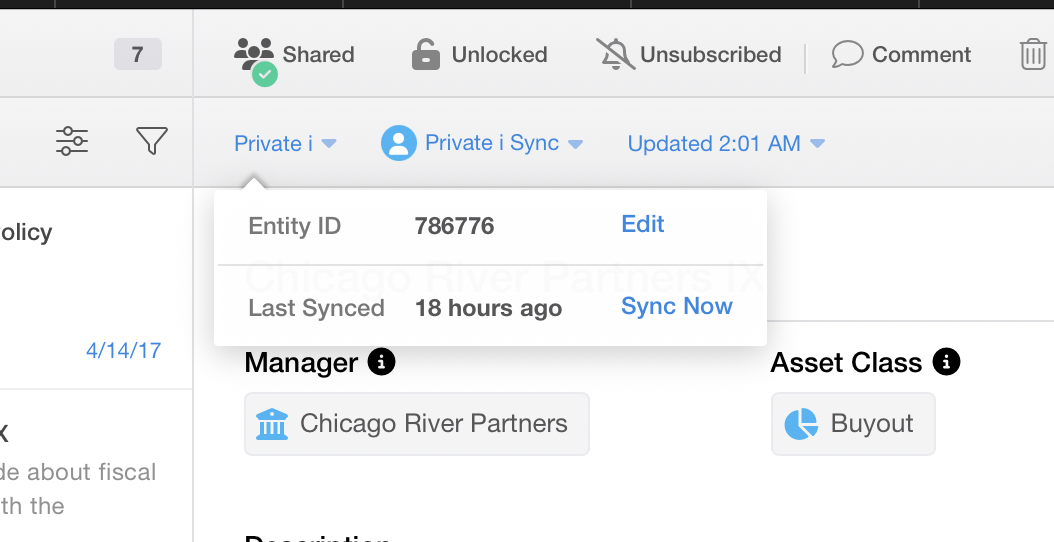
Click the "Edit" button to manage the mapping. You'll see the following screen:
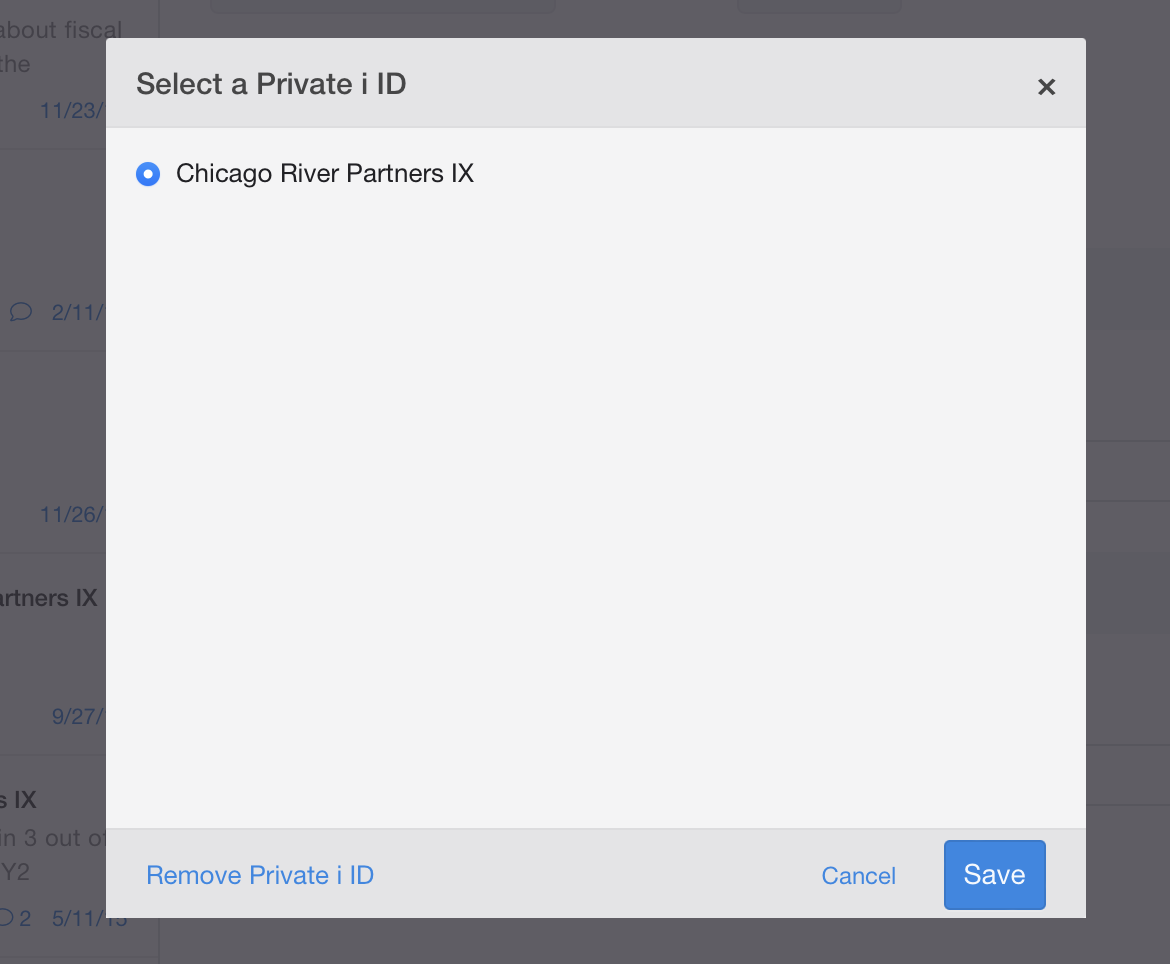
Select the matching entity in Private i and click Save to associate it.
Syncing Data
After the initial sync has been performed, incremental syncs occur periodically. The frequency is configurable, but is usually around every five minutes by default.
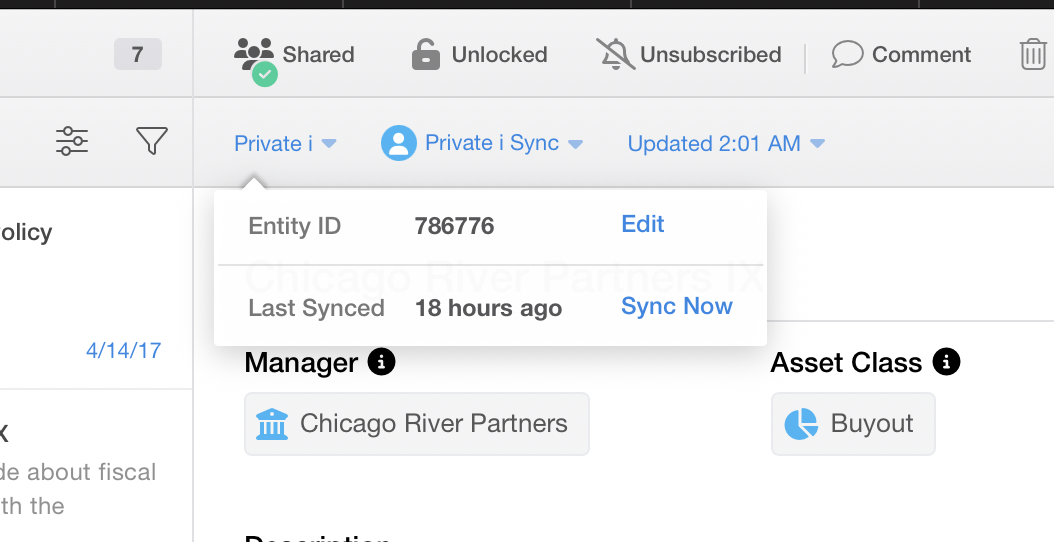
If you'd like to trigger a sync on demand, this can be done from the Private i menu on a dashboard in the RMS app. Open the menu, then click "Sync Now" to begin a sync immediately:
Powering Dashboards
Private i data can be viewed within Bipsync in a few different ways.
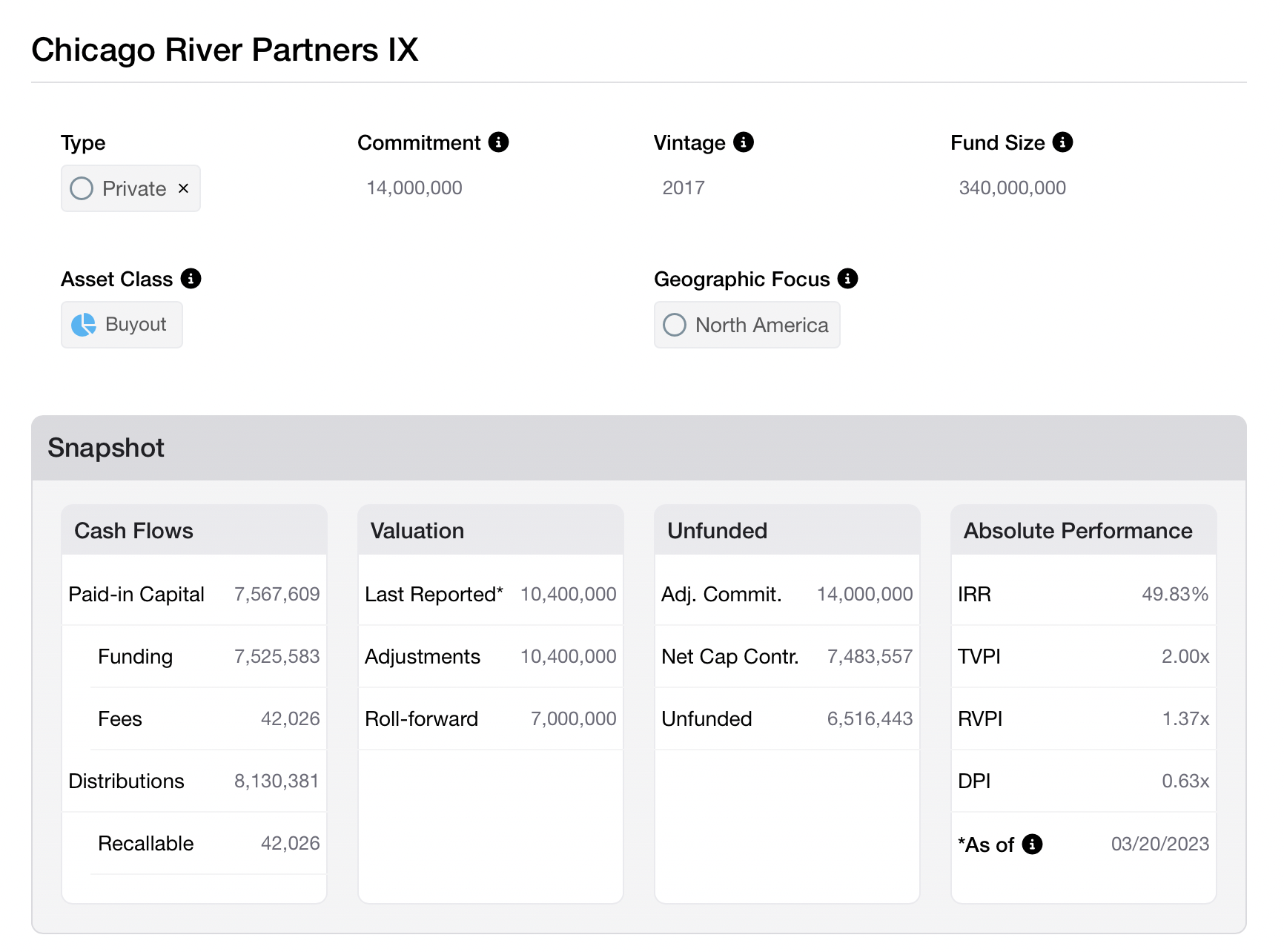
Mapped entities are able to display Private i data within their fields. In the screenshot below, fields like "Paid In Capital", "Distributions" and "IRR" are all sourced from Private i:
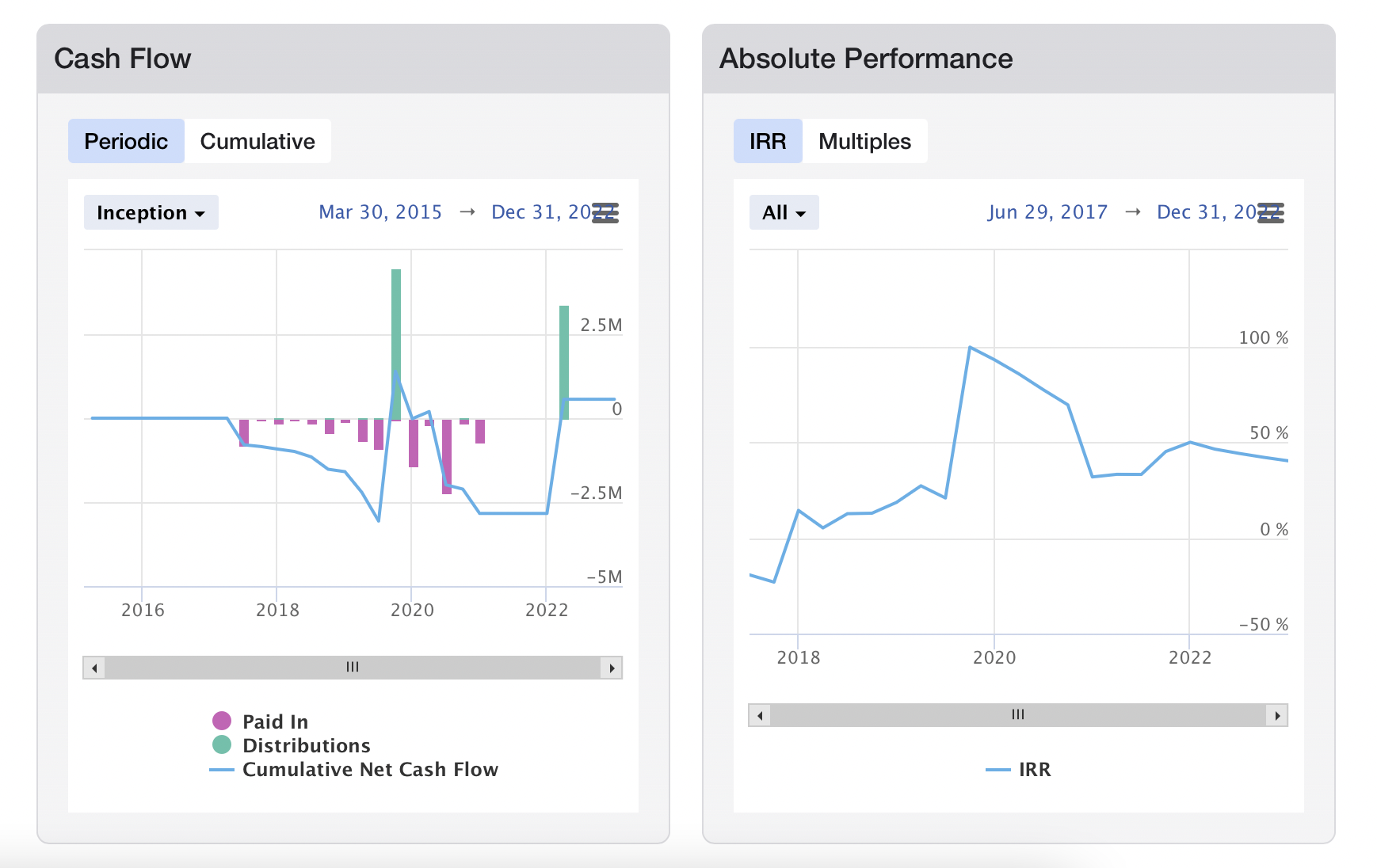
We are also able to leverage MSCI's Analytics API to power charts to visualise this data. The charts in the screenshot below are driven by Private i metrics:
This data is available within key Bipsync features like the Rules Engine and Pipeline Management, which means it can be used to drive your investment workflow. If you'd like to learn more about what can be achieved, please speak to your Bipsync CSM.
Updated about 1 year ago