
Bipsync Notes Desktop App
The Bipsync Notes Desktop App is suited for offline note taking. If you are always connected, you should always use the web app.
Installation
Windows
MSI / Machine-wide installation
For larger deployments we provide a machine-wide MSI package available here (replacing 'CLIENT' with your Bipsync installation name):
for 32bit Office:
- https://CLIENT-desktopapi.bipsync.com/v1/autoupdater/download/win32/Bipsync.msi
for 64bit Office:
- https://CLIENT-desktopapi.bipsync.com/v1/autoupdater/download/win32/Bipsync64.msi
The package will install the Bipsync notes application into the Program Files folder and create a Desktop shortcut.
Archived version
In addition to the MSI and automatically updating user-focused installer we also provide an archive version of the application that can be downloaded from the following URL (replacing 'CLIENT' with your Bipsync installation name):
https://CLIENT-desktopapi.bipsync.com/v1/autoupdater/download/win32/archive.zip
The archive contains:
app- the main application files
Manual installation steps
Main application (required)
- Copy the
appfolder contents to static location on disk - Create Desktop/Start-Menu shortcuts to the
Bipsync.exeexecutable
Customize Bipsync Setup
By default the app will attempt to install the plugins/addins on first-run, to prevent this you can specify the following setting in a %LOCALAPPDATA%\Bipsync-Setup.ini file (ps. this needs to be in a folder ABOVE your app executable target folder):
installPlugins=falseTransparent Proxies
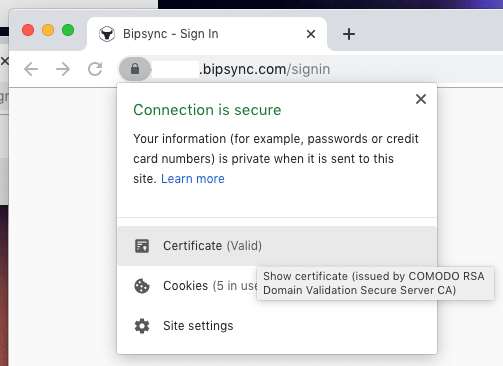
The Desktop App is written in Node.js/Electron which contains its own certficate authority list. In order to catch issues with deploying the app we ask that you verify the certificates to https://CLIENT.bipsync.com are unaltered by transparent proxies / are able to function without additional certificate authority certificates.
To do this please send us a screenshot of the certificate information window that pops up after you click this option in Chrome at your Bipsync signin page:
For cases where white-listing this behaviour is not possible see https://docs.bipsync.com/docs/notes-desktop-app#section-custom-root-certificates
Custom Root Certificates
There are 2 methods for using a non-standard certificate authority.
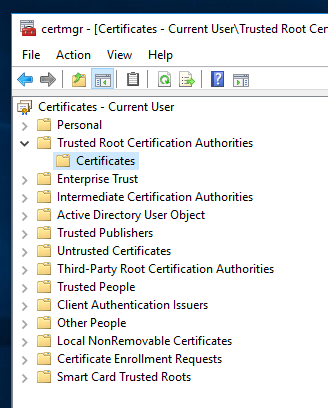
Option 1 (Windows) - A named certificate in the users certificate store
- Certificate "Subject Name" needs to contain the string "Bipsync Private CA"
- The application will need to be able to execute the
certutil.exeprogram (available from Certificate Services) (you can verify this by runningcertutilfrom the command prompt as the user that will be running the app) - Your trusted root certificate will need to be stored here:
Option 2 (All platforms) - Configured certificate
Make the certificate file accessible on disk/network and configure a parameter to point to it in an options file, for more details see an example here.
trustedCertificateAuthorityCertificate=Z:\bipsync-desktop-certificate.pemFor self-signed certificates, the certificate is its own CA, and must be provided. For PEM encoded certificates, supported types are "X509 CERTIFICATE", and "CERTIFICATE".
This method utilizes the ca option found here: https://nodejs.org/docs/latest-v10.x/api/tls.html#tls_tls_createsecurecontext_options
The application will attempt to use the certificate from startup.
Updated 7 months ago