
Adding and editing a sketch
The sketch feature allows you to attach sketches or handwritten notes to a note.
Sketches are saved as PDFs and can be viewed and exported from the web app. An Apple Pencil can be used for finer control.
Adding a new sketch
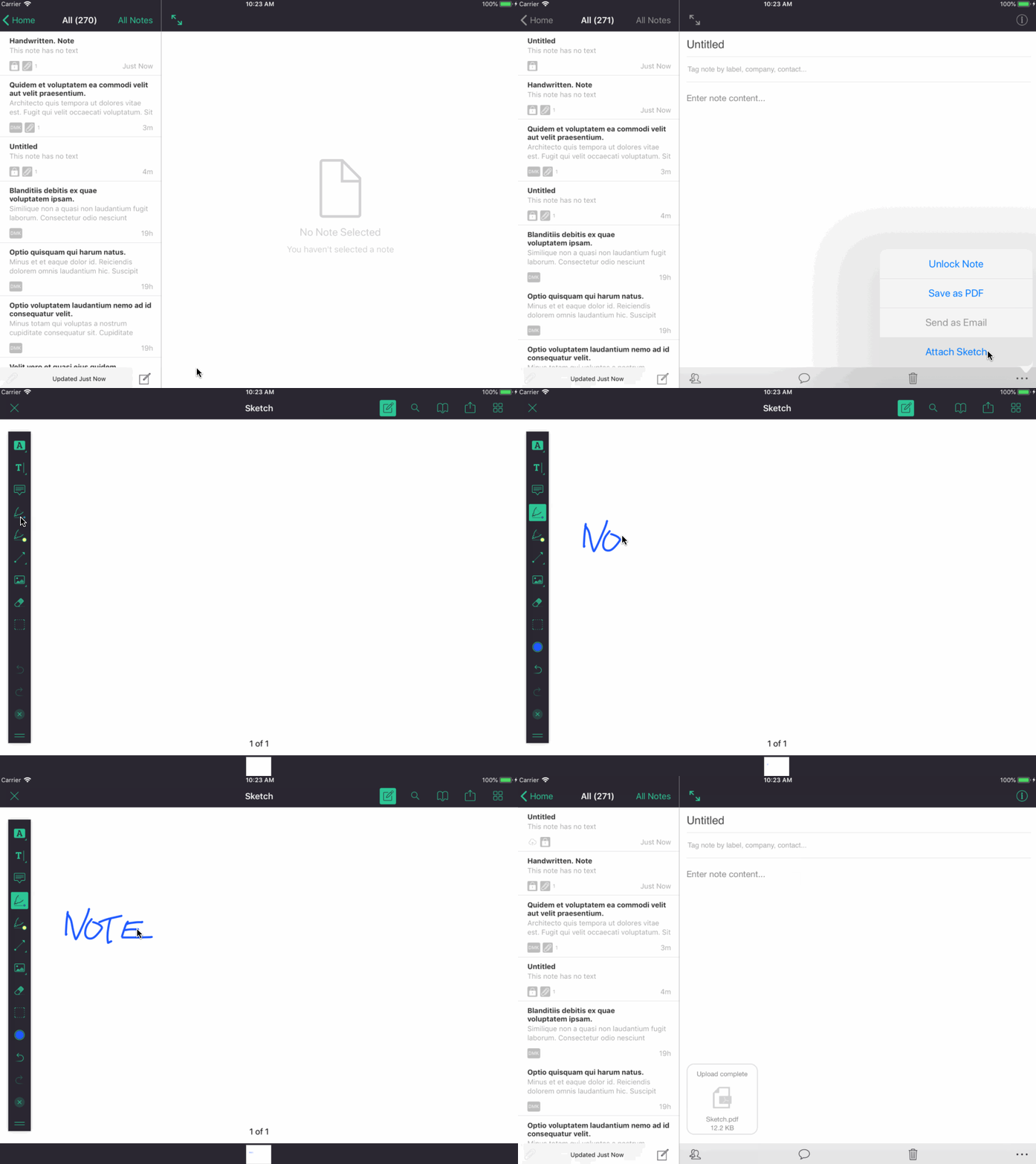
- Select an existing note from the note list or create a new note
- Tap on the ellipsis icon on the bottom right of the note view
- Tap "Add Sketch"
- Tap the annotation tool on the top menu
- Select the pen tool
- Draw as required
- Save the sketch and attach it to the note by tapping 'x' in the left of the top toolbar
Adding a new page to a sketch
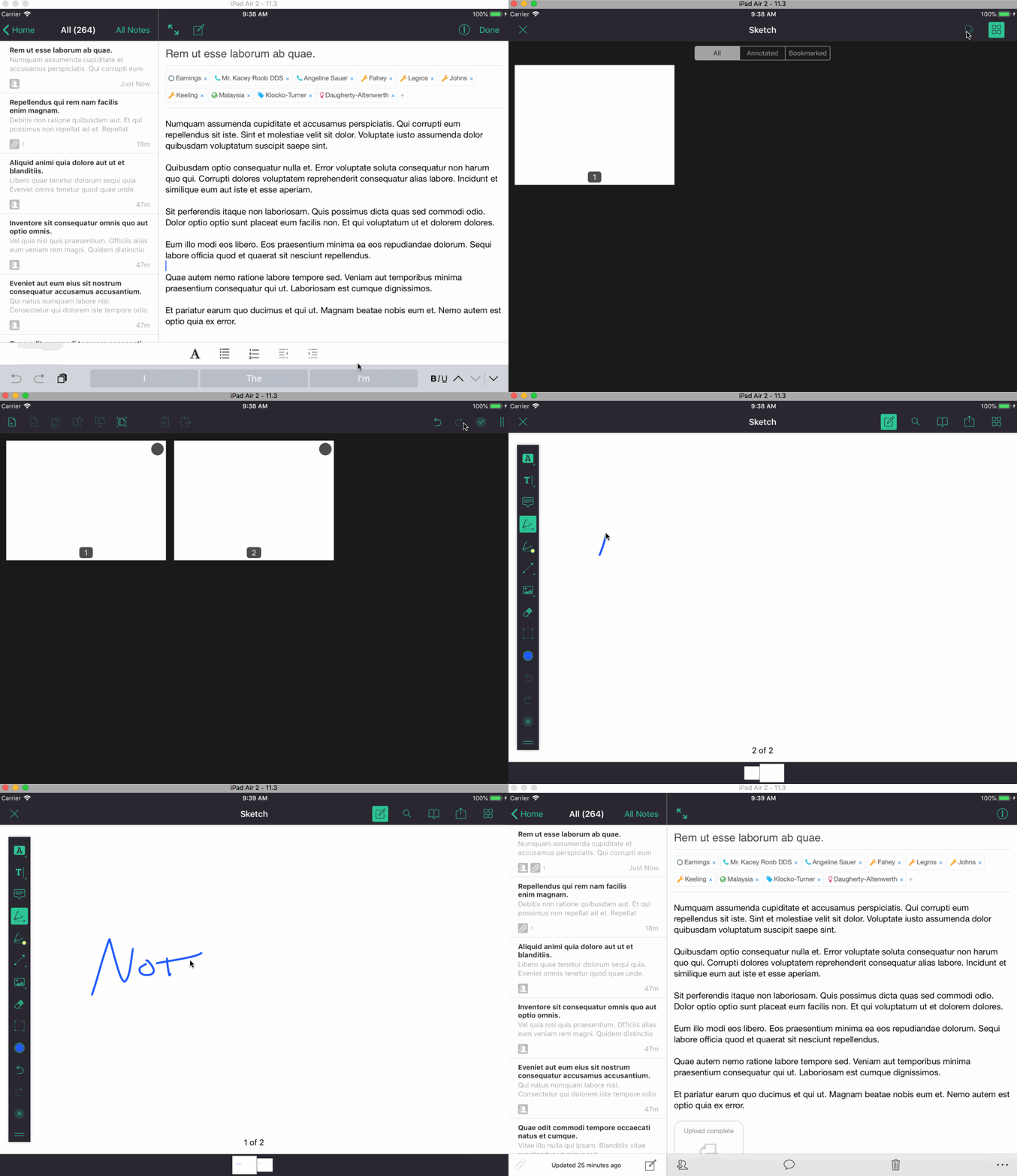
While editing a sketch:
- Tap the document editor button (4 squares icon)
- Tap the "Create page" button
- Tap the "Add page" button
- Choose "Page size" then tap "Add"
- Tap the tick icon then tap "Save" to apply the page changes
- Select the new page and add annotations and sketches
Updated about 1 year ago