
Using Microsoft Excel with the Data Connector
Learn how to work with Bipsync data to create reports and charts within Excel
Install ODBC driversBefore working with Excel, you'll need ODBC drivers for MySQL installed on your Windows machine. These can be obtained here: https://dev.mysql.com/downloads/connector/odbc/.
Unfortunately, Excel for Mac does not support importing data from ODBC connections at this time.
Create a DSN to the RAP database
With ODBC drivers installed, open the ODBC Data Source Administrator application. Make sure you use the correct architecture (32/64bit) for the version of Office you have installed.
- Within the app, under "User DSN" click on the Add... button. The 'Create New Data Source' dialog displays, enabling you to add a new DSN.
- Select a MySQL ODBC Driver from the list of drivers. If you're given the option, choose a Unicode driver. Click on the Finish button.
- The 'MySQL Connector/ODBC' dialog displays
- Enter these configuration details:
- A data source name for the connection
- A description (optional)
- The host address of the database server
- Your user name and password
- The database name on the selected server (ask your CSM for this if you're not sure)
- To configure advanced options, click on the Details>> button.
- Select these checkboxes (where provided):
- Return matched rows instead of affected rows ('Connection' or 'Cursors/Results' tab)
- Allow big result sets ('Connection' tab)
- Click on the Test Connection button to confirm that the details are correct.
Import data into an Excel workbook
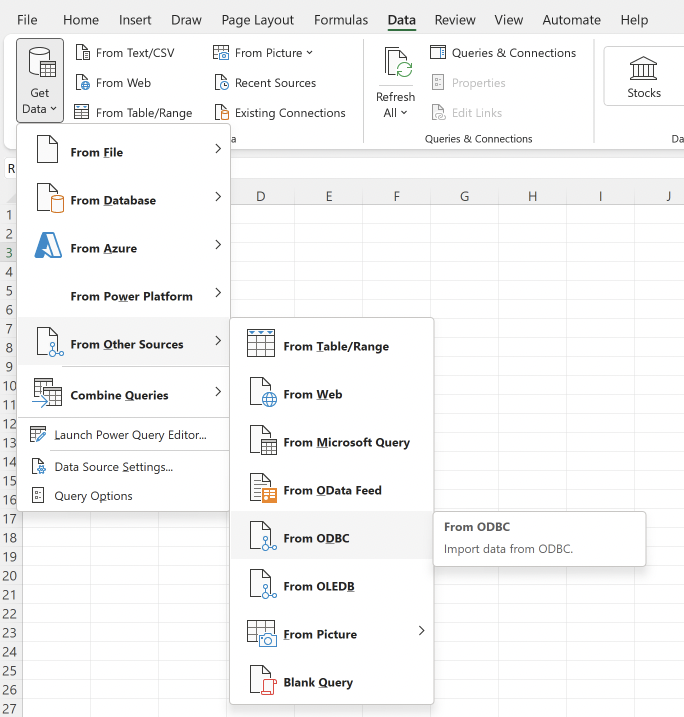
Within Excel, go to the Data tab and from the "Get Data" ribbon button, choose "From Other Sources" -> "From ODBC":
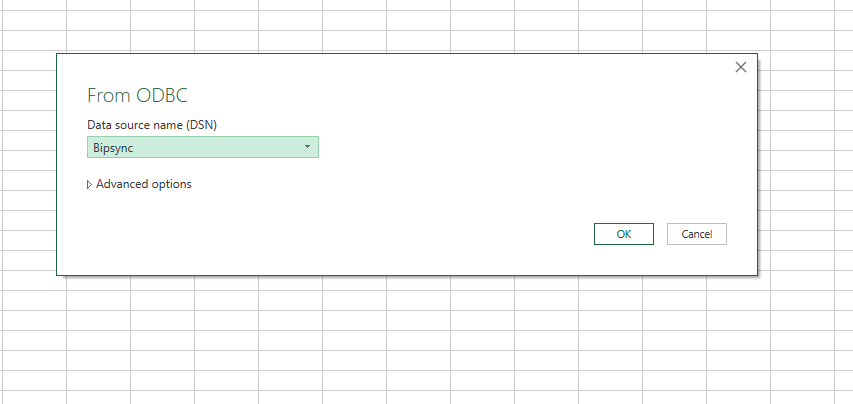
From the dialog that appears, choose the connection that you set up earlier:
And in the next window, choose the tables which contain the data that you're interested.
By way of example, let's set up a report which lists Funds which have been invested in, and incorporates related Fund Manager and Asset Class data.
We choose the tables we need from the Navigator window (be sure to check the "Select multiple items" option):
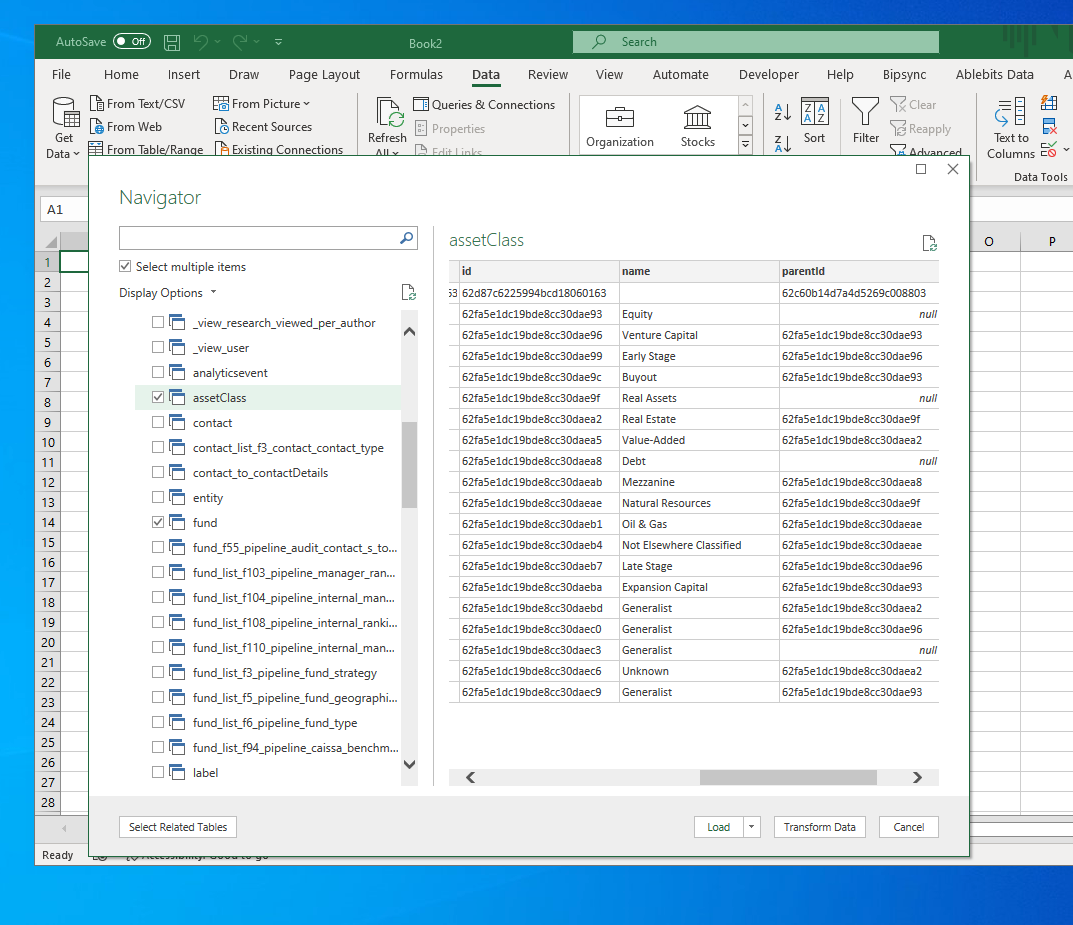
Click the "Load" button and then you'll have a set of queries available to you in Excel. We'll then combine these queries to arrive at our desired report.
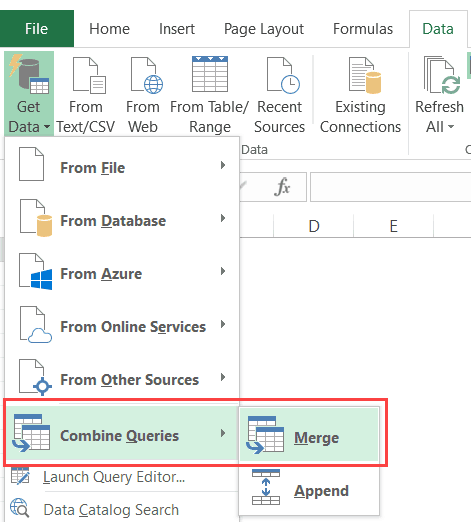
Still inside the Data tab, click the "Get Data" button and then choose the "Merge tables" option:
Continue to join the ID of the Manager and Asset Class tables with their counterpart columns on the Fund table:
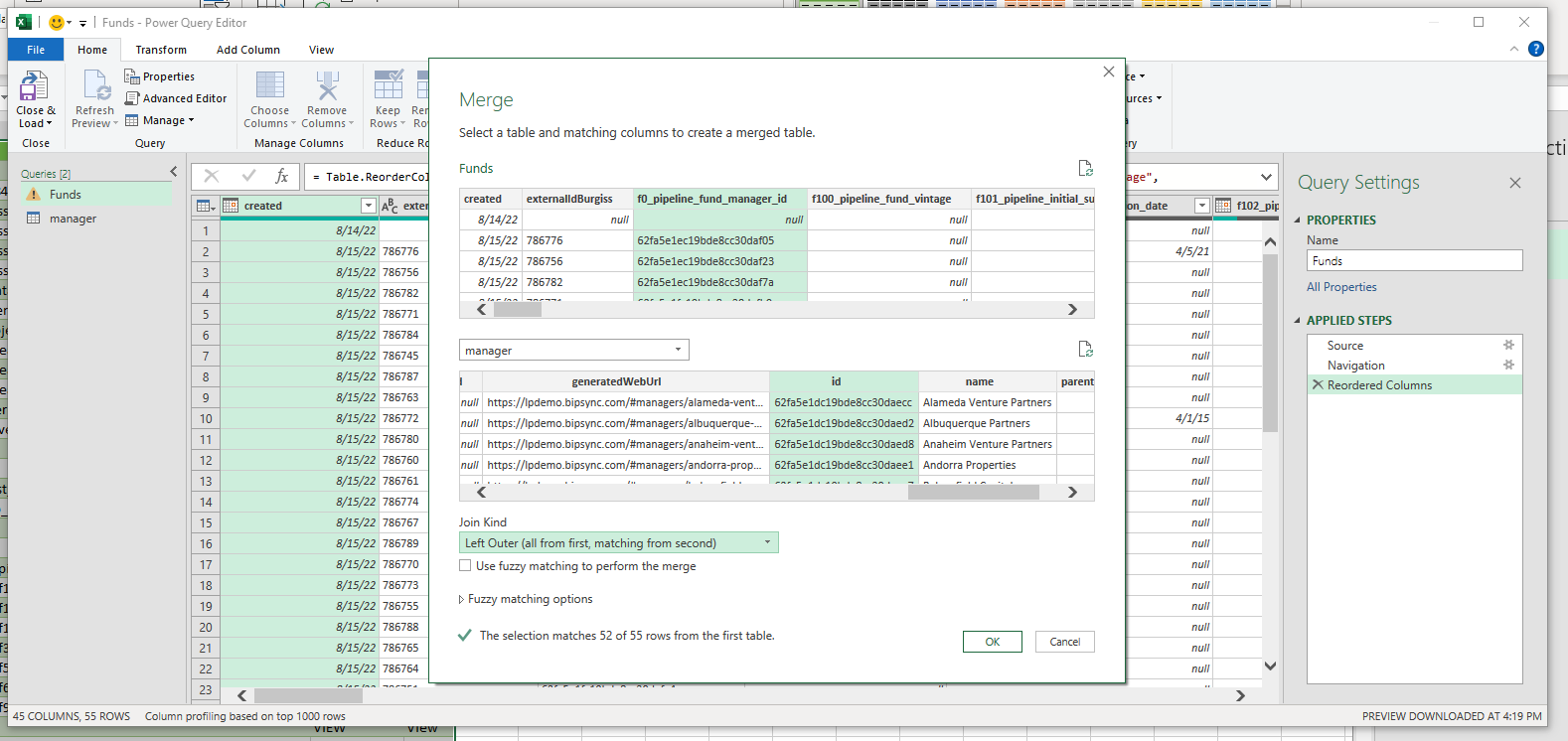
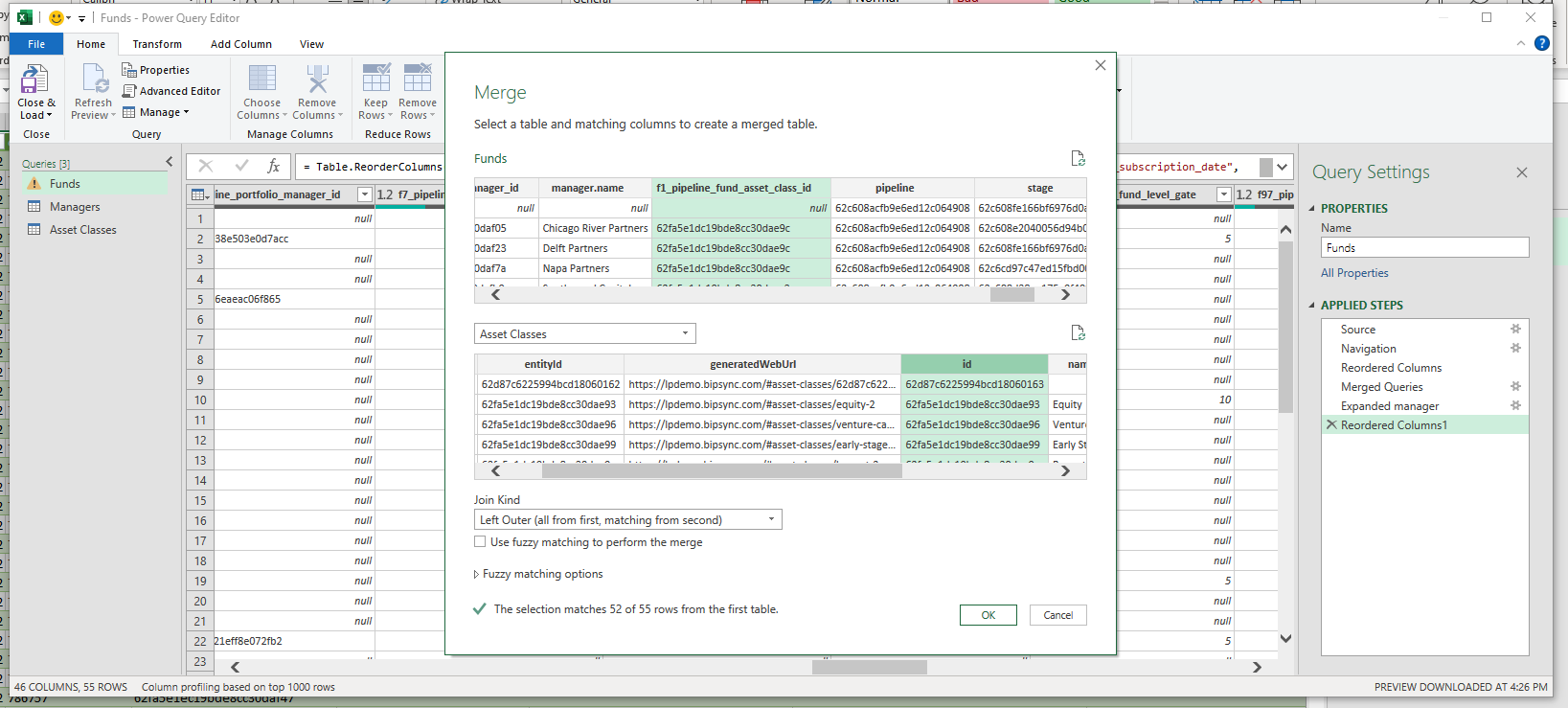
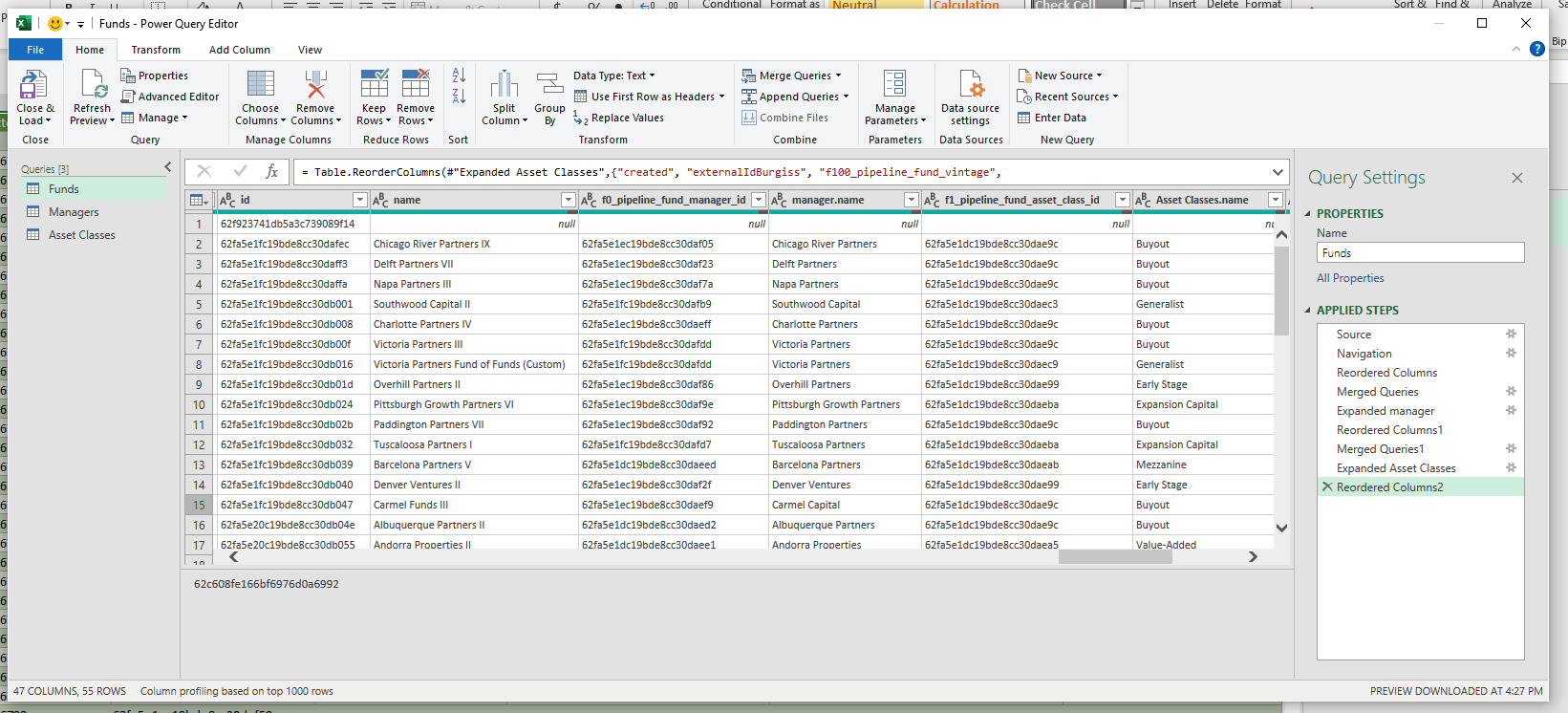
Click OK and you should see the Power Query editor. This will allow you to select the columns you want to see across all of the tables you chose earlier, including Manager name and Asset Class name, as you can see below:
Click "Close and Load" and this data will be loaded into your active worksheet:
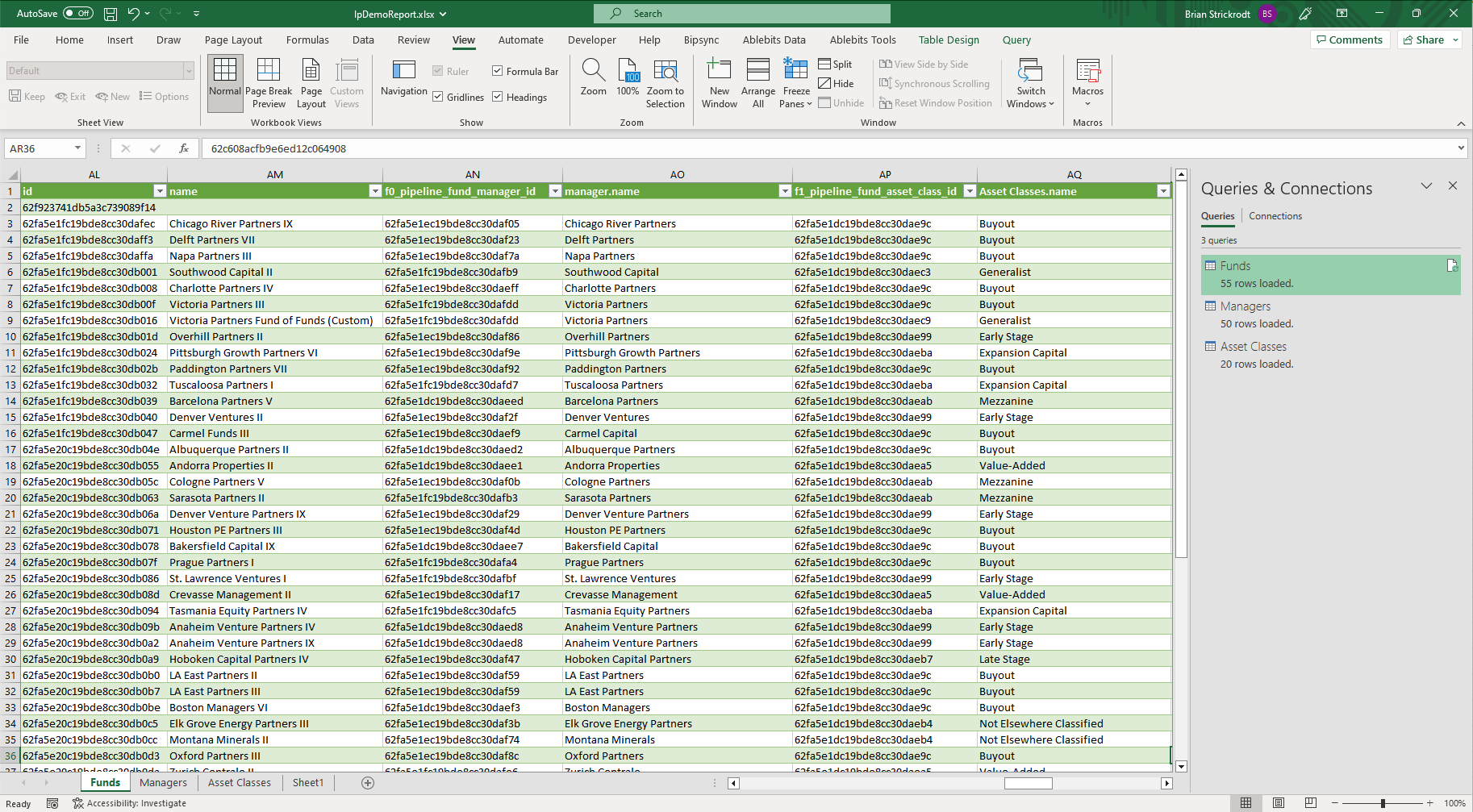
From here you can continue to work with the data as you wish — to create charts, for example, or take it to other programs to continue your analysis.
Updated about 1 year ago