
Canoe Document Filters
Filter Documents From A Date
This filter offers a way to import documents that historically exist in Canoe — Bipsync's default behaviour is to sync documents that are created after the date and time on which the integration was first enabled.
Therefore, In order for this filter to work, a date must be set before a sync happens for the first time. If the sync has been enabled without a date set and you wish to apply one retrospectively, contact us and we will be able to reset the import to pull documents from that date.

Filter Eligible Document Sources
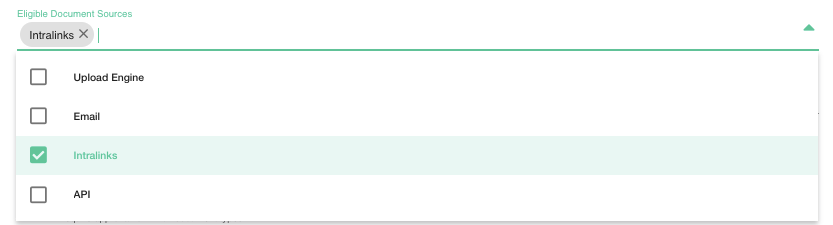
Documents can be imported into Canoe in numerous ways and it may be the case that you only care about some of these sources. The Eligible Document Sources filter allows you to specify from which of these sources documents should be considered.
For example, if you want to sync everything from Intralinks but nothing that has been emailed in (perhaps Bipsync's Mail Classifier is syncing your emails), then you'd configure this filter so that only documents from Intralinks are imported.
If this field is left blank, documents from all sources will be eligible.
Filter Eligible Document Types
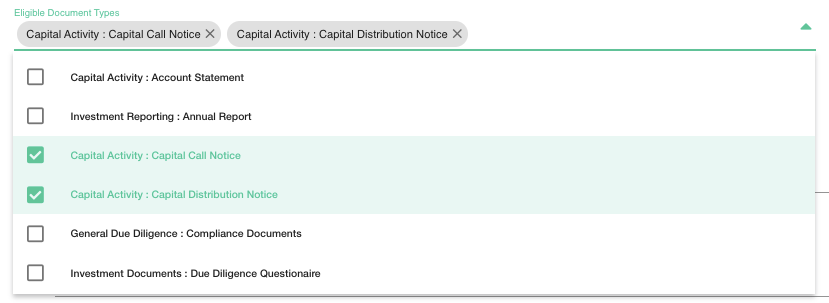
Documents in Canoe will have a specified ‘Document Type’. It may be the case that you only care about some of these document types and so you can use this filter documents by that property.
For example, if you only want Capital Call Notice and Capital Distribution Notice documents to be imported from Canoe then you should select those types from the list.
If you leave this field blank, all types of documents will be eligible.
Filter Documents Marked as ‘Complete’ by Canoe
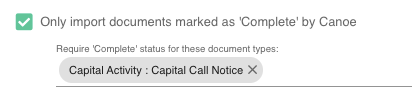
This filter requires documents to be marked as ‘Complete’ within Canoe. Canoe will apply various statuses to documents depending on what state they are in. ‘Complete’ means that a document has been successfully imported and the metadata has been fully applied/extracted.
Some of the other potential statuses include ‘Potential Discrepancy’, ‘Duplicate’, ‘Password Protected’, ‘Storage Only’. If a document is scanned and does not have the ‘Complete’ status it will be added to the retry list and will be imported successfully when it gains the ‘Complete’ status.
With this filter you can optionally specify if you want it to apply only to specific document types. If you leave this field blank, the filter will apply to all document types.
Only import documents that have a matching fund in Bipsync
When Canoe extracts metadata from a document, it determines any investments that relate to it. These investments can automatically tagged to the Bipsync research document which is created by the sync process.
If this association is essential to your workflow then you may wish to enable this filter. It will ensure that only documents with related investments in Bipsync are imported. This can be useful for identifying situations where new Investments have begun to be identified within Canoe, but they have not yet been created or correctly linked within Bipsync.
Any Canoe documents with a related investment for which no counterpart exists within Bipsync will be added to the retry list until such a time as a match is found, whereupon the document will be finally imported.
You can optionally specify if you want the filter to apply to specific document types. If you leave this field blank, the filter will apply to all document types.

Updated about 1 year ago