
Mail Classifier using Microsoft Graph API
Introduction
The Mail Classifier allows emails to be converted to a note based on different conditions. It also allows for these notes to be processed in different ways (such as applying tags and setting the author) based on actions.
In this guide we will discuss setting up a mailbox; adding rules with conditions that determine if emails should be converted to notes; and creating actions that will be applied to those created notes.
Prerequisites
Microsoft 365 exchange mailbox
The Mail Classifier currently supports reading from a mailbox using the Microsoft Graph API. To enable this a user must authorise the Bipsync App and grant the requisite permissions on the mailbox itself via OAuth. The use Graph API and OAuth requires that the mailbox is hosted using Microsoft 365 which provides an exchange mailbox.
Creating a Mail Classifier user
Before we can read mail and create notes we need a Mail Classifier user that notes will be assigned to by default. This user will be configured by a member of the Bipsync team
Creating a mailbox
The Mail Classifier is configured within the Setup App, so to start: navigate to the Mail Classifier screen.
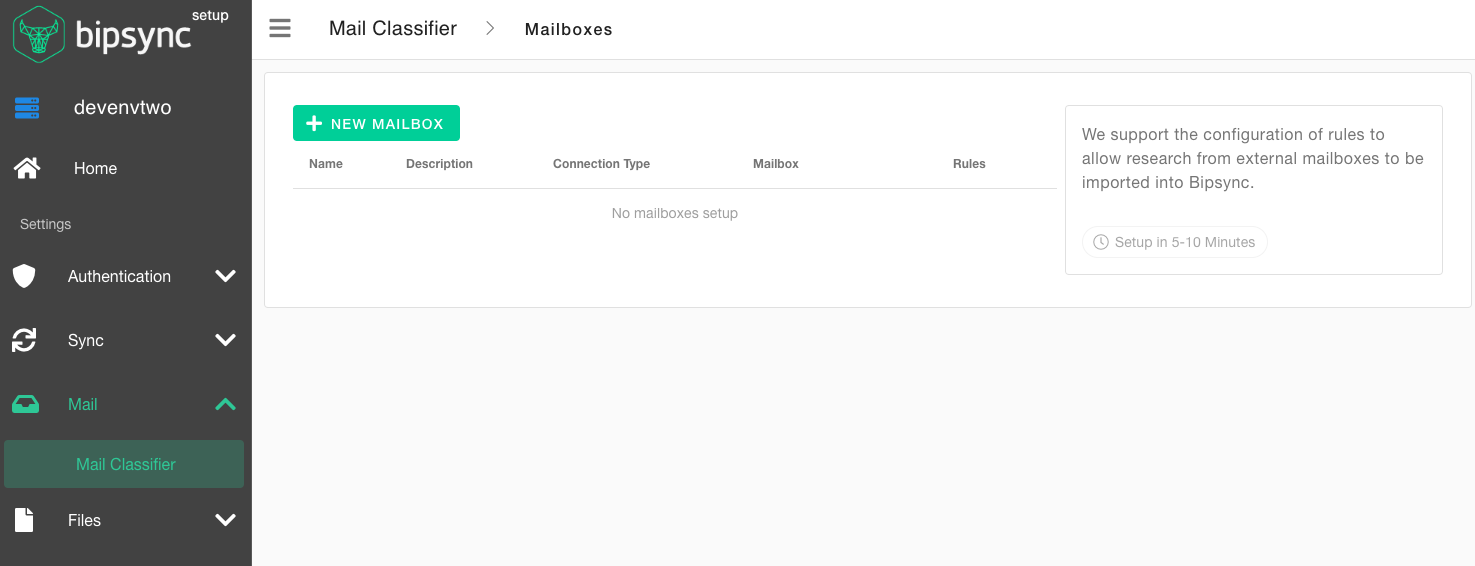
Mailbox listing
Here you will see an empty listing of mailboxes. click the new mailbox button to start creating the new mailbox.
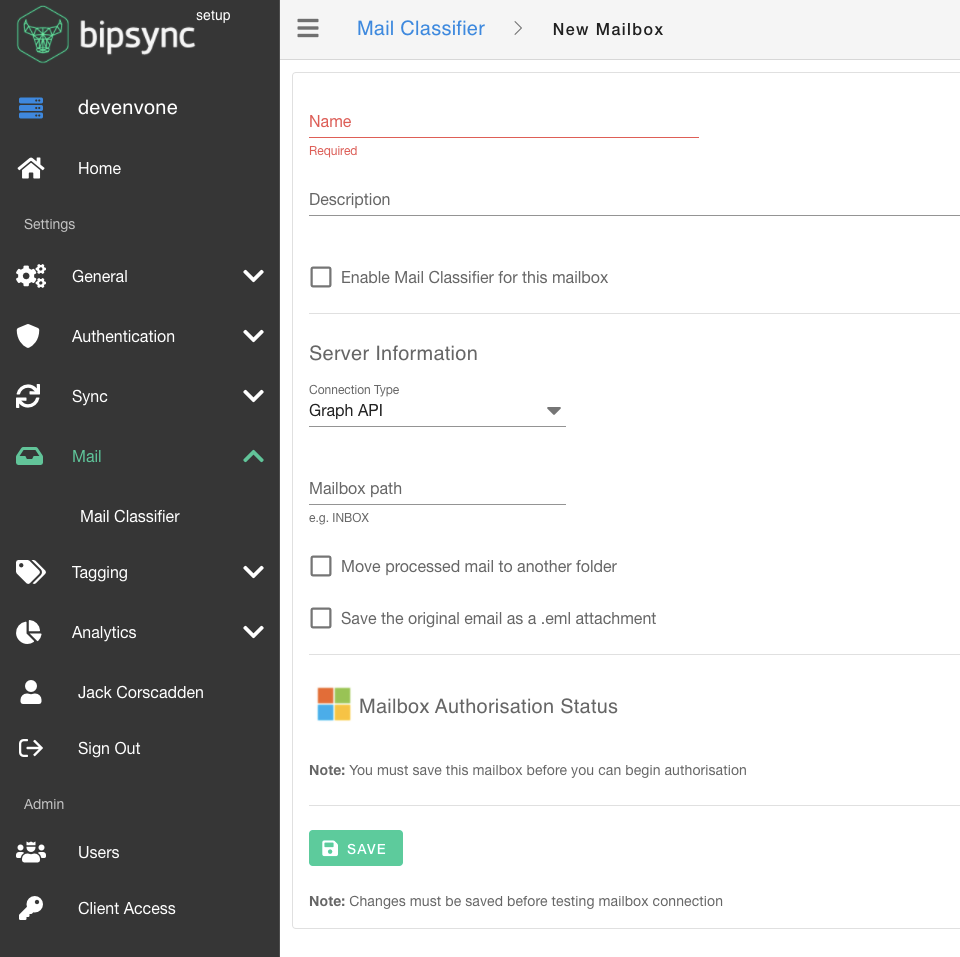
Mailbox form
Complete the form with the details for your mailbox. Any required inputs will be validated and highlight in red if not completed correctly.
Any mailboxes added to the Mail Classifier will be set to disabled by default to allow the creation and testing of rules before starting to read messages from the mailbox. Once you are ready to read mail and convert to research tick the Enable Mail Classifier for this mailbox checkbox.
Authorising the connection
Once you have saved the mailbox you will now be able to authorise the connection. The option will be visible in the Mailbox Authorisation Status section of the form.
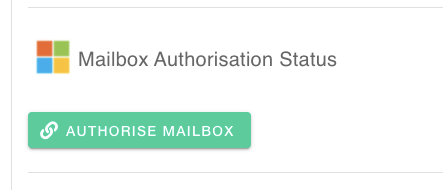
Clicking this button will take you to the Microsoft OAuth login page.
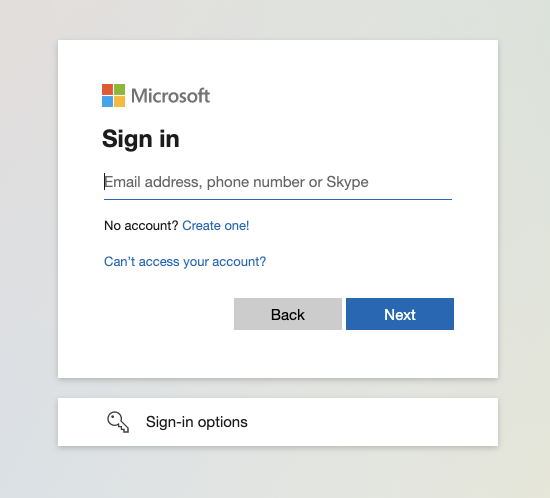
Sign in to the account whose mailbox you wish to link with Bipsync and agree to the requested permissions.
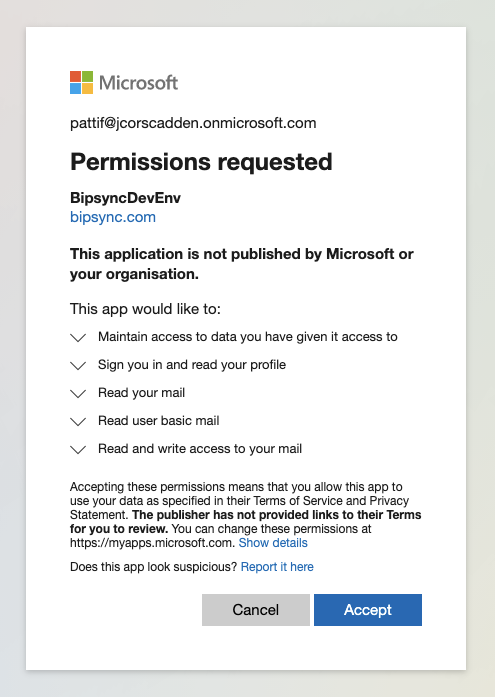
Once you have accepted the permissions you will be redirected back to the mailbox page in the Setup App. You will notice that the Mailbox Authorisation Status section is now different, indicating that a mailbox connection has been authorised.
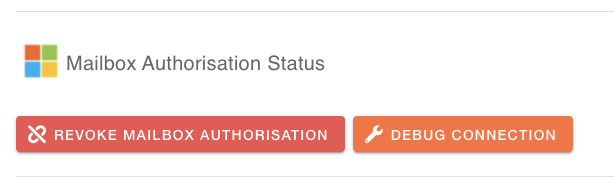
Once you have accepted the permissions you will be redirected back to the mailbox page in the Setup App. You will notice that the Mailbox Authorisation Status section is now different, indicating that a mailbox connection has been authorised.
Testing the connection
The option to debug the connection will also now be present. This will enable you to ensure that everything has been set up as expected including the Mailbox path and the path of the folder you wish to move processed mail into (if you have selected that option).
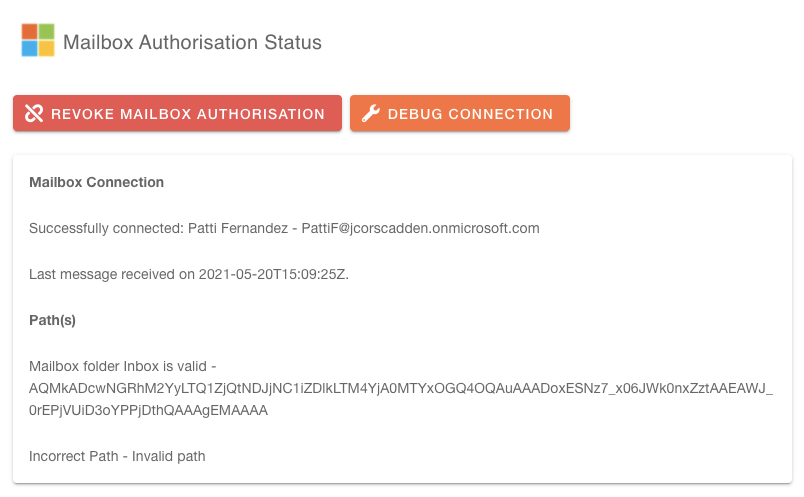
Test mailbox button
Once everything in the debug section is appearing as expected the mailbox connection is ready to go.
You can also preview the mailbox to make sure that the mail you are expecting is being retrieved. Clicking on the Preview tab will preview the currently selected mailbox, showing the ten latest items.
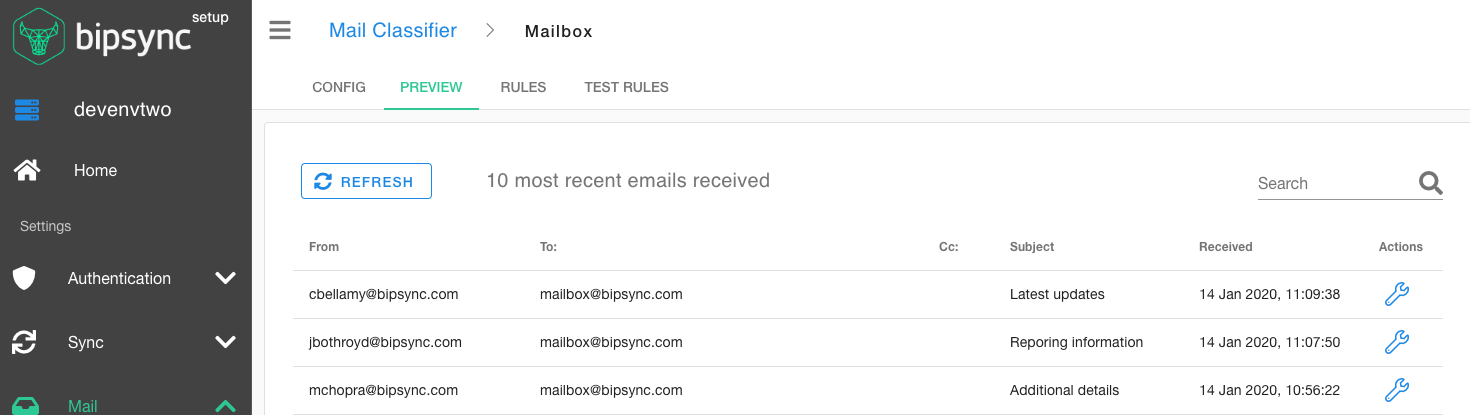
Email preview view
Creating rules
Mailbox rules can either be created from the rules tab, or from the quick actions on the Mailbox preview tab.
From the preview
To create rules from the preview tab click the Actions icon. This will give you three quick starting points for creating a rule.
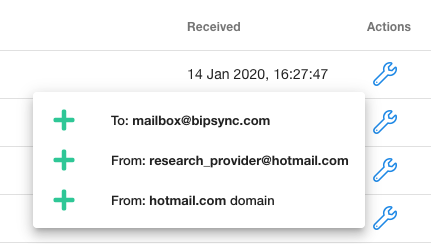
Create rule shortcut
Selecting one of the provided prompts will create a new rule on that mailbox with the selected prompt already inserted as a condition. You will then be brought to the rule edit view.
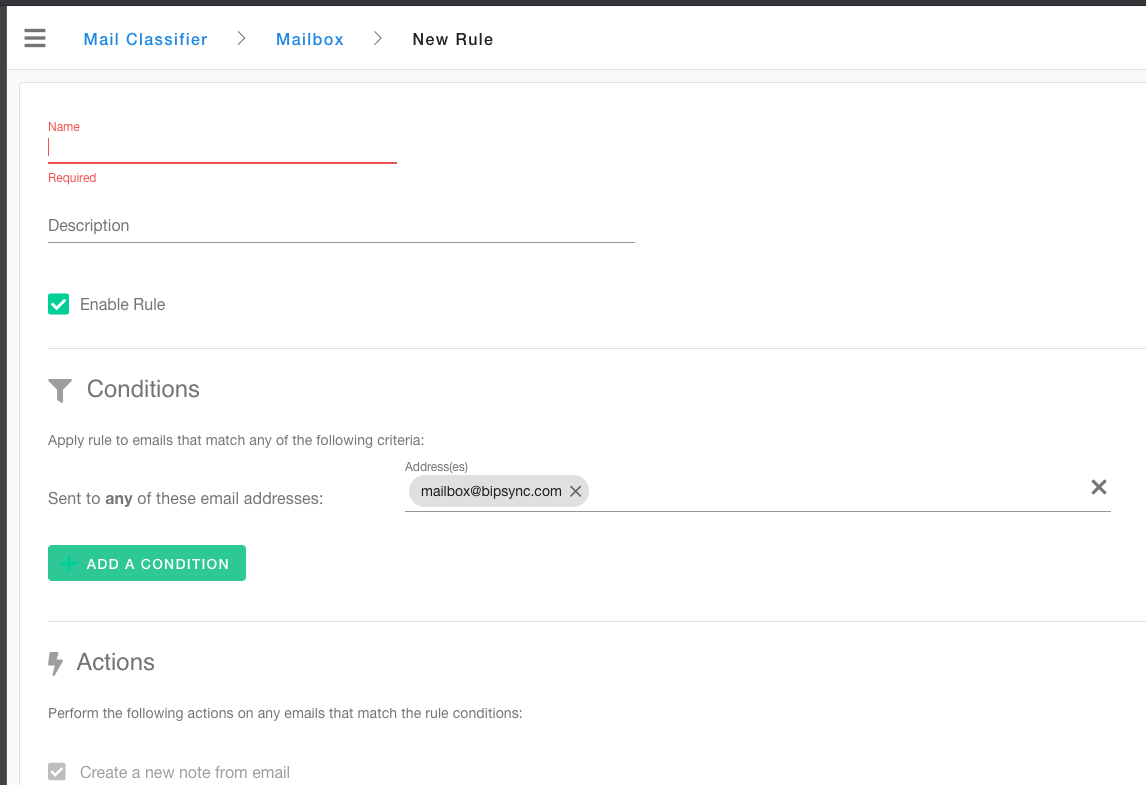
New rule view
The configuring rules section below explains the options available when finalising the creation of this new rule.
From rules view
Selecting the rules tab will show the rule listing page. Here you can view the currently created rules and add to, edit, reorder or delete these rules.
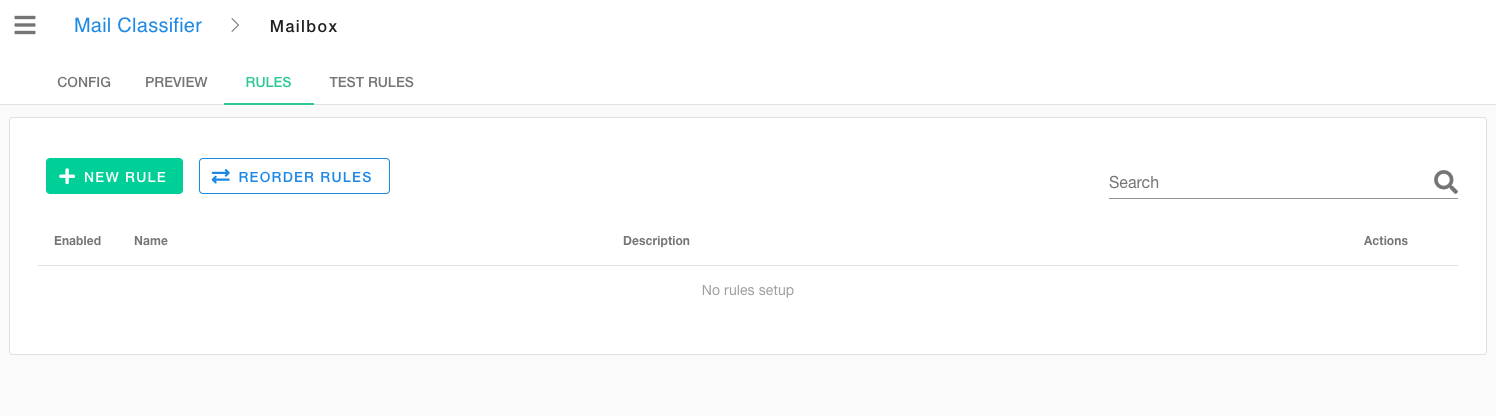
Rules listing with New Rule button
Click on the new rule button to bring you to the form for configuring the rule where conditions and actions can be set.
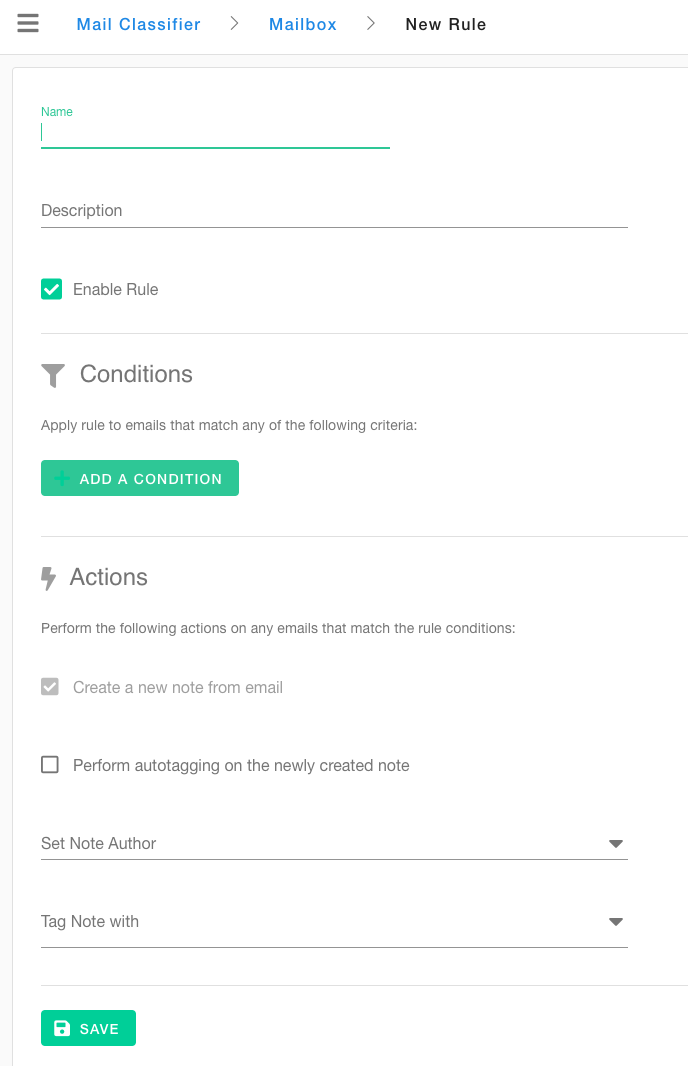
Rule form
The configuring rules section below explains the options available when creating a new rule.
Configuring Rules
Set a name and a description(optional) from the Create Rule form. The rule will be set to enabled by default but this checkbox can be unchecked.
Conditions
To add a condition select the ‘add a condition’ button. This will show a drop down with all the available options for conditions that can match message properties.
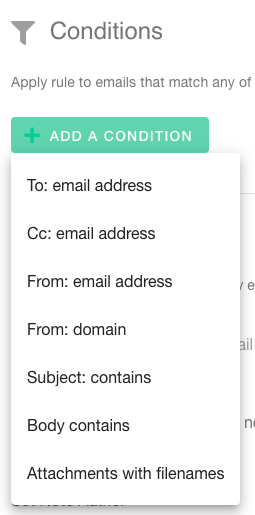
Condition dropdown
From the dropdown we can then select different conditions to run for the rule.
Examples
To: email address
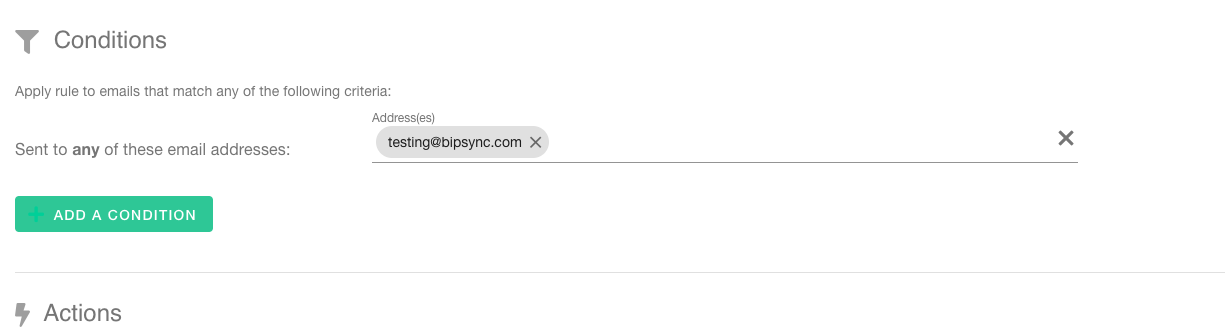
To email condition input
If the mailbox is shared then mail could be sent in to multiple email addresses; this condition will allow different actions to be applied depending on the to email property.

To email condition input with different input
If you use a mail provider that supports the aliasing of email addresses with plus symbols in the address such as [email protected] you can run different actions on this.
Subject contains
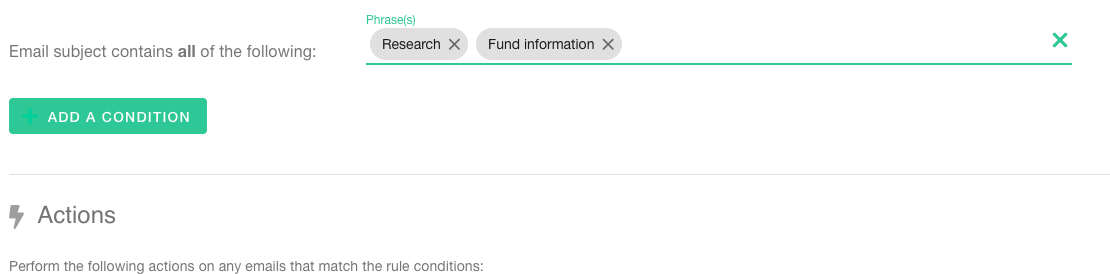
Subject contains with multiple phrases
This condition will match on all phrases that have been specified. All phrases must appear and the match is case insensitive.
Actions
After adding conditions we can add rule actions. By default there is a rule action to convert the message to a note as this required for any subsequent actions to occur.
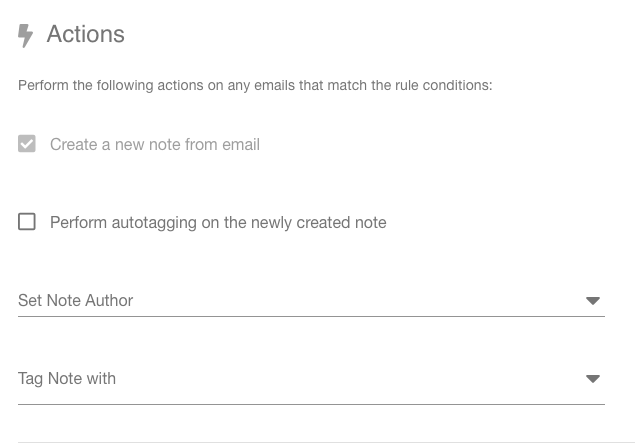
Actions input form
From here can set tags or an author for the created notes.
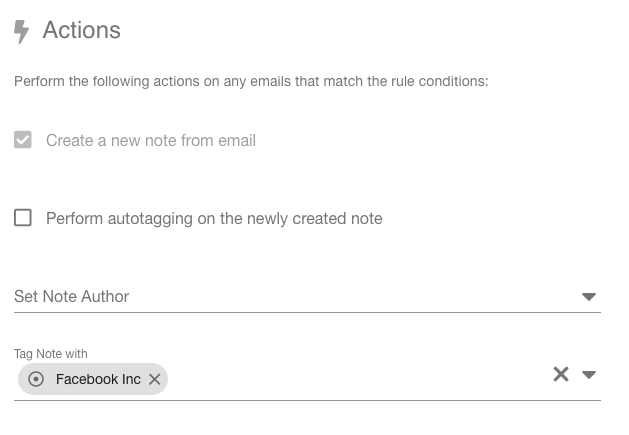
Apply Tag Action
In this example the Facebook Inc tag has been selected. The input box autocomplete allows you to search for any tags in the system. By default it will search based on the tags that the external user can view; if you set an author the search will be based on the tags the author can see
You can now save the rule using by using the save button. It will then appear in the rules view.
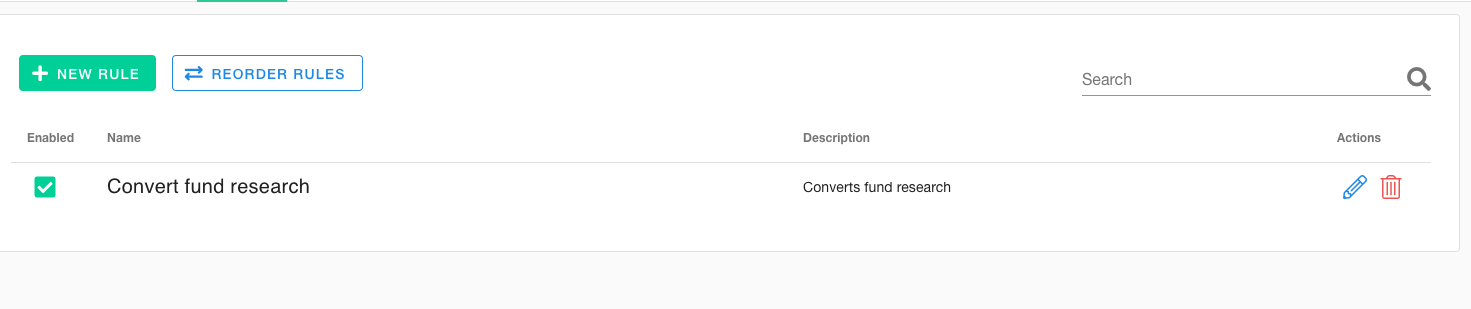
Newly created rule in rules listing
Editing Rules
From the rule list view you can select the edit icon in the actions section of a rule listing.
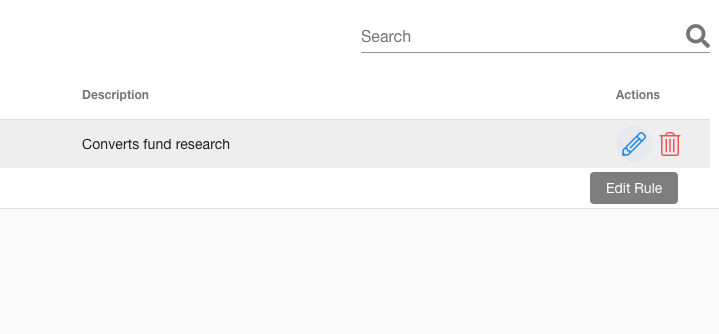
Edit rule icon tooltip
This will bring you to the same form as the create rule form with the values filled in, these can be changed and the save button used to update the rule.
Deleting Rules
To delete a rule select the delete icon in the actions section of the rule listing.
Reordering Rules
Note: the order of rules is important when rule actions are applied; the last rule will win in cases where a single entry attribute, such as author, is set on multiple rules.
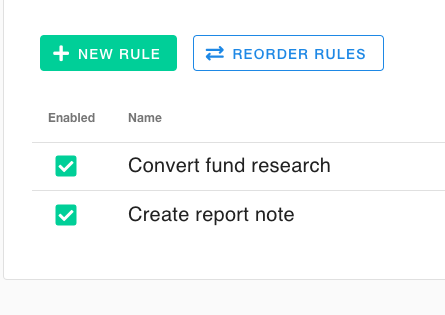
Reorder button
From the list view select the reorder rules button to enter reorder mode.
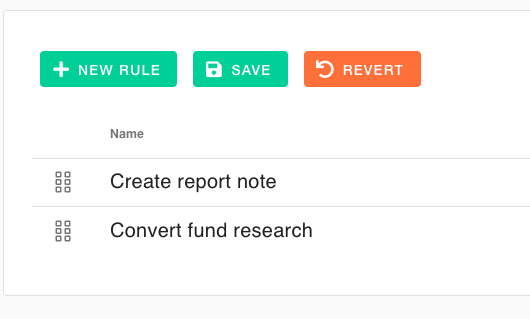
Rules in rorder mode
Once this has been selected you can reorder the rules by dragging and dropping them to the desired order. You can then save the new order of the rules.
Test Rule
Rules can be tested using the Test Rules tab. This allows a user to run the rules against any emails that have been sent to the mailbox on the current day. During the process you can see a preview of which messages would match different rules.
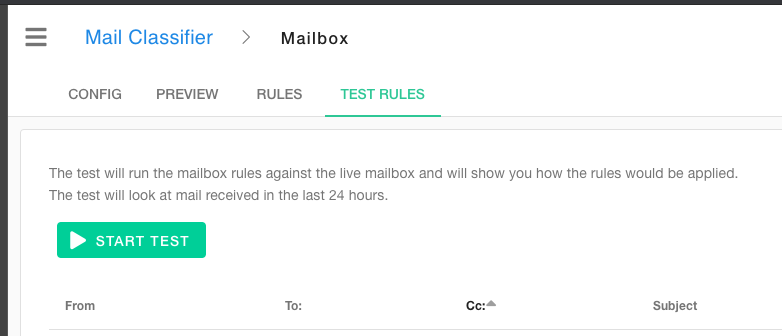
Test rules view
For the Test Rules tab select Start Test, the mail classifier will start to retrieve mail from midnight on the current day and rules will be matched against them.
Note: mail that has already been processed can appear in the test rule output. If the messages did not match any rules when they were first processed they would need to be resent to the mailbox for the newly added rules to match.
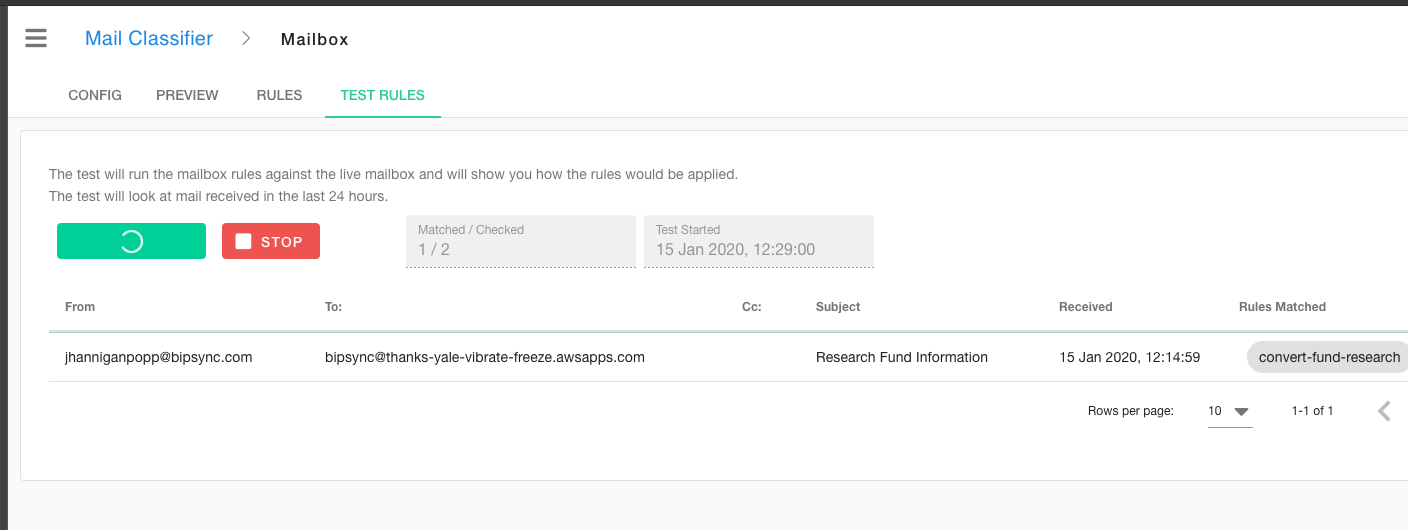
Message listing matched to rules
The test will run for 30 seconds or until no more mail can be found. Retrieving and running the rules can take some time and will only match against a subset of messages within the mailbox.
Viewing created research
After the mailbox and rules are set and enabled the mail classifier will run in the background, converting matching messages to notes and applying actions. These will then appear within these notes will then appear within the RMS depending on the assigned user’s sharing settings.
The note will contain content type information within the web application showing which mailbox the note has come from and what rule IDs were matched.
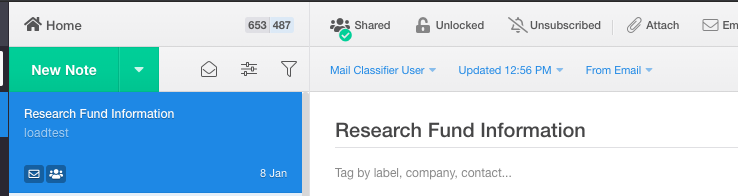
Mail converted to research
To view the mailbox and rule information click on the From Email button.
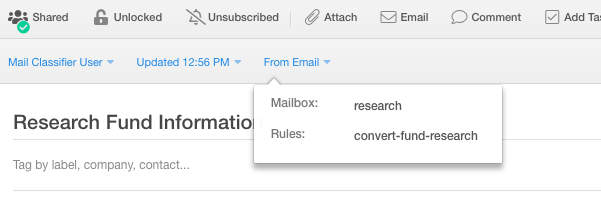
Mailclassifier rule information
Updated about 1 year ago