
Imported Document Mappings
Mappings
By using mappings, you can perform certain actions on imported documents when specific conditions are met.
Mappings List
This is the mapping list screen. It displays all existing mappings. From here you can create, edit, duplicate and delete mappings as you please.

When mappings are applied to documents they are done so sequentially from top to bottom. If an incoming document matches multiple different mappings they will all be applied.
Crucially, mappings can be reordered by dragging and dropping them. The order determines precedence: if two different mappings affect the same property, the latter field "wins". For example: if you set the author in two mappings and the conditions of both of these mappings are met by an incoming Canoe document, the author specified in the later mapping is the one that will be set on the created Bipsync document.
Mapping Edit Page
The mapping page is where you can create and edit mappings. You are able to name them, add a description and toggle whether they are enabled or disabled.
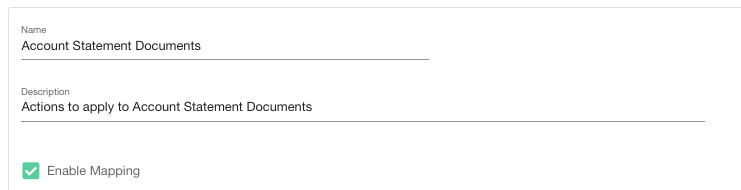
On this page you are also able to set up conditions and actions.
Mapping Conditions
For a mapping to be executed the imported document must meet all of the conditions specified.
These conditions include:
- Document type is any of these:
- Document tags is any of these:
Mapping Actions
When a document meets all the conditions specified in a mapping, the actions will be executed.
These actions include:
- Set Note Author
- Set Note Sharing
- Add a field mapping (add tags, labels, custom field values)
Updated about 1 year ago