
Slack Integration
Learn how to share content to your Slack workspaces
Bipsync's Slack app makes it possible to post snippets of research to one or more public Slack channels.
Installation
To install the app, open the Settings menu and click on the "Integrations" tab.
Click the button at the bottom of the Slack section to connect Bipsync to your Slack account.
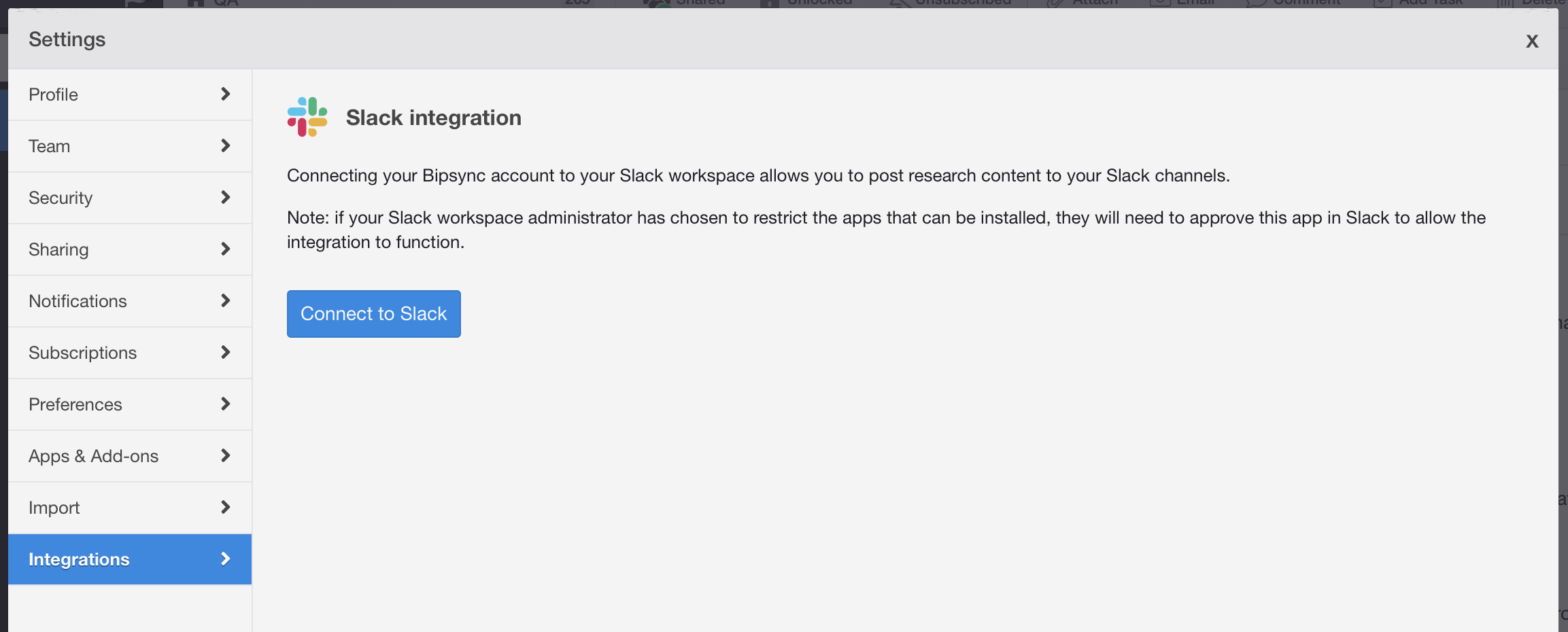
Note: each user who wishes to use the Slack app must first install the app in this way.
The next screen outlines the permissions our app needs to function.
If you have access to multiple workspaces, you can choose the one that Bipsync will connect to from the control in the top-right of the page.
Click the "Allow" button to complete the installation process and return to Bipsync.
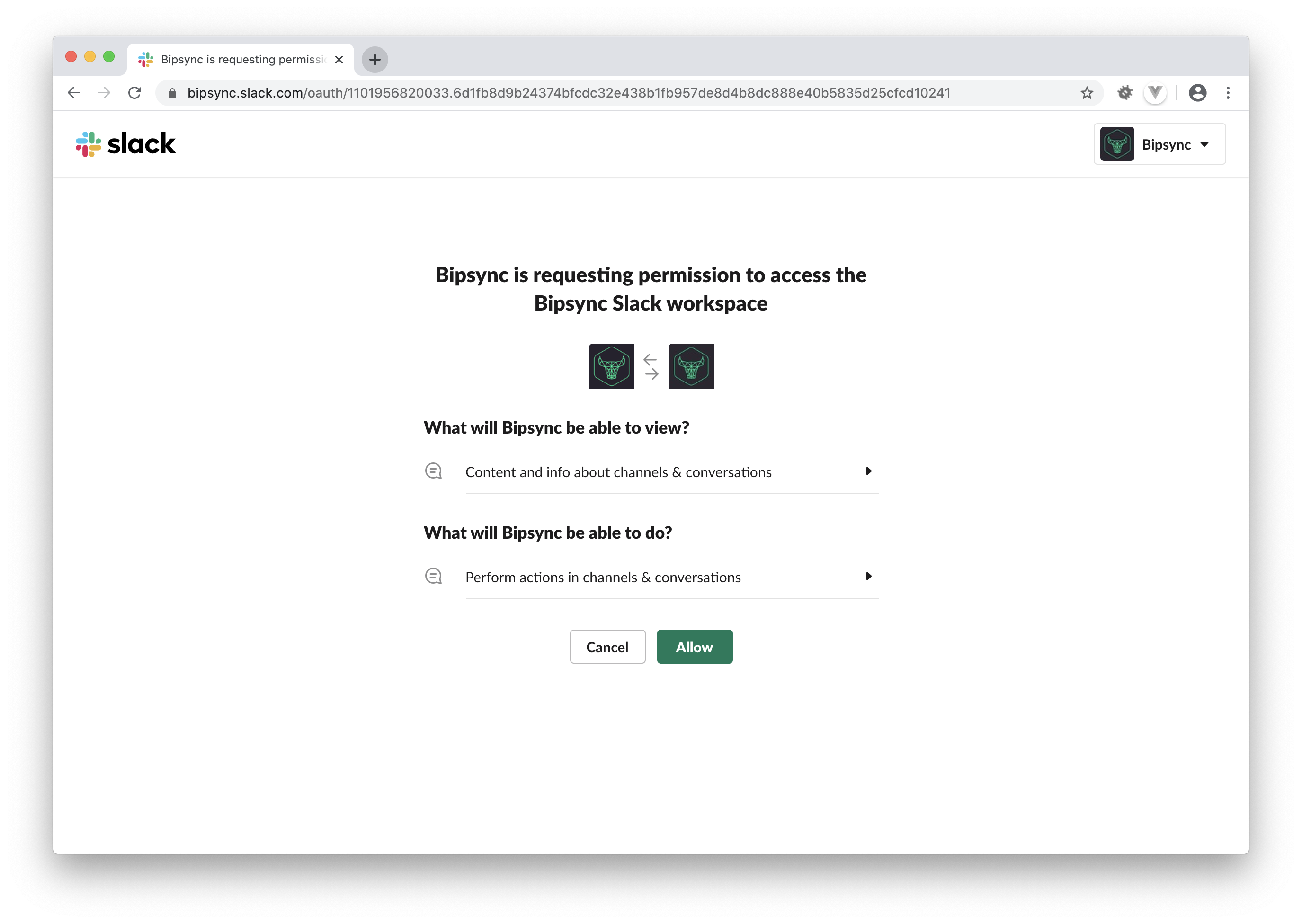
Click the "Allow" button to complete installation.
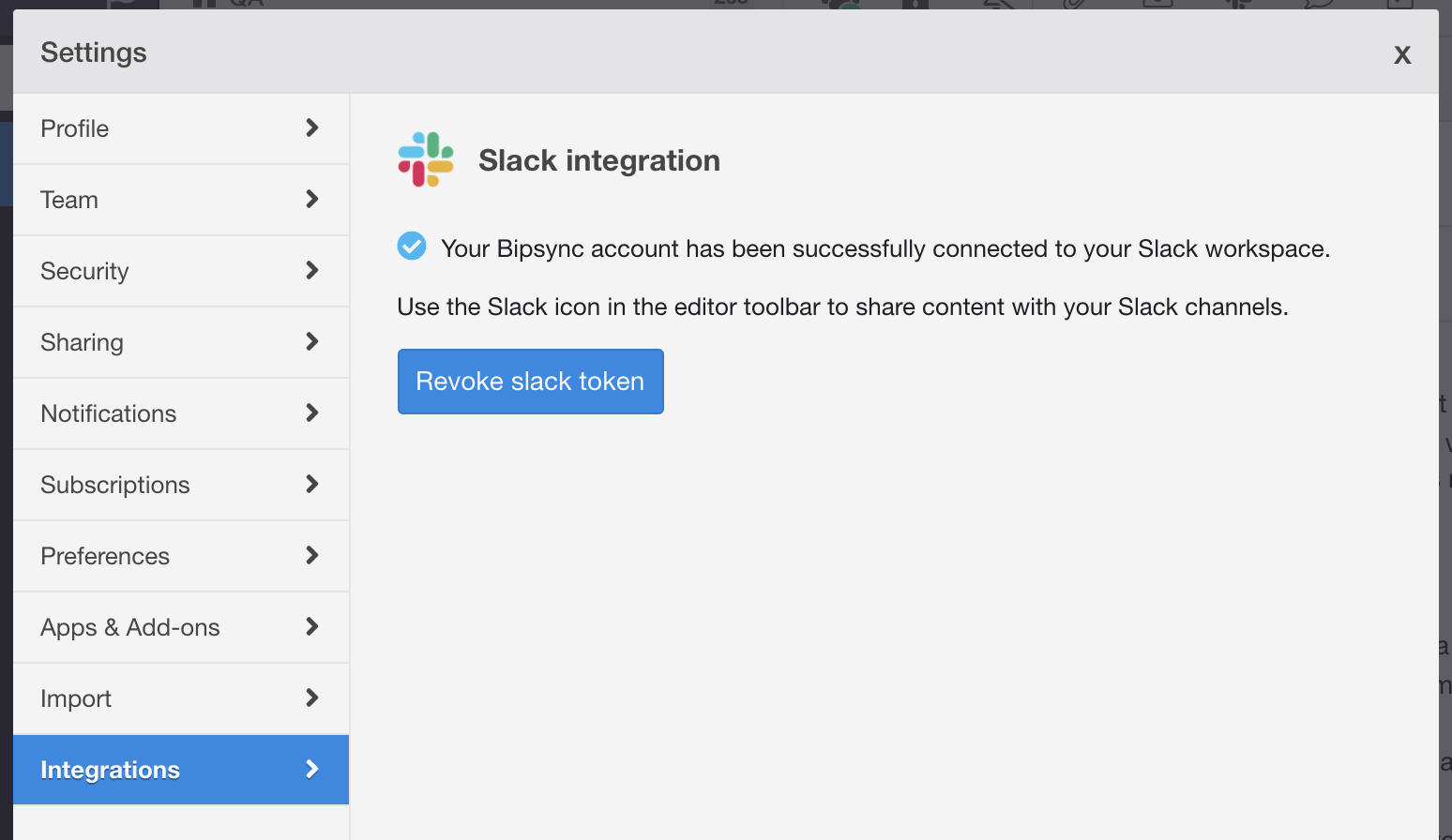
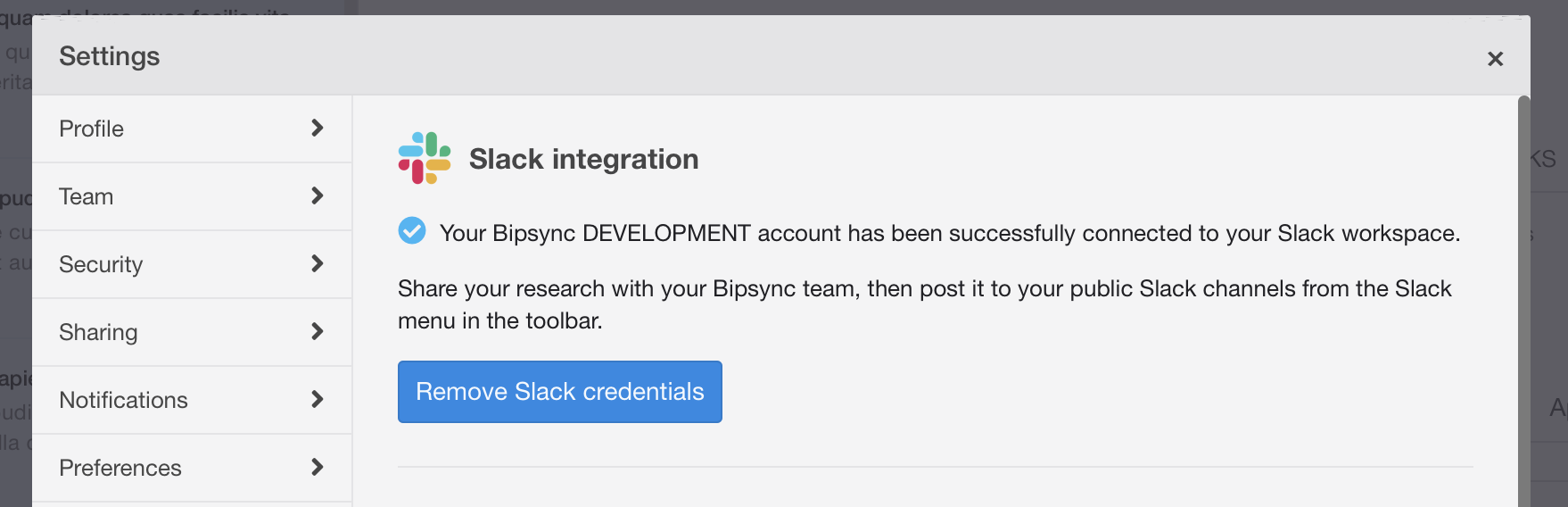
Once you've returned to Bipsync, you should see a confirmation dialog to indicate that the app was successfully installed:
Private channels
The Slack app can be used to share content in private channels by completing some additional steps:
- Open the private channel in Slack
- Go to the channel settings
- Click on the Integrations tab
- Under the Apps section, click Add apps
- Search for the Bipsync app, then click Install
If you connected your Slack account to Bipsync prior to August 2023, you will need to remove your Slack credentials and connect again. This will ensure we have the correct permissions to access private channels.
Sending content to Slack
Before sending notes and files to Slack, first ensure that they have been shared with at least one user or user group within Bipsync – otherwise your teammates won't be able to access the content that you post.
Once the content has been shared within Bipsync, a "Send to Slack" button will appear in the toolbar:

The "Send to Slack" button
Click the button to bring up a dialog within which you can choose the channels which you'd like to post the content to. When you're done, click the "Share" button to post the note/file to Slack.
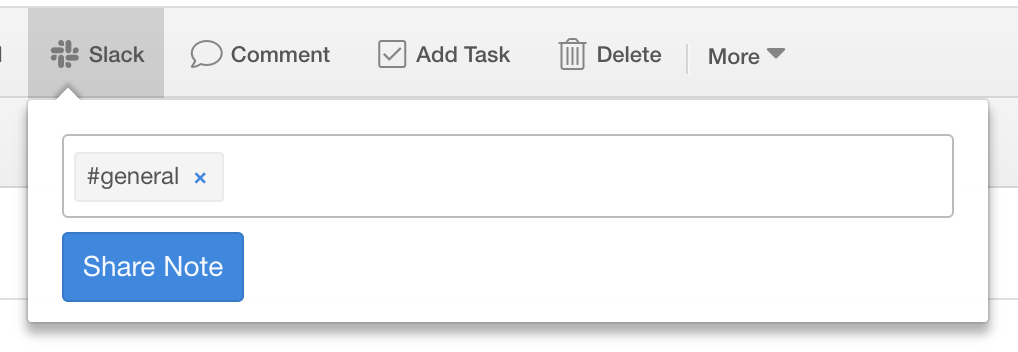
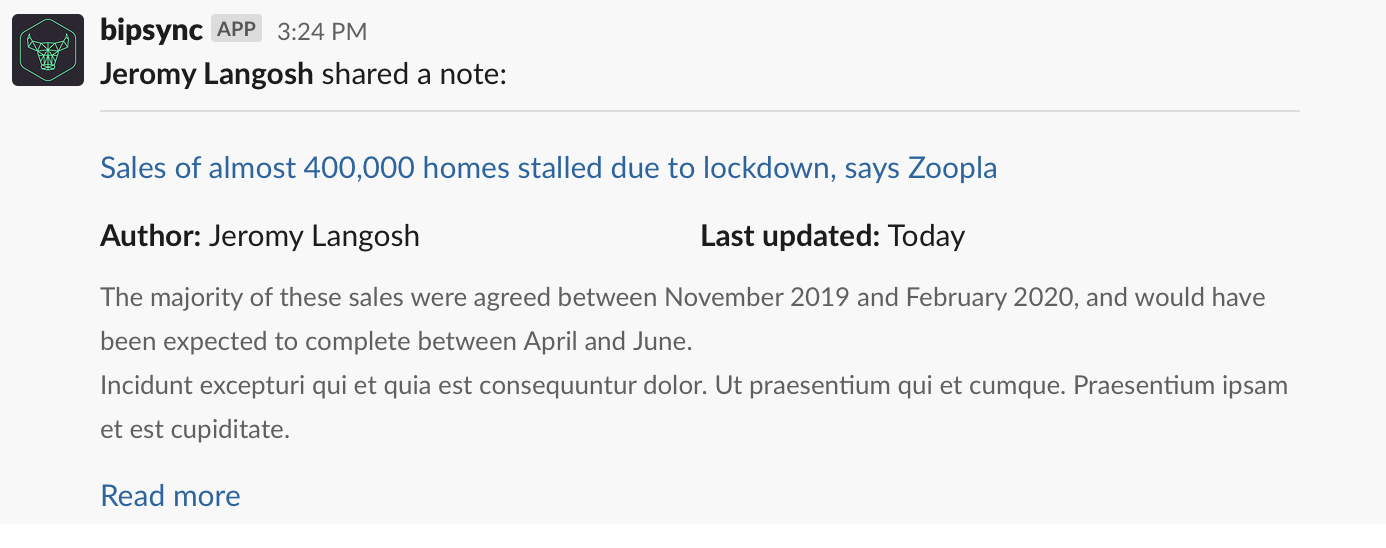
Check the channels you selected, and you should see a snippet of your selected content in each.
Removing Slack Credentials
A user can remove their Slack credentials from Bipsync from the "Integrations" tab in Settings. Once a connection to Slack has been established, clicking the "Remove Slack credentials" button will remove the user's access token from the Bipsync database.
To completely remove Bipsync's access to your organisation's Slack workspace, simply uninstall the Bipsync app from Slack's "Installed Apps" settings page.
Updated about 1 year ago