
How to Resolve the `Need admin approval` Error
A document outlining the steps to resolve the Need admin approval error for an Intune managed Bipsync Notes iOS for EMM application.
The “Need admin approval” error may occur when a user attempts to get authenticated in an Intune Managed Bipsync Notes for EMM iOS application with one’s credentials in the OAuth window:
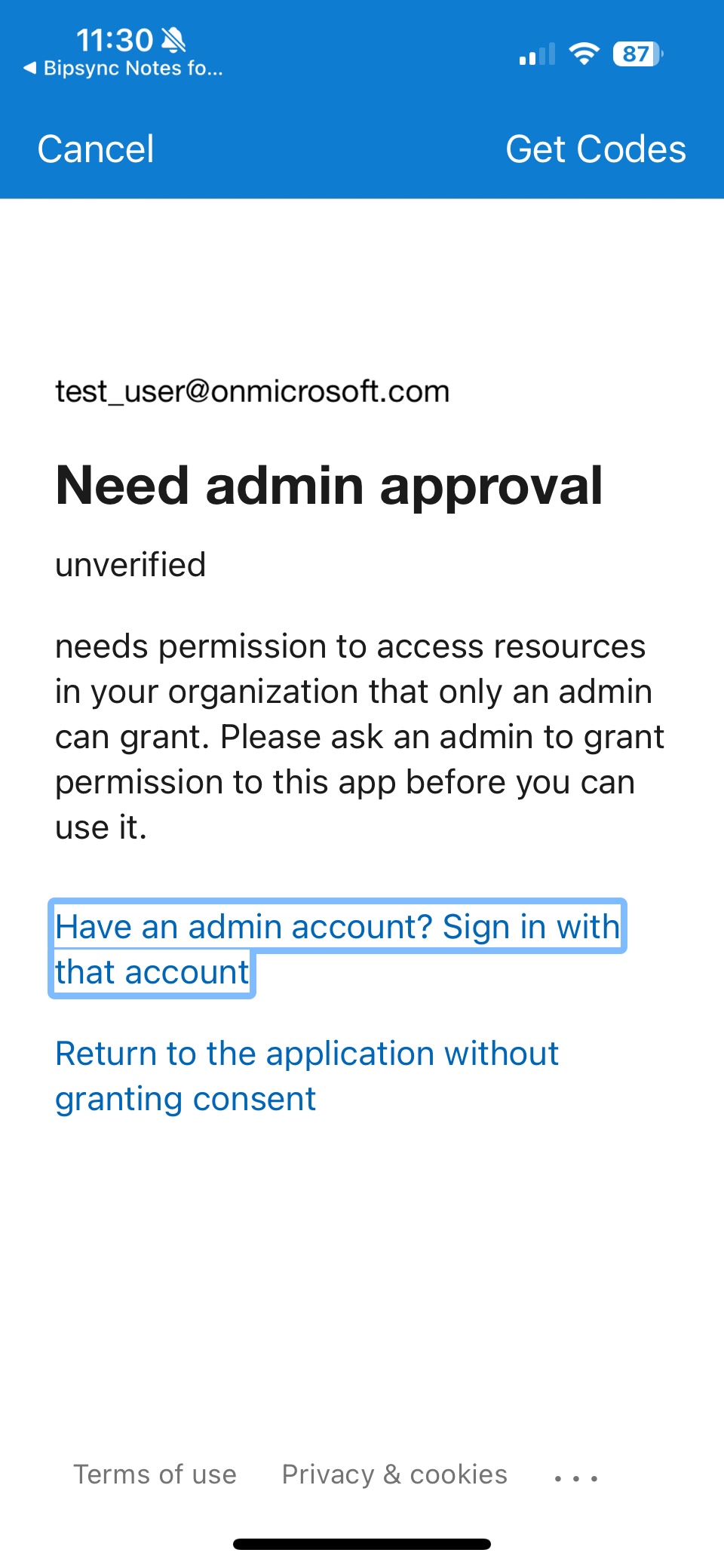
What causes the error
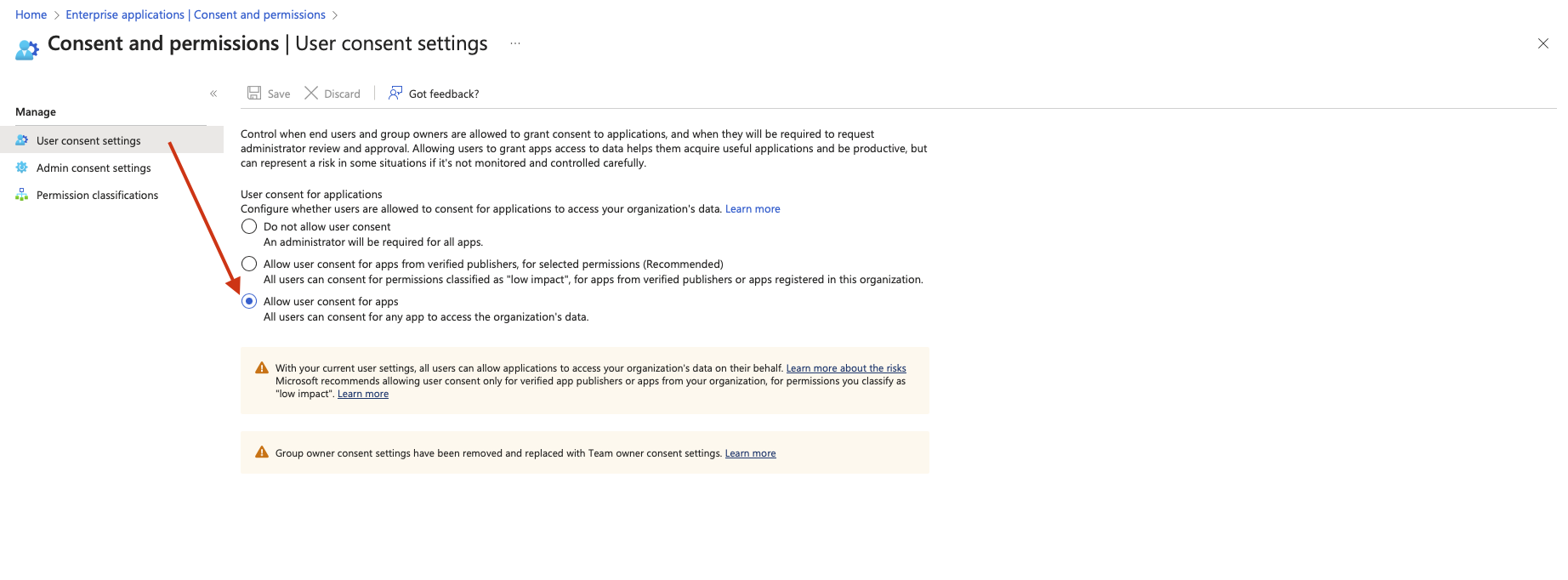
The error is caused by User permission settings in corporate Microsoft Entra admin center (previously MS Azure Active Directory) specifically, the option “Do not allow user consent An administrator will be required for all apps.” is toggled.
These settings can be found in All services > Enterprise applications > Consent and permissions > User settings in Microsoft Entra admin center.
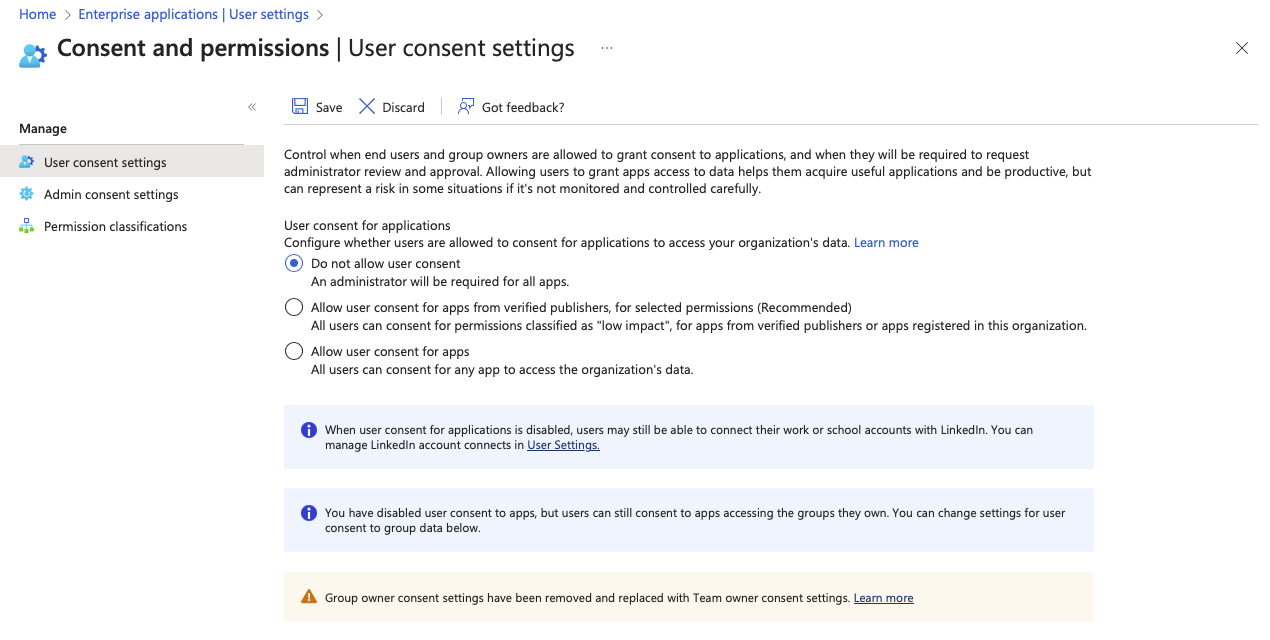
Recommended solution
For an admin, the easiest way to address this issue is to grant tenant-wide admin consent to Bipsync Notes for EMM iOS application using the URL for granting tenant-wide admin consent.
Please refer to the intructions in Step 1 here: https://docs.bipsync.com/docs/setup-with-intune.
After completing the instructions in Step 1, the Bipsync Notes for EMM iOS application will be added to your tenant’s Enterprise applications list as below.
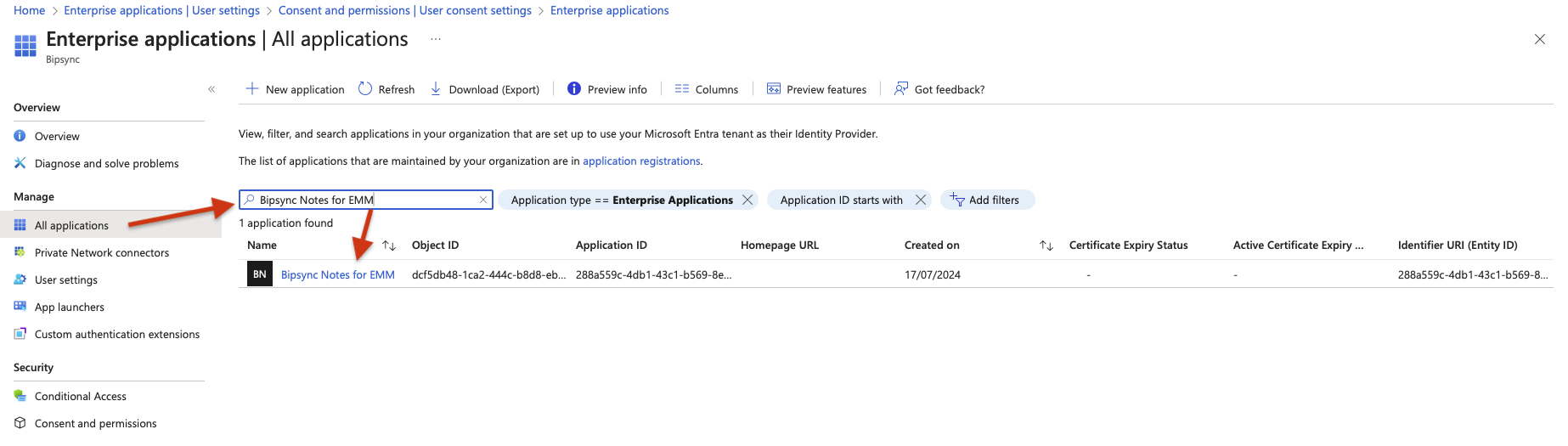
By clicking on the application name, you can review a list of consent permissions on the Admin Consent tab.
Alternative solutions
Below are some alternative methods for resolving this issue:
Solution 1
Use this solution for cases when Bipsync Notes for EMM is already on the list of Enterprise applications in the Microsoft Entra admin center.
Log in to Microsoft Entra admin center (previously MS Azure AD) with Admin credentials
- Go to Enterprise Applications
- Select All Applications
- Type “Bipsync Notes for EMM” in the search field to find the App and select it
- Open the Permissions tab and click Grant Admin consent for Bipsync
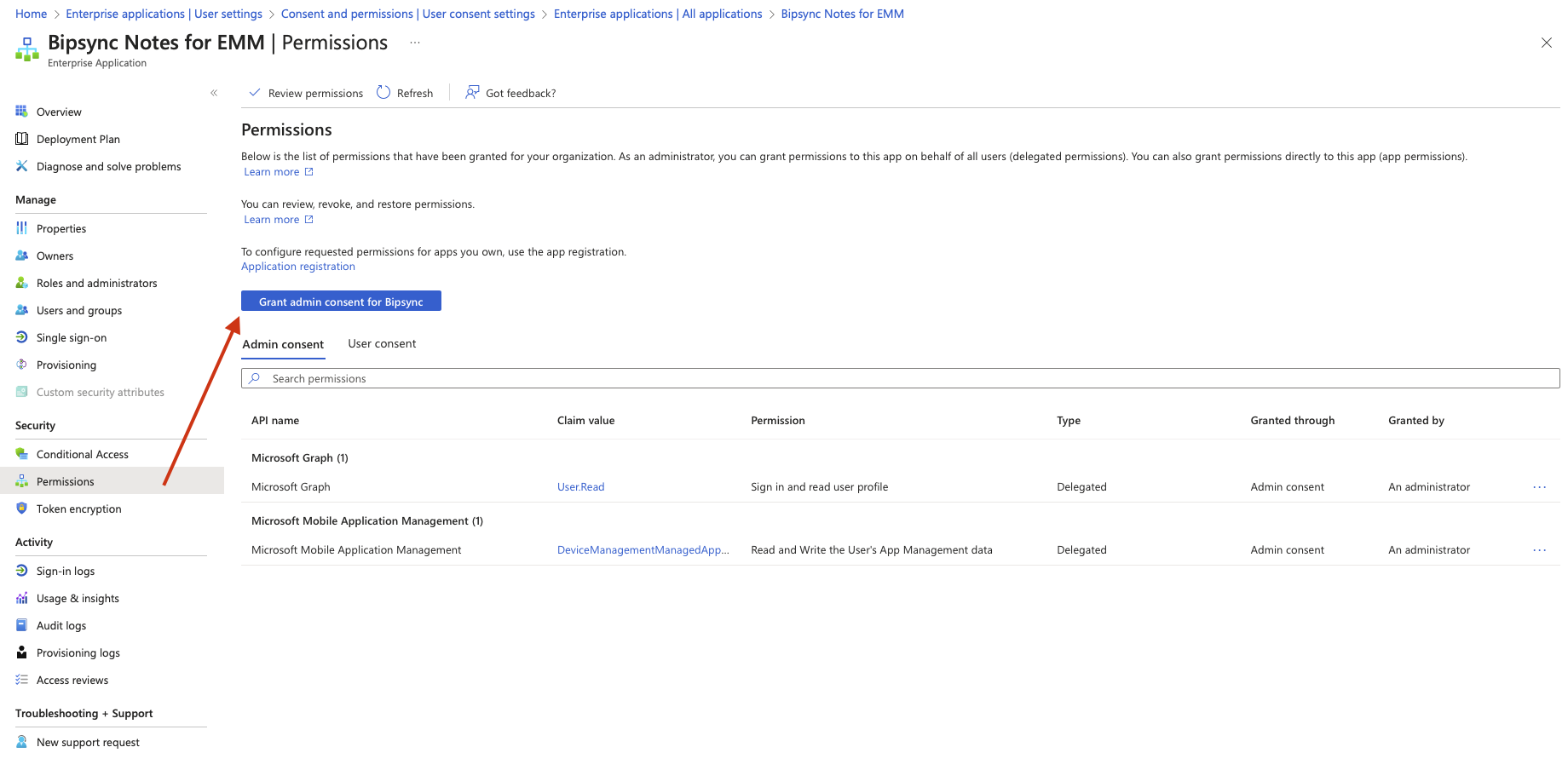
- Log in with Admin credentials and click Accept in the Permissions requested dialogue that appears.
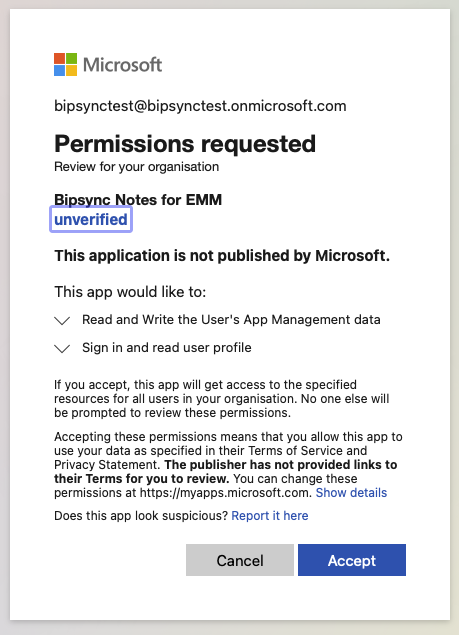
- Refresh the page with Permissions for the application you’ve just registered consent for and the list of consent permissions will be displayed in the Admin Consent tab.
Solution 2
Allow the end users to provide consent for Apps on their own.
Note: If this method is used, the end users will be able to register consent for any third party Apps; for some enterprises such setup might contradict general Office Apps security policies.
Log in to Microsoft Entra admin center (previously MS Azure AD) with Admin credentials
- Go to Enterprise Applications
- Select Consent and permissions > User settings
- Switch the setting to Allow user consent for apps All users can consent for any app to access the organization's data.
Updated 7 months ago