
Event Syncing
This guide covers using the event syncing feature, this is an alternative to using exchange sync where exchange cannot be accessed by Bipsync.
Syncing Workflow
Event syncing works by adding a unique Bipsync email address referred to as the sync user as an attendee to an event you are creating. You can create an event as normal and include the sync user as part of the process, if you are not sure of this address please contact the customer success team.
Please note that the account used to create the event in your calendar must have the same email address as the email address associated with your Bipsync account.
Below is an example of inviting the sync user to a meeting in outlook, in this example this example some tagging syntax has also been applied.
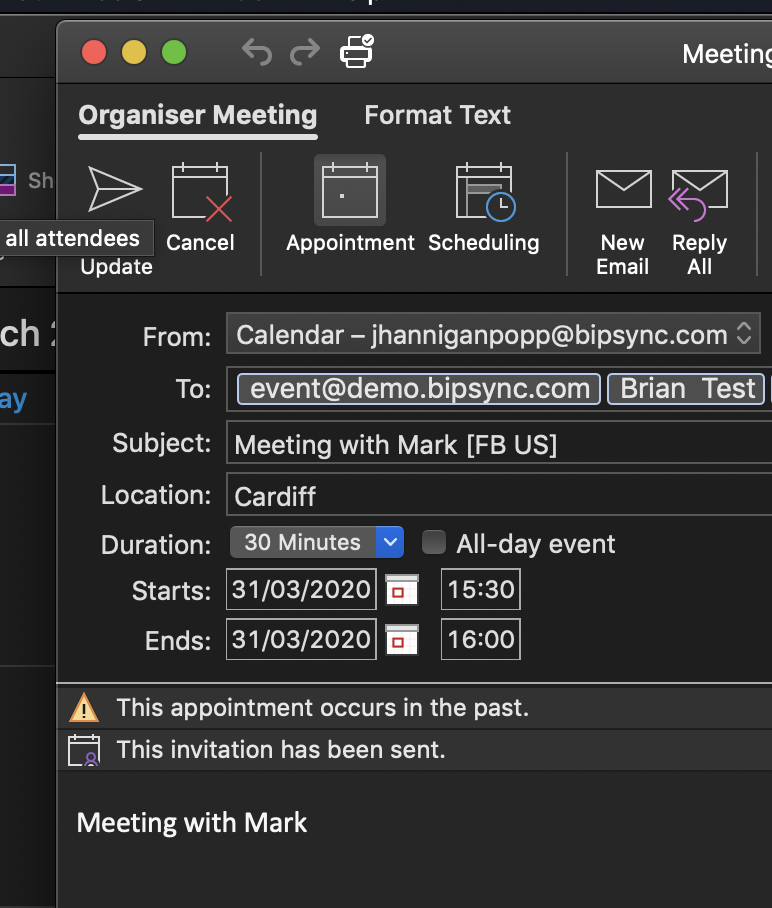
Creating an event in outlook
Once the invite has been sent it will be processed and will appear within the users calendar in Bipsync, along with any tags that have been found. Events follow the same sharing model as notes and other Bipsync data, if you wish for events to be public you can configure this per user.
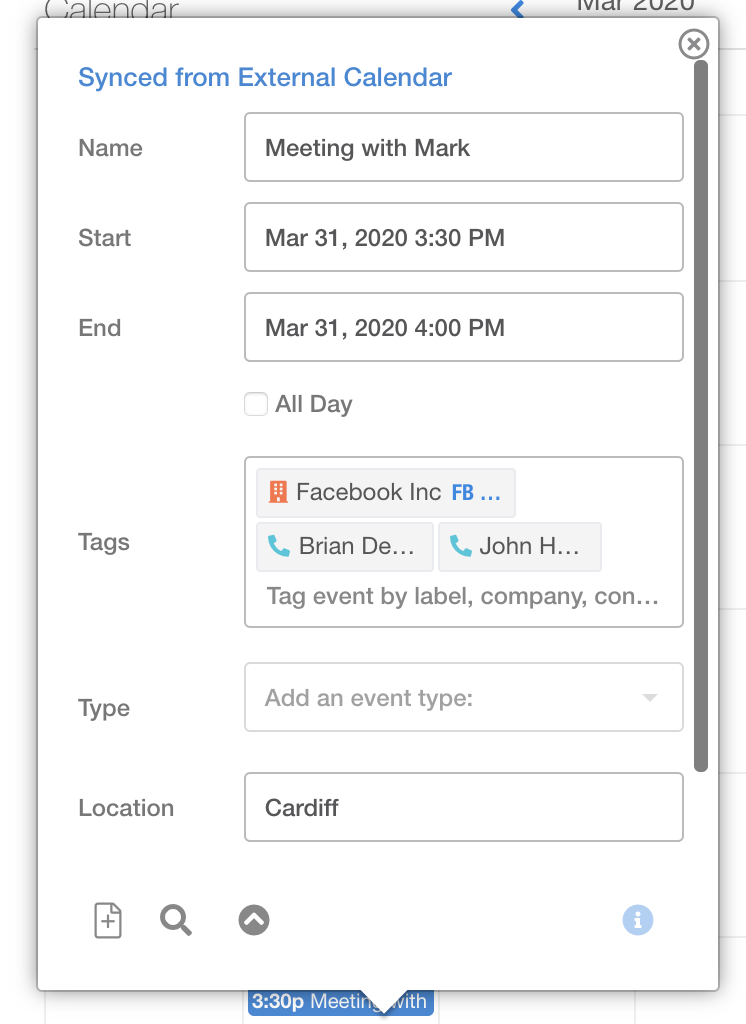
Event synced to Bipsync
After the event has been synced we can create notes using the information associated with the event, tags and event attributes can be mapped to note fields. This field configuration can be configured by the customer success team. To create a new note, click on an event in the calendar and click the + icon in the bottom left.
In our example we have configured a field to populate attendees, location and meeting date which can been seen below.
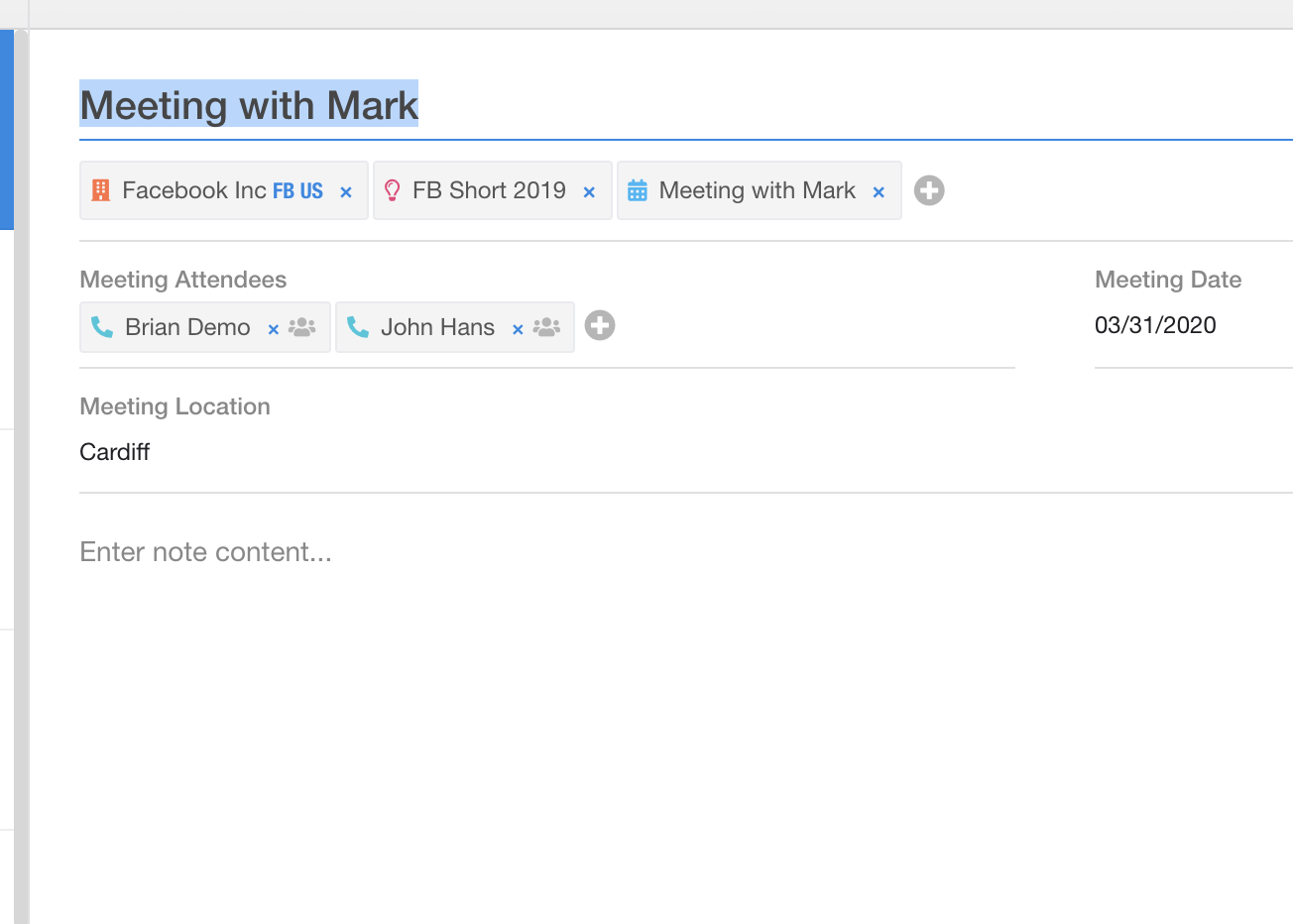
A new note with tags
Finally it is also possible to search for events and view all notes tagged to the event as well as create rules that invoke actions when events are created.
Further Technical Information
This section discusses the technical implementation of the syncing process and the differences between Exchange Sync and Event Sync. This section is intended to give an overview of the process from a technical perspective and is not required reading to use the feature.
Exchange Sync requires direct access to your exchange server as well as credentials to authenticate as a user. It allows syncing entire calendars the documentation for Exchange Sync can be found here https://docs.bipsync.com/docs/exchange-sync. For situations where Bipsync cannot gain direct access or credentials to authenticate with the exchange server the Event Sync option can be used.
The Event Sync option allows syncing on a per event basis and does not require additional configuration for Bipsync to authenticate with your exchange server. This section will describe the process involved in syncing an event.
Event Sync Process
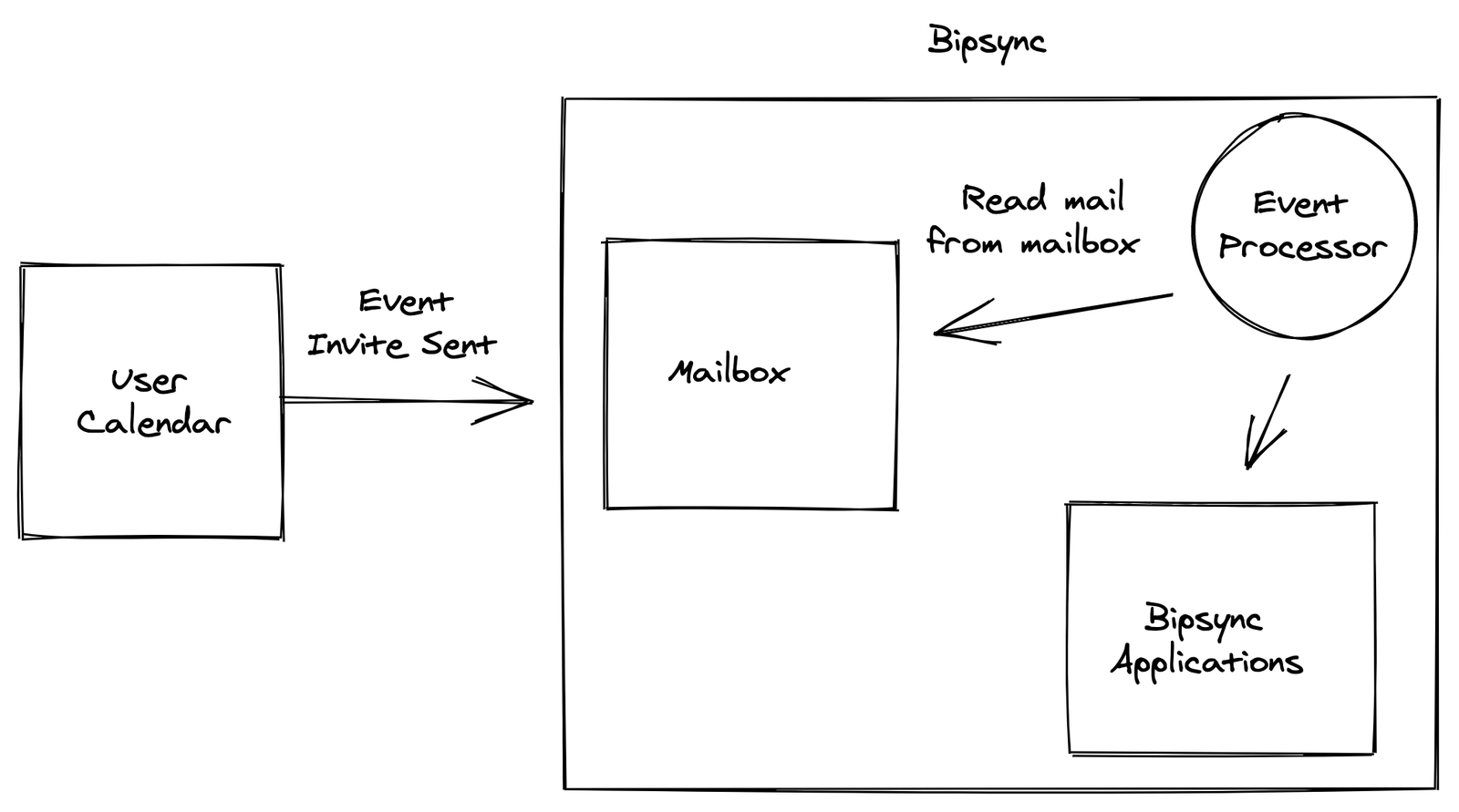
The process relies on inviting a unique Bipsync email address referred to as the sync user, to any event you wish to sync in to Bipsync. This will send an invite to the mailbox associated with the email address. When the invite is sent to the mailbox Bipsync will process the associated ics file which contains the event details and save it as an event in Bipsync. If the calendar event is updated or removed as long as an update is sent the equivalent event within Bipsync will be updated or removed.
Below is a high level overview of the process for syncing the calendar event in to Bipsync.
Event OwnershipWhen processing the event the organiser will be set as the owner of the event if they exist as a user in Bipsync. A default user can be configured if they organiser is external to Bipsync, if neither exist the event will not be processed. For external organisers the domain of the organiser would need to be added to an allow list. Please contact the customer success team in order for this to be configured.
When the event is synced the processing will also extract any tags that match the tagging syntax as well as other attendees that exist within Bipsync and apply these tags to the event. This can then be configured as part of a workflow to allow these tags to be applied to any notes created from the event.
Updated about 1 year ago