
Importing files
There are two ways to import files into Bipsync Notes.
- Using the share sheet action
Copy to Bipsync Notes - Using the share sheet action
Save to Bipsync.
Both methods use the same functionality though the action name may change depending on the app from which you are trying to import a file.
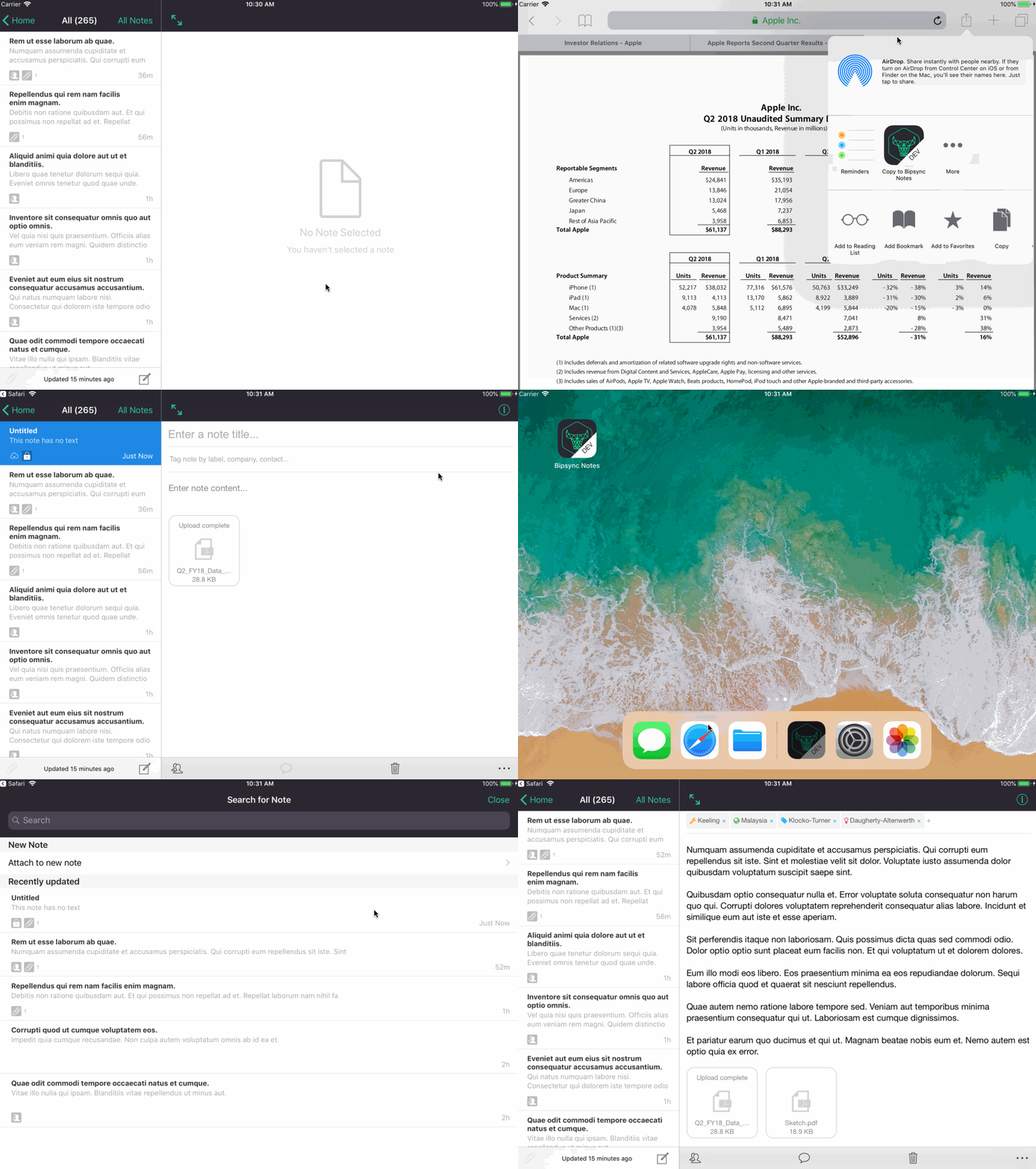
Using 'Copy to Bipsync Notes'
In this example we are importing a PDF from Safari. The steps are identical for any app that offers the Copy to... feature.
- Tap the Share Sheet icon
- Tap
Copy to Bipsync Notes - Wait for Bipsync Notes to open
- Choose a note to which the file will be attached. Either:
- Select a note from the list of recent notes
- Search for a note
- Tap
New Noteto create a new note
Using 'Save to Bipsync'
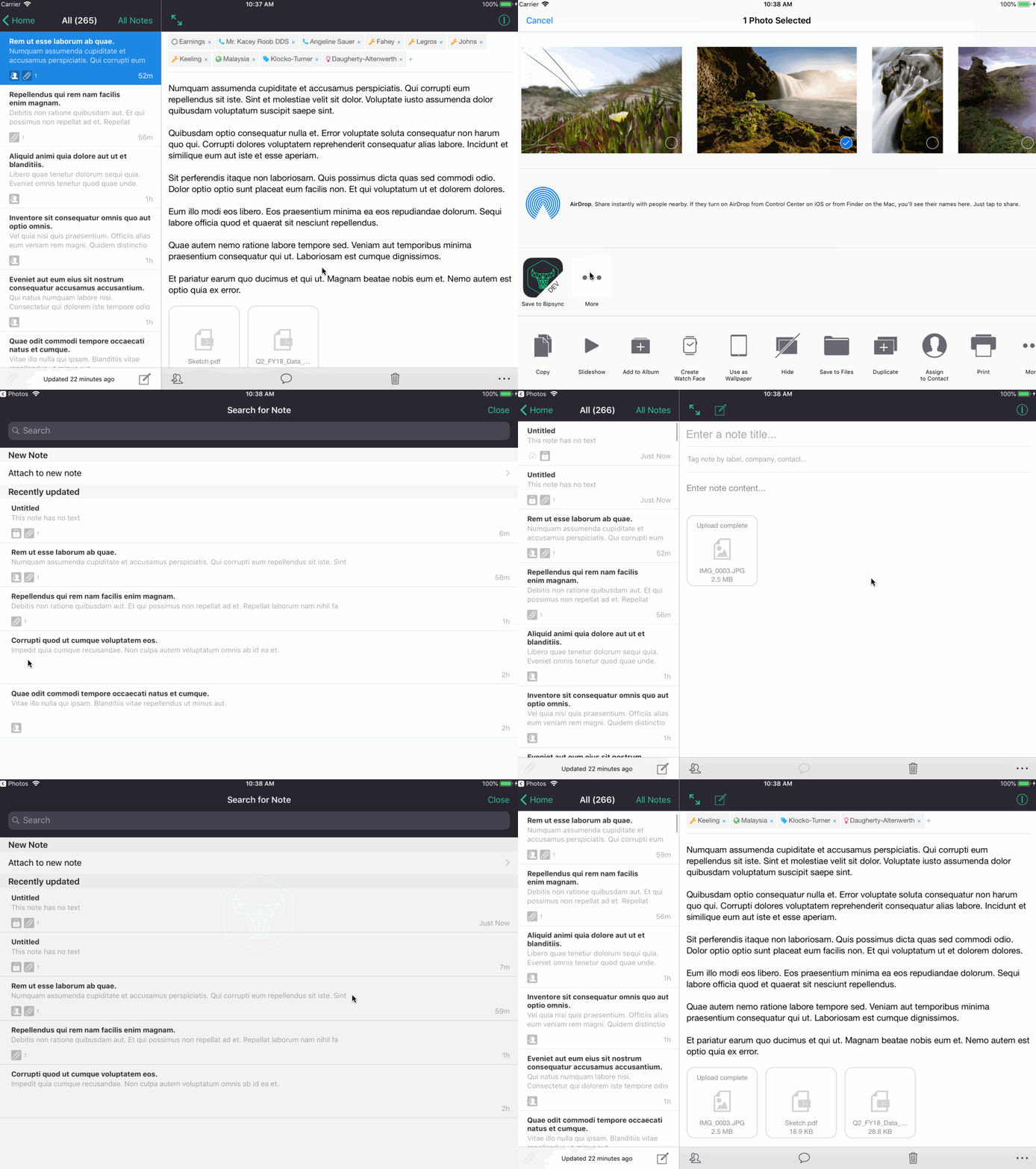
in this example we are importing an image from the Photos app. The steps are identical for any app that offers the Save to Bipsync feature.
- Tap the Share Sheet icon
- If the
Save to Bipsyncoption is not visible, tap on theMoreicon, locate the extension and enable it. - Tap
Save to Bipsync - Wait for Bipsync Notes to open
- Choose a note to which the file will be attached. Either:
- Select a note from the list of recent notes
- Search for a note
- Tap
New Noteto create a new note
The note will now be saved and attached to your selected note.
Updated about 1 year ago