
Syncing Data
Learn how to specify which tags and notes should be synced to your device
The syncing functionality gives users greater control over the content synced to their devices. This is particularly beneficial for organizations with large, frequently updated databases. By providing the option to select specific tags to sync, such as a Company, Fund, or Label, all associated data is synced and kept up to date on the user's device for both offline and online use. These enhancements ensure a more streamlined, efficient, and user-friendly experience for all Bipsync Notes iOS app users.
Transitioning from legacy syncThis document describes the latest version of our sync strategy which was released in version 1.66.0. Users of the app prior to that version who previously elected to sync all their data can enable the Enable New Sync option from application settings page. This will activate the new sync strategy which offers improved sync performance over the legacy sync approach.
Downloading Tags
Downloading a tag such as a fund or a company is a convenient way for a user to opt into syncing notes on topics that interest them: those tagged to the tickers of invested companies, or to a "read later" label, for example.
To selectively sync a tag, you first find the tag you wish to add by browsing for it or using the search bar. Then tap the ellipses … icon on the right of a tag and select Download:
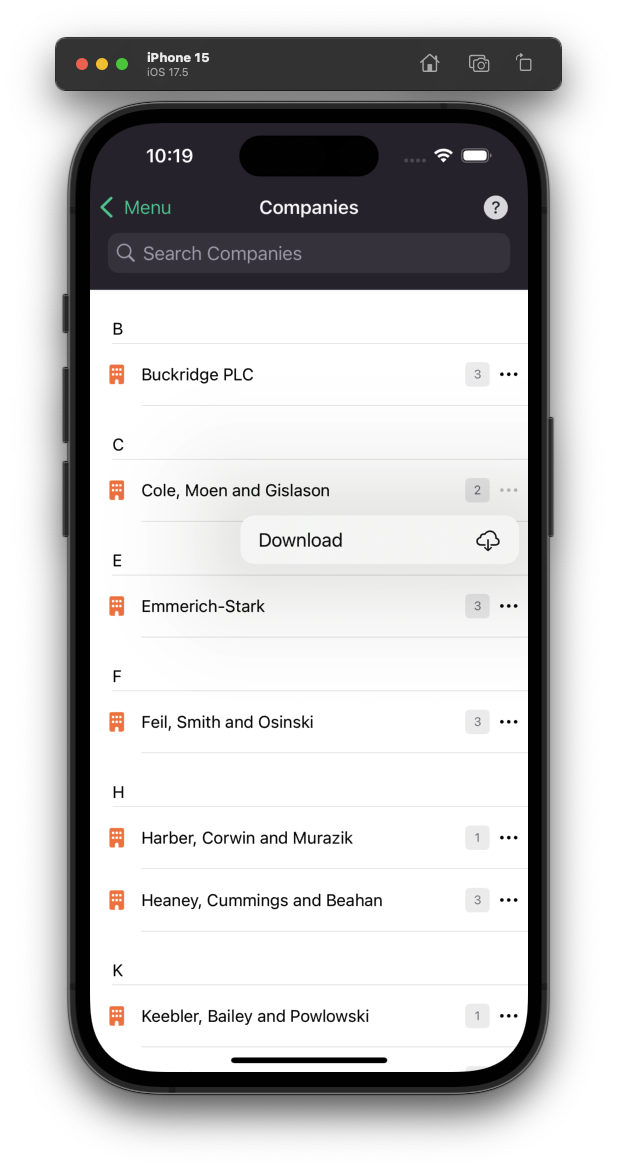
Tap the … icon to access the sync menu
Tapping the Download option will immediately download the tag to your device and all the associated notes for that tag will also be downloaded. The downloaded tag and its associated notes are now available for offline use and are kept up-to-date. Selecting Download also changes the state of the tag in the list to show that data associated with that tag is now downloaded. This is represented with the use of a download icon:
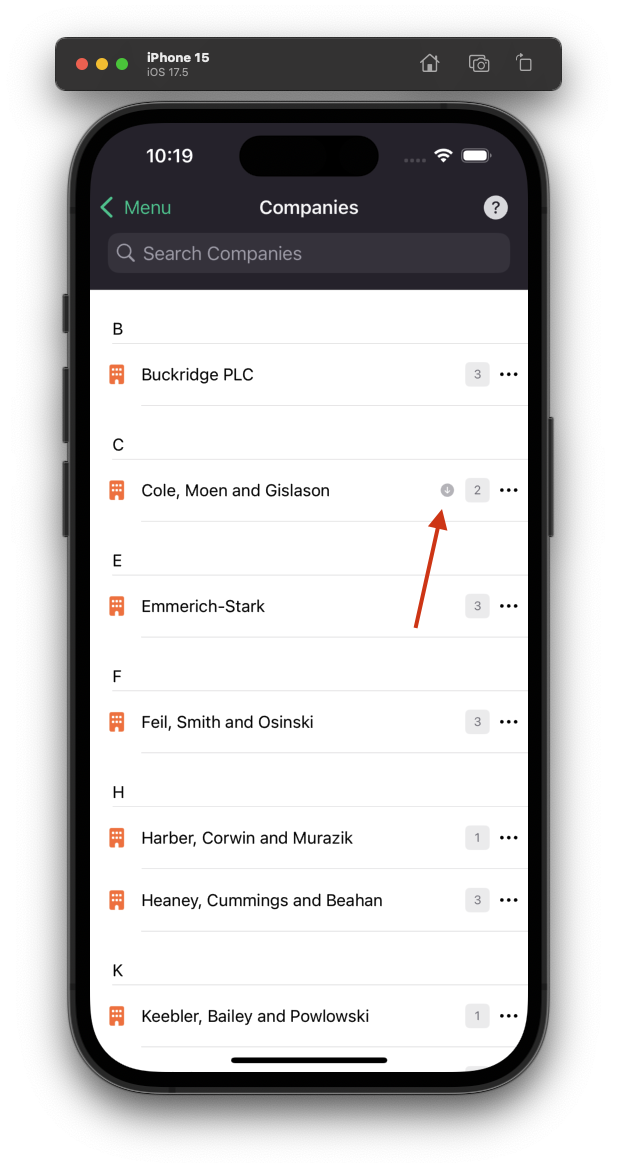
Identifying a downloaded tag
Alternatively, you can remove a downloaded tag by tapping on the … icon and selecting Remove download:
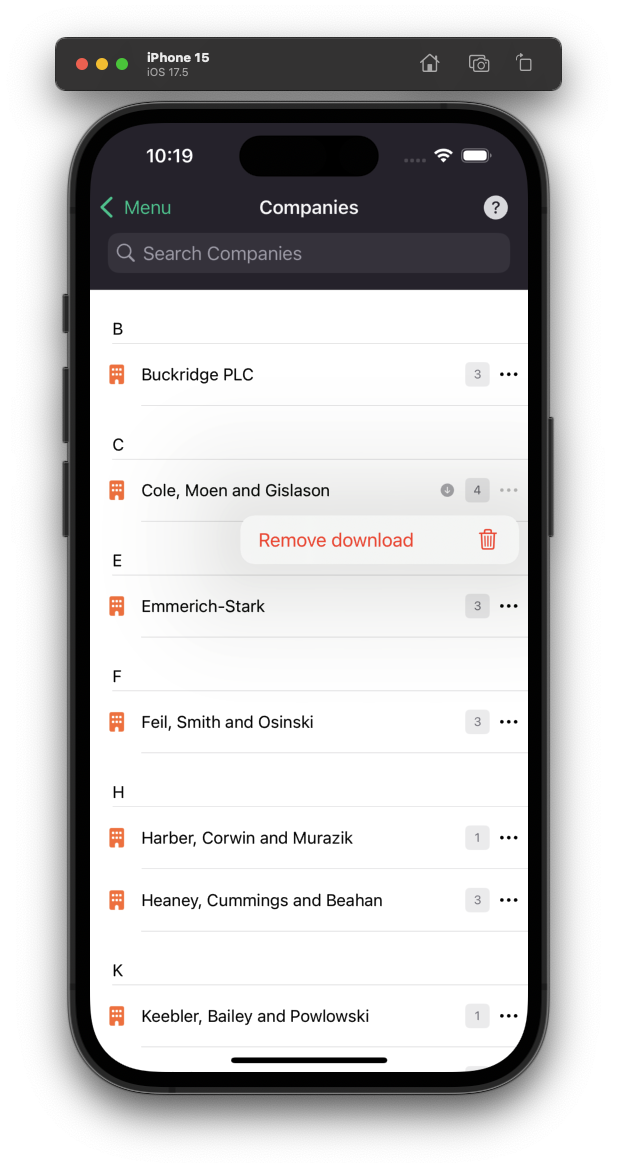
Removing downloaded data for a tag
Managing Downloaded Tags
A user can quickly see and edit the tags they have selected for sync by going to the Download Settings menu. Here you can tap or swipe to remove a downloaded tag. This removes any associated downloaded content from your device only, online content will not be affected. The Download Settings screen looks like this:
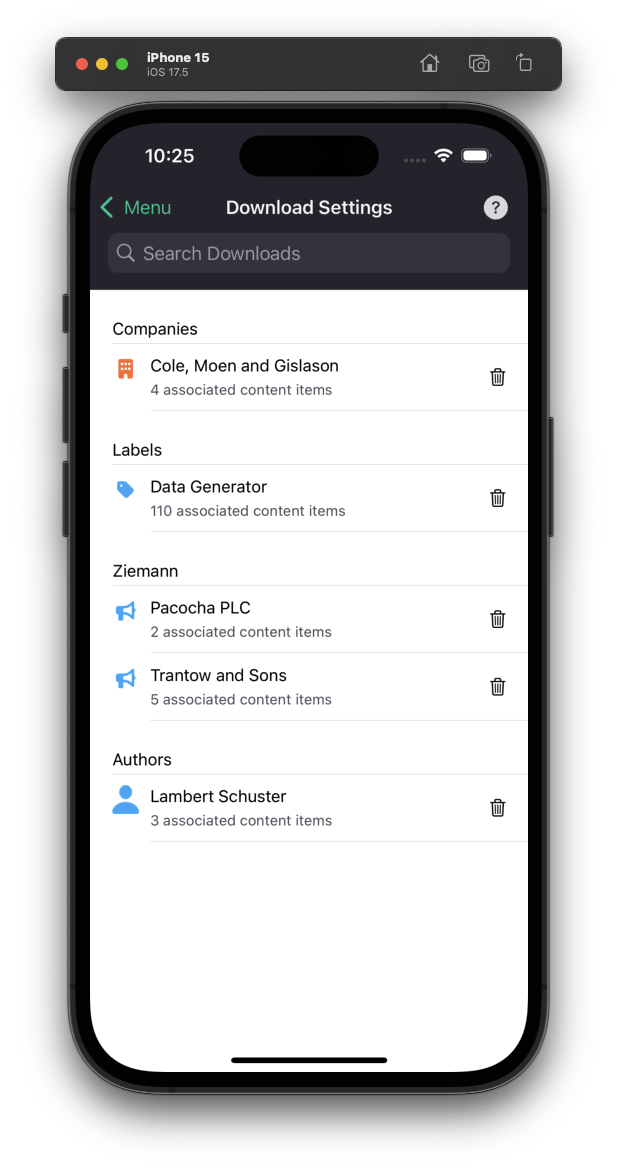
The Download Settings view
Updated about 1 year ago