
Single-Sign-On (SSO)
Overview
To minimise friction when authenticating users Bipsync supports Single-Sign-On (SSO) via SAML 2.0 integration with a range of authentication services, including (but not limited to) Microsoft Exchange (ADFS), Shibboleth, Centrify and One Login.
A SSO integration allows users to re-use their existing domain login. This ensures that existing security requirements (like password complexity) are consistent and enforced, while reducing the burden on the user to remember numerous credentials.
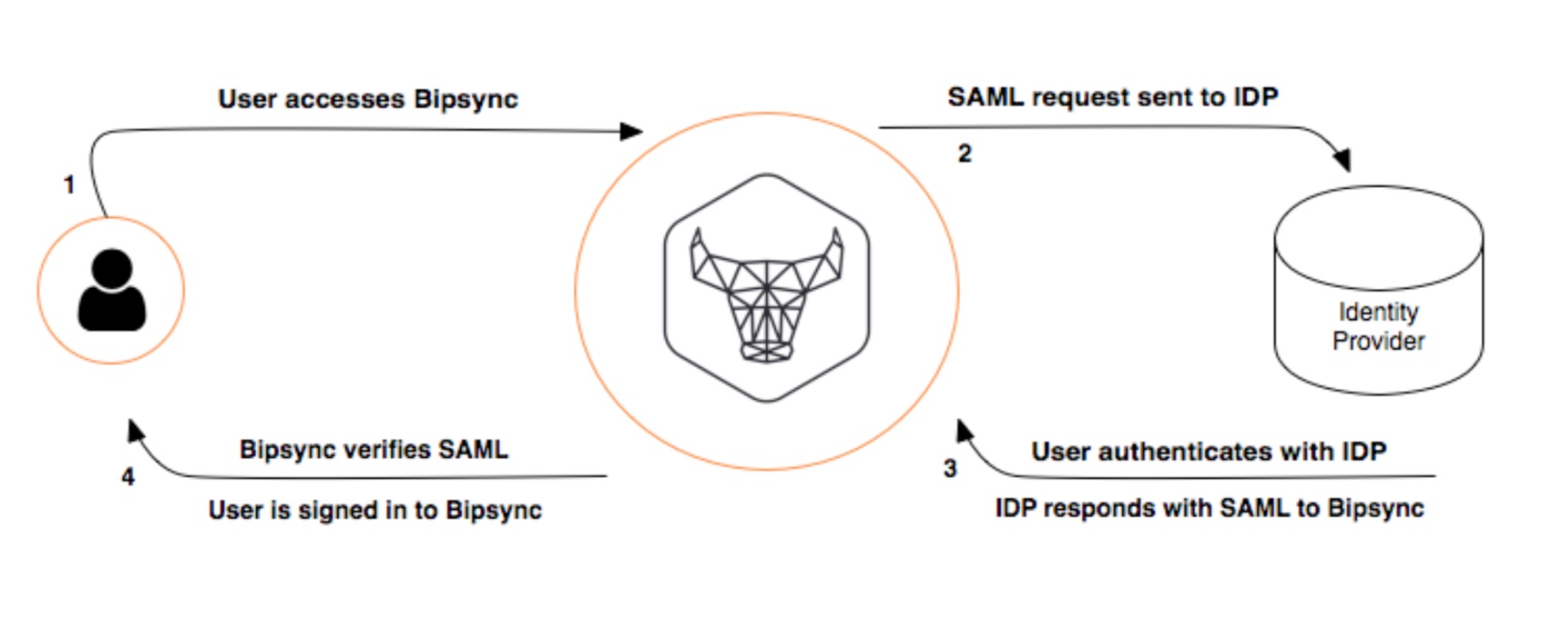
Bipsync performs SSO through the Security Assertion Markup Language (SAML) standard. A digital exchange of signed XML documents allows a user to either authenticate with their central identity provider or re-use an already authenticated session. Minimal configuration is necessary at Bipsync’s end.
Bipsync Application SSO Support
Bipsync is a platform consisting of a number of applications. Some of these are native applications, and some are web applications hosted on the internet.
At the time of writing all applications within on the platform are compatible with SSO:
- Main Bipsync web application
- Web clipper (chrome extension)
- Bipsync Notes Desktop app (native Windows/macOS application)
- Bipsync Notes iOS app (native iOS application)
- Client-facing administration web application
- Compliance reporting web application
In broad terms, this means that Bipsync is currently capable of the following functionality (dependent on the ID provider):
- Single Sign On
- Account creation on demand (provider / subscription level dependent)
- Single Sign Off
Configuration
To the extent that Bipsync needs to be configured for SSO support, this will performed by the Bipsync engineering team. Depending on the nature of the integration, and the clients’ preference, the team can also configure other elements of the authentication flow, for example OneLogin configuration.
While Bipsync follows the SAML 2.0 IDP standard the exact configuration requirements will change depending on the type of identity provider that is being integrated with. More specific configuration details can be discussed at point of integration, but below we provide an example integration approach for reference.
The first step involves configuring Bipsync with the necessary config to talk to the SSO Identity Provider (IDP). Typically this is achieved by referring to an XML document provided by the IDP which outlines the IDP's SAML configuration, including:
- The Entity ID
- The URL of the Single Sign On Service
- The URL of the Single Logout Service
- The IDP's public signing x509 certificate
- The Claims that are supported by the IDP
IdP Federation Metadata URL
Some IdP's will provide the above SAML configuration in the form of a static URL. This is called a Federation Metadata URL. If this is the case then it's possible to use that URL to configure the config in Bipsync, rather than manually inputting the SAML configuration.
As IdP's periodically refresh the SAML configuration, it may be preferable to use this URL as we will then be capable of automatically updating the config on the Bipsync side, removing the need to manually update these details when they change.
Service Provider (SP) Configuration
With the IdP configuration in place, we then configure Bipsync to act as a service provider (SP). Each individual application (web app, iOS app, etc.) in Bipsync is set up to act as a separate SP with an accompanying endpoint.
This step involves setting up these Service Providers as valid authentication parties in the SSO provider, to whitelist them. If the client is responsible for the IDP, Bipsync will provide the following configuration details:
- Endpoints for each of the Service Providers
- Public x509 certificates for service authentication
Ad-Hoc Configuration
Depending on the exact configuration of the IDP sometimes it's necessary to configure Bipsync with additional options.
| Option | Description |
|---|---|
| forceAuthn | If true, this will tell the IDP to not use any previous security context when authenticating the user. |
| requestedAuthnContext | If specified, this will force the IDP to use a given authentication context (e.g. urn:oasis:names:tc:SAML:2.0:ac:classes:PasswordProtectedTransport, which is the default). If false, no context will be requested. |
Save these changes and return to the main settings view.
You should now allocate the users/groups that you wish to be able to authenticate with Bipsync via the Users & groups section.
Updated 7 months ago
What’s Next
Learn how to automatically provision user accounts when authenticating via SSO.