
Canoe Integration
The purpose of the Canoe Integration is to enable a method of ingesting documents from Canoe into Bipsync.
Workflow
We can be selective about which documents we want to ingest and we can set up mappings that will perform actions on the imported documents based on their metadata (apply tags, set the author and the sharing settings of the document).
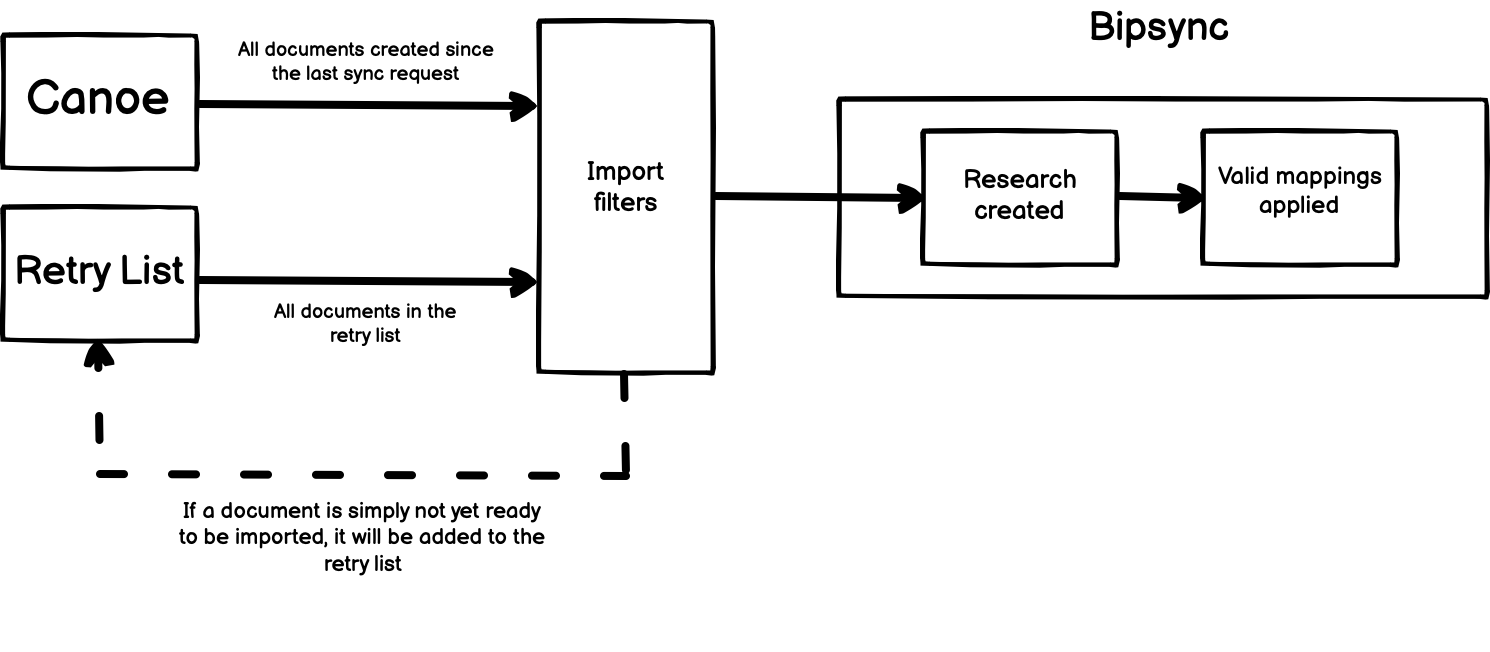
The importer will be set up to work in regular intervals, the default is every fifteen minutes. This means that every fifteen minutes it will run an import. An import involves fetching all of the documents from Canoe that have been created since the last import was run (all new documents), and fetching all of the documents in the retry list.
The purpose of the retry list is to keep a track of all the documents that might not yet be ready for importing because they have not passed the requisite pre-ingestion filters. These documents will stay in the retry list until they meet the requirements and are imported into Bipsync.
The entire process can be visualised like so:
Setting up the Canoe integration
Authorisation
The first step towards getting the Canoe integration working is to authorise the link between Bipsync and Canoe. The importer will use the Canoe API to fetch the documents and in order to use the API we need to provide valid credentials.
In order to authorise the connection, you must head to the Setup app and on the left hand navigation bar you will see an option labelled ‘Sync’. Expand this, and select Canoe.
You will be presented with something like this:
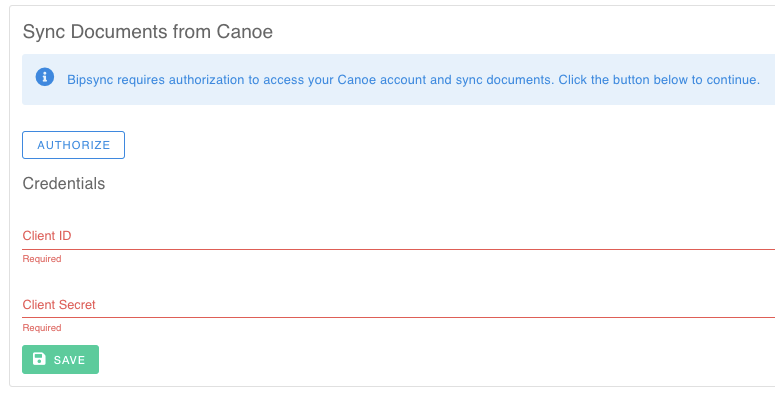
You can find these credentials by heading to the Canoe portal, clicking your user icon in the top-right corner and selecting ‘API configuration’. On this page you will find (or be able to generate) OAuth clients.
You should create a Bipsync OAuth client and name it appropriately. You will be required to specify a re-direct URL and the format will be something like this:
https://{name}-setup.bipsync.com/canoe/oauth/handleAuthResponseExcept you would include the name of your installation where it says {name}. If you are unsure what to put instead of {name} just check the URL when you are navigating the Setup app. If you are unsure, please contact support.
With the OAuth client now created, it should appear like this on the API configuration page:

You should now take the client ID and secret and copy them both into the Canoe authorisation page in the Bipsync setup app.
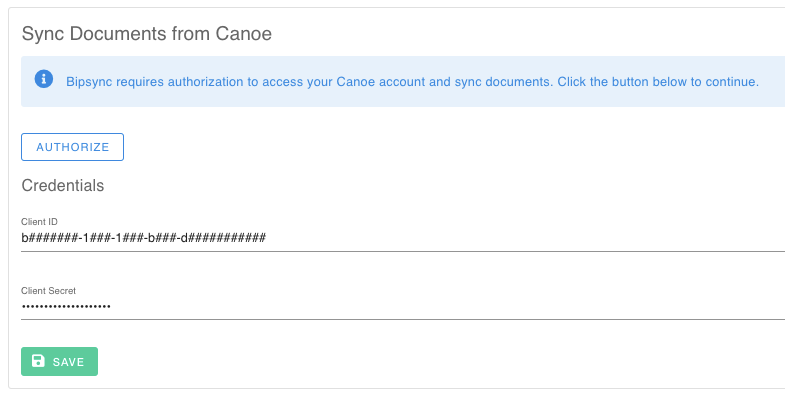
Hit save before doing anything else. You need to save the values before trying to authorise the connection. Once the save has completed you can hit authorise. This will take you to the Canoe website where it will ask you to confirm that you want to give Bipsync permission to use the OAuth client.
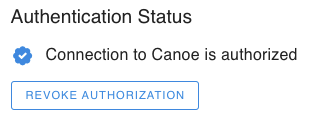
Once you give permission you will be taken back to the Setup app and things will now look a bit different. Authorisation has been completed.
Enable Sync
This checkbox must be ticked for any syncing to be done. If left unchecked, no documents will be imported. If you require any of the import filters to be applied to documents set these up first before enabling the sync.
Updated 8 months ago