
Solovis Integration
Configuring Bipsync to sync with Solovis
Bipsync is able to sync data to and from Solovis. Configuration is performed within the Bipsync Setup app, and data is synced on a regular schedule – typically every few minutes.
At the moment, the following types of data can be synced:
- Bipsync project (pipeline item) fields can be synced to corresponding Solovis entities.
- Solovis entity properties can be synced to corresponding Bipsync projects (pipeline items).
Enabling Solovis Integration
To set up integration with a Solovis instance you will need:
- Your Solovis URL
- A valid API key
If you know your Solovis URL, you can obtain an API key from Solovis. Make sure the API key has write privileges enabled:
- Click on your name in the top right of the app and choose "My Account"
- Click on the "API Keys" link.
- Create a new key, or identify an existing key that is valid – has not expired, etc.
- In the table row that contains the key, click "View Key" link and copy the text that appears in the modal dialog. It should be formatted as two blocks of text separated by two underscores – e.g.
CF1502D1-57CF-4D53-2671-7AFF6FB87265__DLnYvQPc0zpq9IaqxWw1gN6WAAXYil3IR88DhUNk5kAz
With your URL and key, access the Bipsync Setup app, open the "Integrations" menu, and select "Solovis".
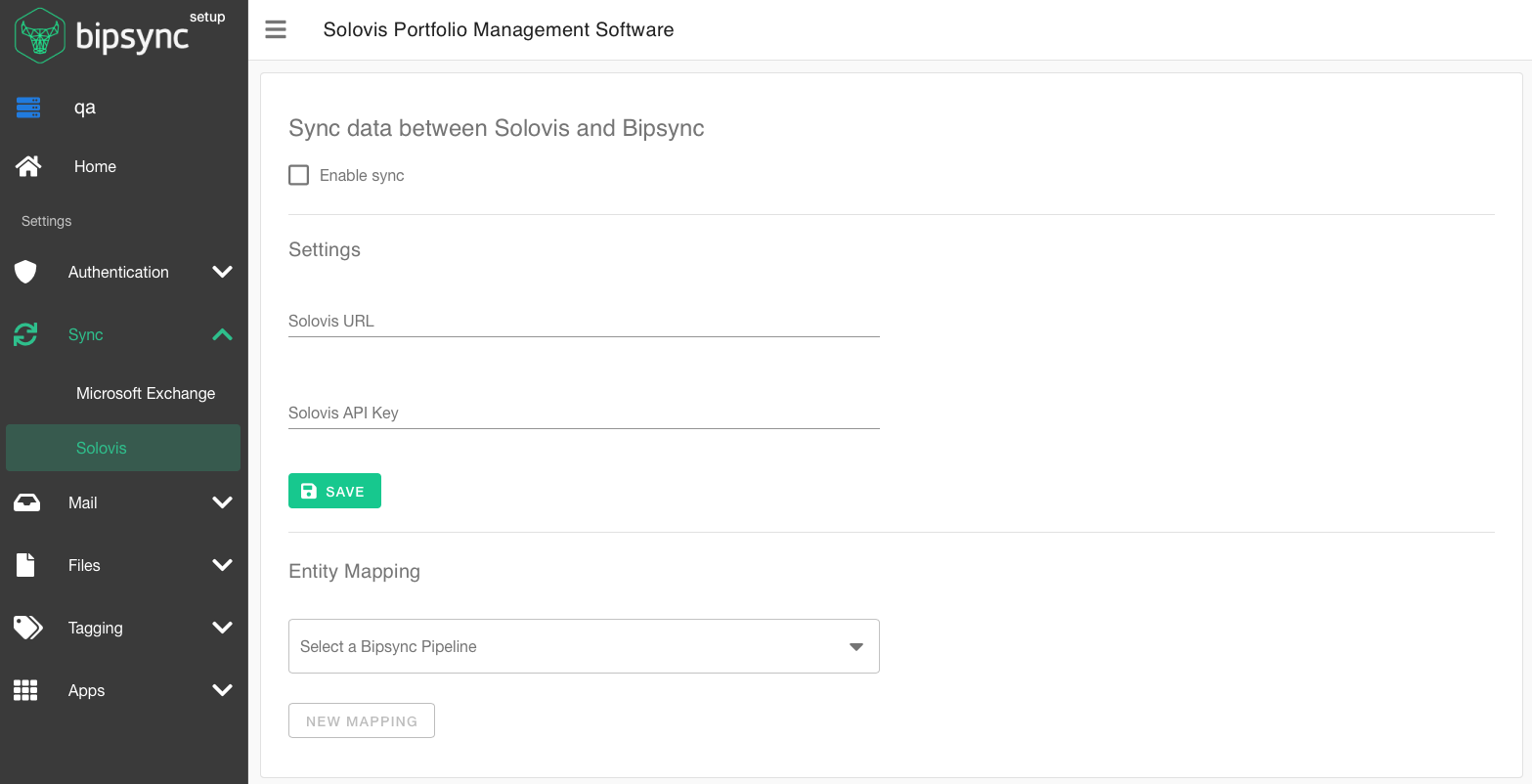
You should see the following screen:
You should now:
- Check the "Enable Sync" checkbox
- Enter your Solovis URL and API key in to the appropriate fields.
- Save the form.
With that done, we're ready to start configuring how data should be synced.
Syncing Entity and Pipeline data
To sync Solovis Entity data to and from Bipsync, we need to first set up an Entity Mapping.
Choose the Bipsync Pipeline which contains the data that is to be mapped from the dropdown, and click the "New Mapping" button.
You'll be taken to the following screen:
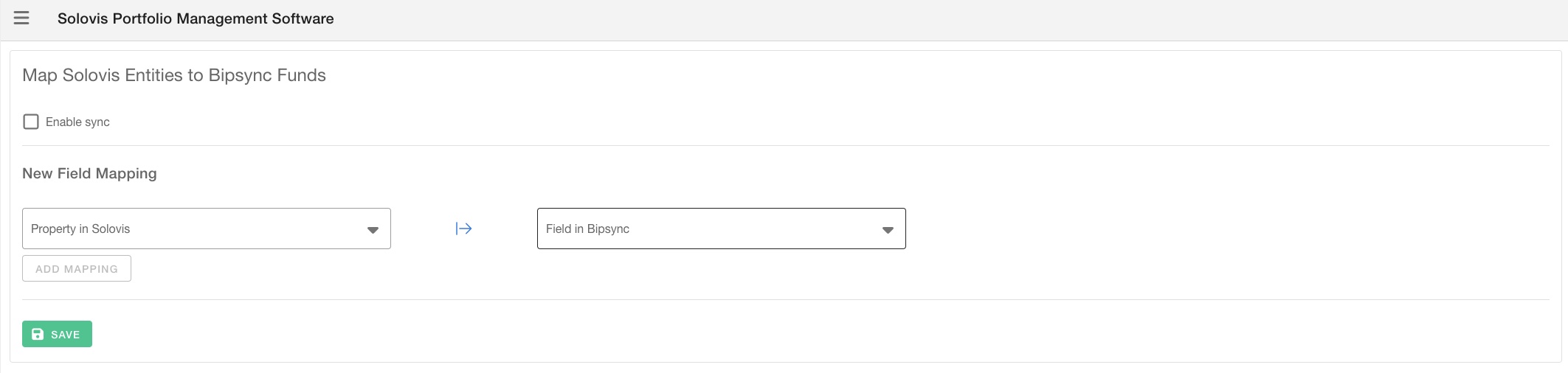
In this example, we have a Pipeline called "Funds". Each Fund is an object within the Pipeline.
First, ensure that there are Bipsync projects which have a corresponding solovis external IDs set as the source. See https://docs.bipsync.com/docs/api-working-with-external-ids for how to set externalIds via the API. This will be used to determine which Fund relates to which Entity. Note: The Solovis External ID value must be set as a Number. If this is not the case, or your Entity ID field does not appear in this drop down for whatever reason, please contact your Bipsync CSM.
Next, configure some mappings between Solovis Properties and Bipsync Fields. The direction of the arrow indicates whether the data will be synced from Solovis to Bipsync (arrow pointing right) or from Bipsync to Solovis (arrow pointing left).
The Property/Field types are important. Take care to only map fields which are appropriate to the type of data they will contain. The following mappings are permitted, and indicate the extent of the Solovis Property types that are supported:
| Solovis Property Type | Bipsync Field Type |
|---|---|
| String | Text |
| Integer | Number |
| Boolean | Boolean |
| Decimal | Number |
| Date | Date |
| Long Text | Text |
| URL | Text |
| HTML | HTML |
| TagRef | Entity, List |
Once mappings have been configured, the screen should resemble the following:
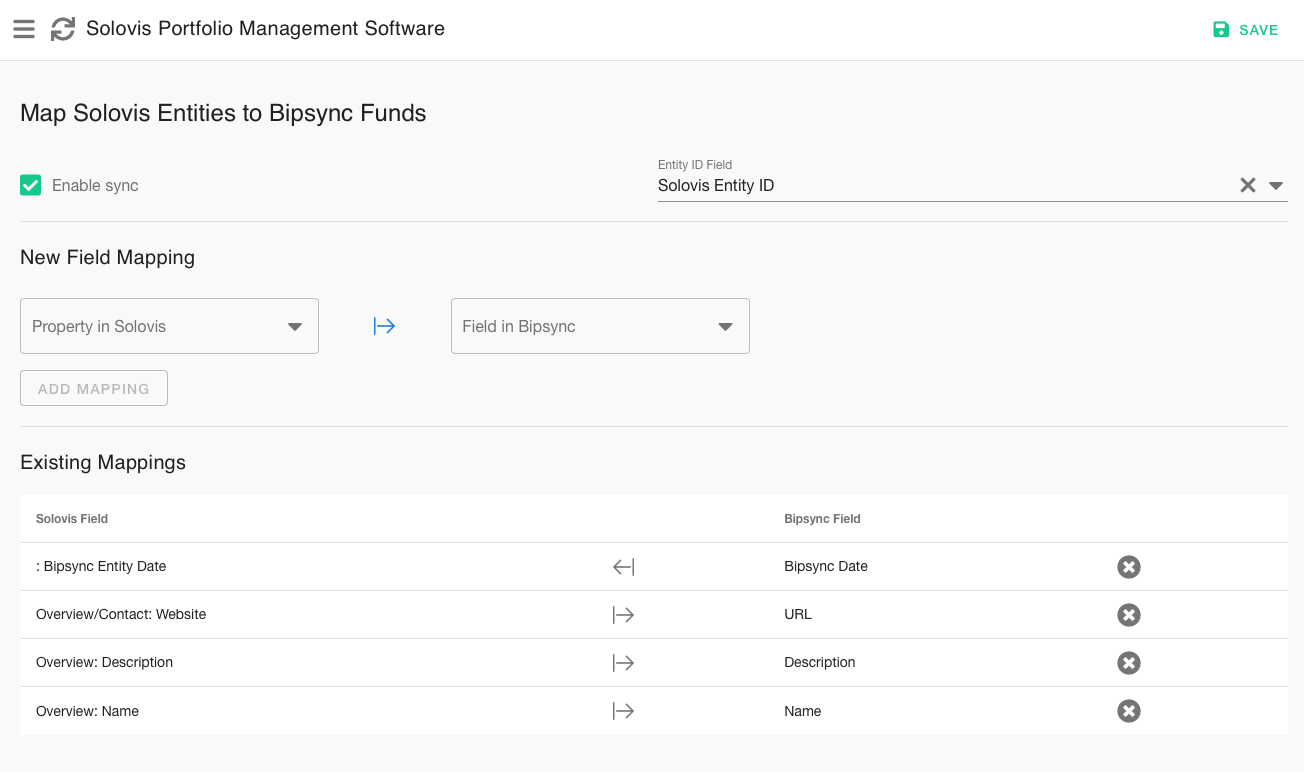
Click "Save" in the top-right to save your changes. Within a few minutes the sync should take effect, and data should begin to flow between the two systems.
Status Information
The status page shows the latest information about the integration such as:
- enabled/disabled
- configuration status
- mapping information
- sync status
- recent errors (such as permission or mapping issues)
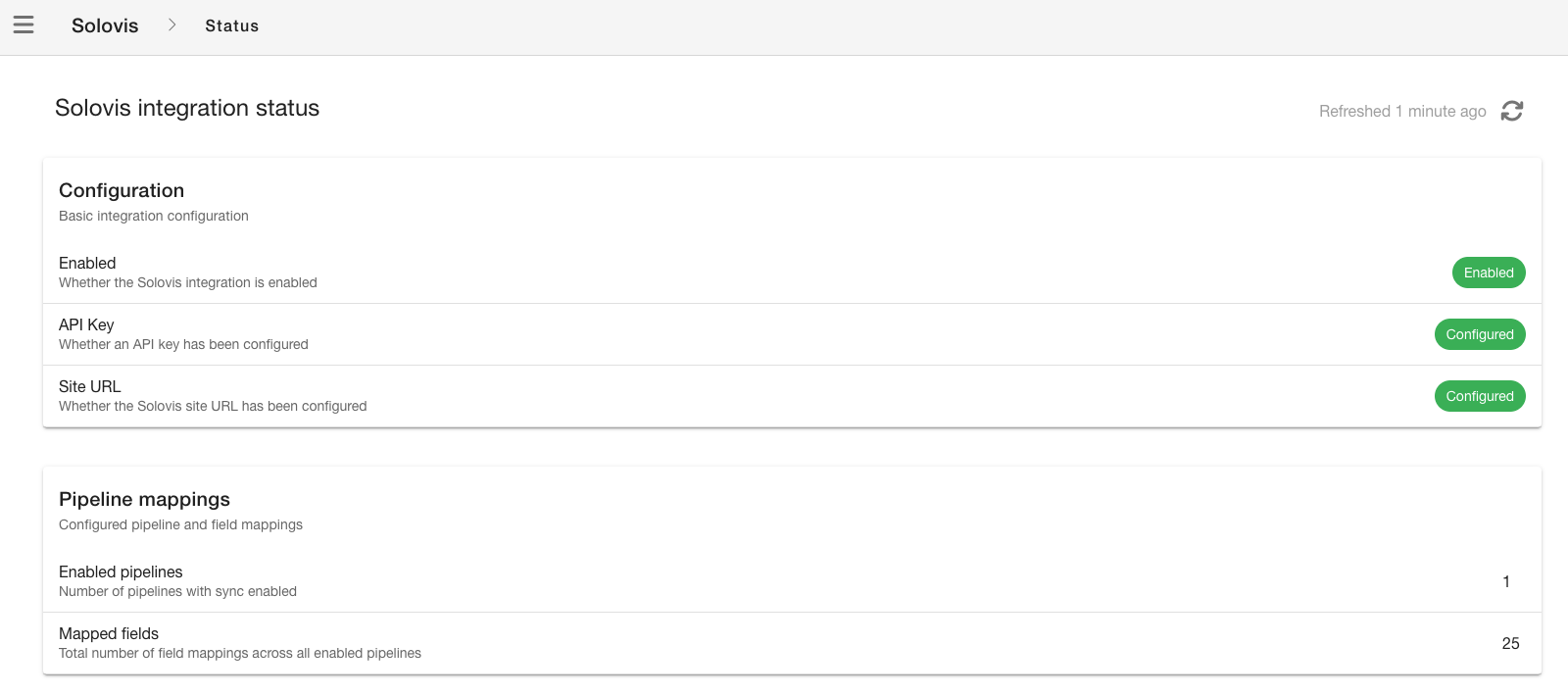
Possible values for the sync status are:
| Displayed | When | Level |
|---|---|---|
| Never run | No sync has been performed yet. | Neutral (grey) |
| Finished | The most recent sync run completed successfully. | Positive (green) |
| Failed | The most recent sync run failed. | Negative (red) |
Updated 18 days ago