
Support FAQ
How do I use the sketch function on the iOS app?
Select an existing note from the note list or create a new note. Then tap the ellipsis icon on the bottom right of the note view. Once you tap “Add Sketch”, you’ll see an annotation tool on the top menu. Select the Pen tool and draw. You can then save the sketch and attach it to the note by tapping “x” in the left of the top toolbar.
You can find these instructions and relevant GIFS here: https://docs.bipsync.com/docs/ios-app-adding-and-editing-a-sketch
How can I activate spellcheck?
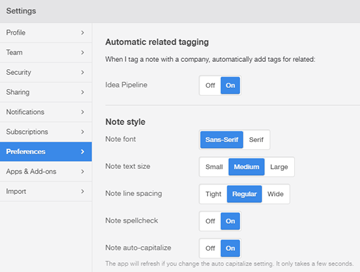
Click the Bipsync logo in the top left corner of the web app page > go to Settings > Preferences.
Toggle "Note spellcheck" to On.
How can I export notes into PDFs?
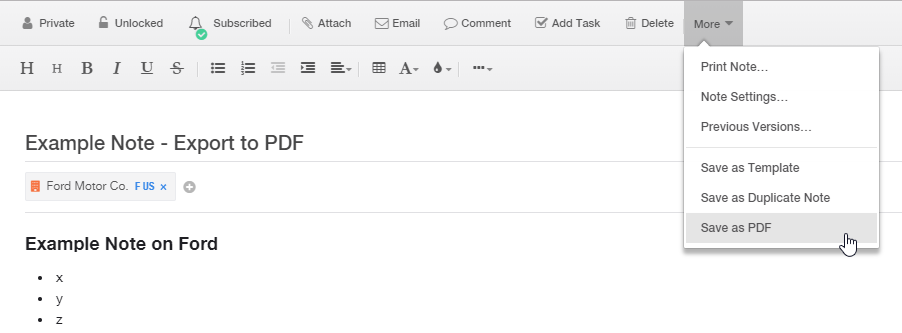
When you are in a note, click More at the top, and select Save as PDF.
How do I create tasks?
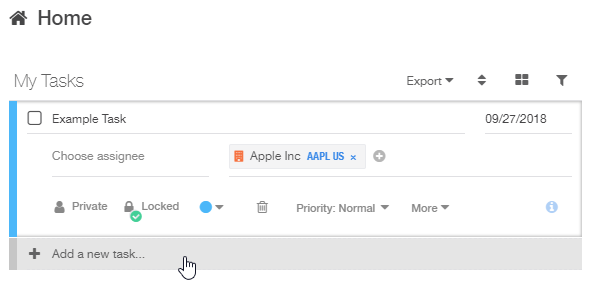
On the homepage, there should be a My Tasks widget. Click + Add a new task and enter all relevant information. You can assign the task to yourself or to other Bipsync users.
There is also an "Add Task" button at the top of the home page and above each note.
Why can’t I see my colleague’s note/content?
Your colleague may not have shared that content (i.e. marked Private) or may have shared it with a specific group that you are not a part of.
How do I get notifications for things I’m subscribed to?
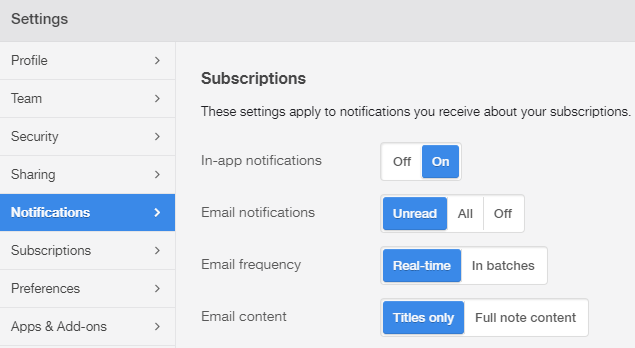
Click on the Bipsync logo in the top left corner of the web app page > go to Settings > Notifications. Here you can modify your notification style, frequency, and content preferences.
How can I send emails into/out of Bipsync?
You can send an email into Bipsync using our Microsoft Outlook plugin by clicking the Bipsync save button.

You can also send emails into Bipsync with your registered email by sending an email to fund@[client].bipsync.com to submit a shared note or private@[client].bipsync.com to submit a private note. You can also include various tags within square brackets in the subject line e.g [AAPL] to tag a note with Apple. Alternatively you can tag the email from within Bipsync once it is created.
*Please note[client] should be replaced with your firm’s designated domain.
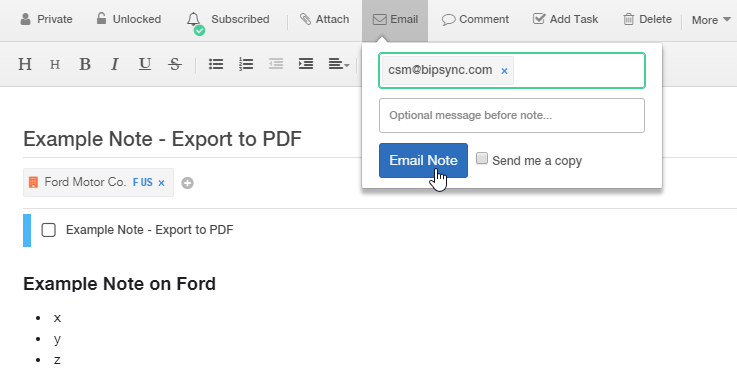
You can email notes out of Bipsync by clicking the Email button at the top of the note. Type in the email address you’d like to send the note to, then click Email Note.
How do I revert to a previous version of a note?
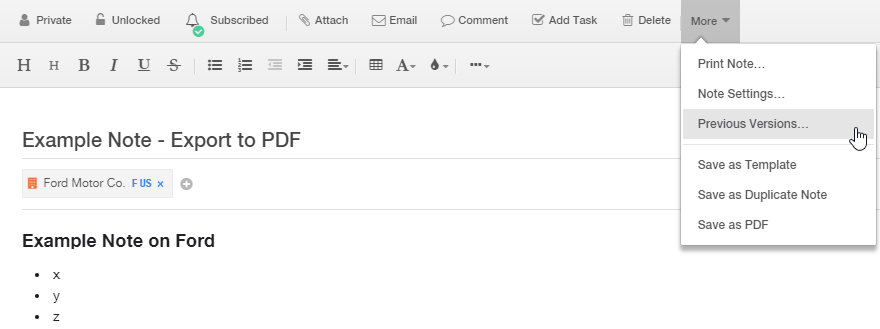
Select the More button at the top of the note and then select Previous Versions.
On the left-hand side of the Version History, all previous versions of the note will appear. Select the desired version and click Revert to Selected Version.
How do I create a new note template?
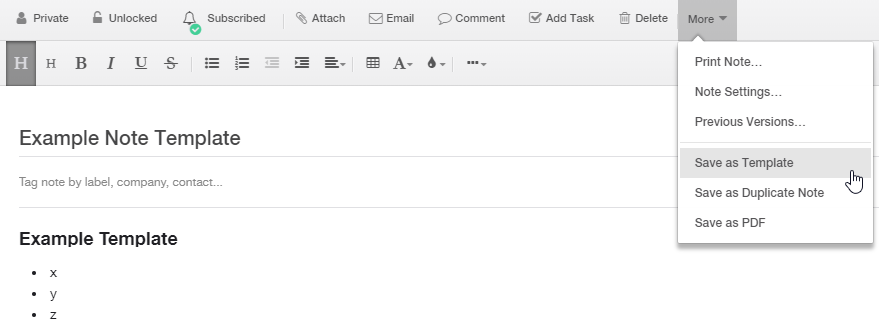
Select the More button at the top of the note and then select Save as Template.
To find this template and make edits to it, go to Properties in the left-hand navigation bar. Templates should be at the very top of the list.
Why can't I see my colleague's notes on the iOS app?
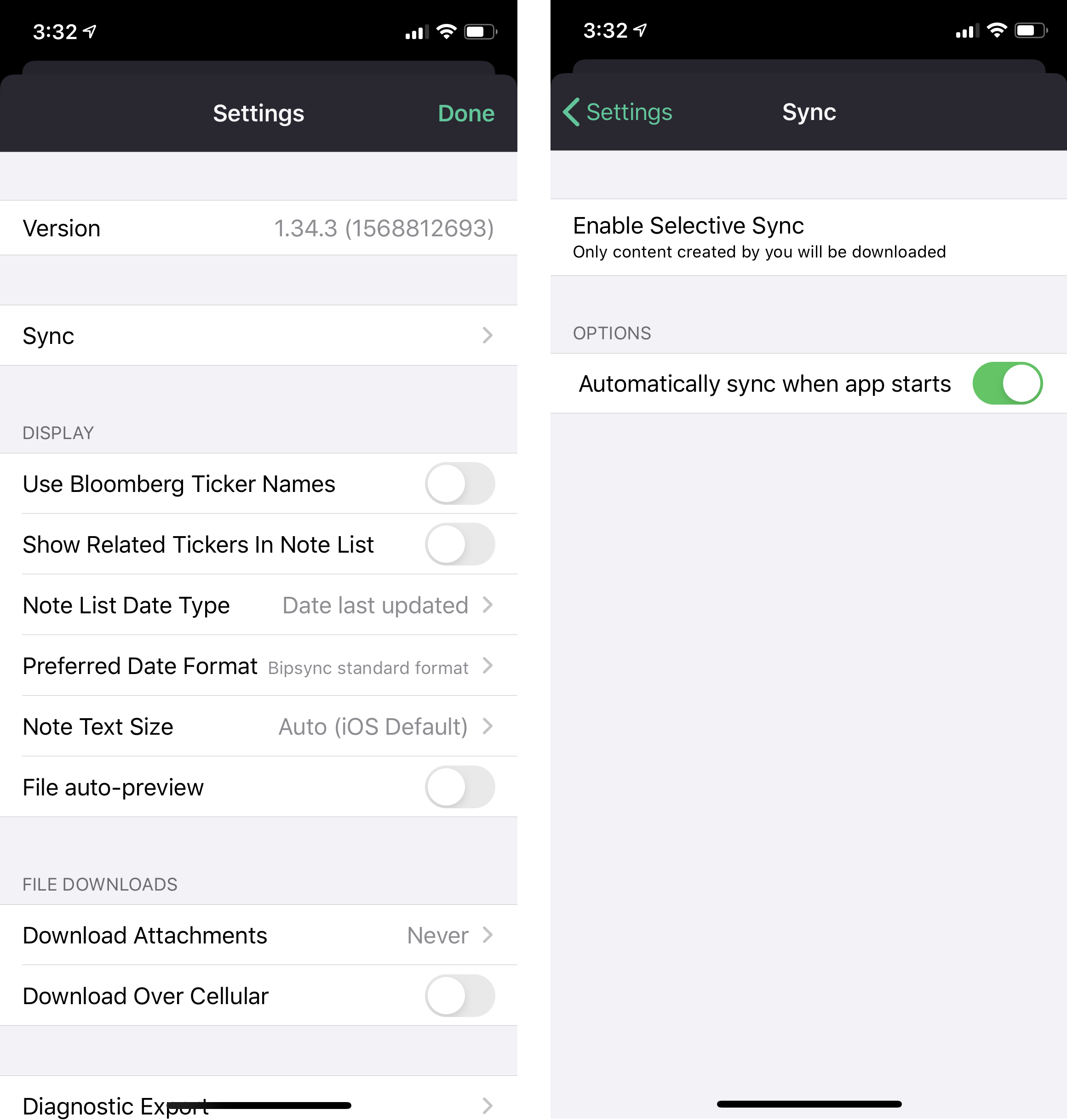
If the 'Selective Sync' option is enabled, you will only see content you chose to sync down. To disable this feature and sync all Bipsync content to your device, Select Settings, the Sync category, and then turn off the 'Enable Selective Sync' option.
Updated about 1 year ago