
Preqin Integration
Configuring Bipsync to fetch fund, fund manager and contact data from Preqin feeds.
Bipsync is able to sync data from Preqin data feeds. The following types of entities can be created from Preqin, or enriched with Preqin data:
- Fund Managers
- Funds
- Fund Manager Contacts
The Preqin data can be synced in to Bipsync fields and displayed on dashboards and grids. Additionally entities can be created through the web app by searching through Preqin data.
Preqin data is synchronized on a schedule. Currently this happens once a day, which is aligned with how regularly Preqin update their data feeds.
Category/Contact/Project Names
There are two ways to configure how the Preqin integration handles category/contact/project names:
- Overwrite - the Preqin integration is the source of truth for names. When the sync runs, entity names in Bipsync will always be updated with the name in Preqin.
- Set if empty - the Preqin integration will only set a name in Bipsync if the entity does not have one set already. The sync will never overwrite names in this mode.
Configuring Field Mapping
Field mapping is the process is matching Bipsync fields to their equivalents in Preqin. This allows Preqin data to be written to the correct Bipsync fields when the synchronization runs. This can be done via the Setup App:
- Open the Setup App in your browser
- Navigate to Integrations, Preqin, Field Mapping. You will be shown a list of available content types and pipelines for mapping:
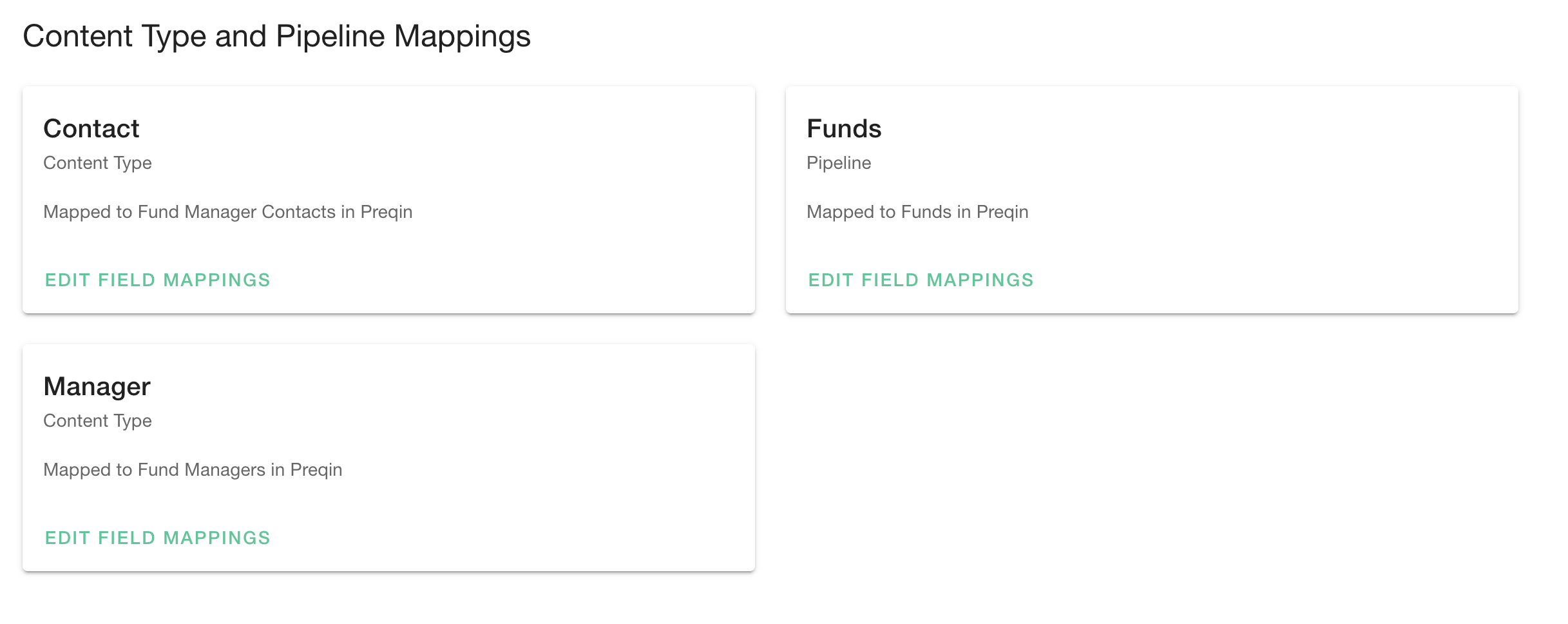
- Choose Edit Field Mappings for the content type of pipeline that you'd like to configure.
- You will see a page listing existing field mappings, and the option to add a new one:
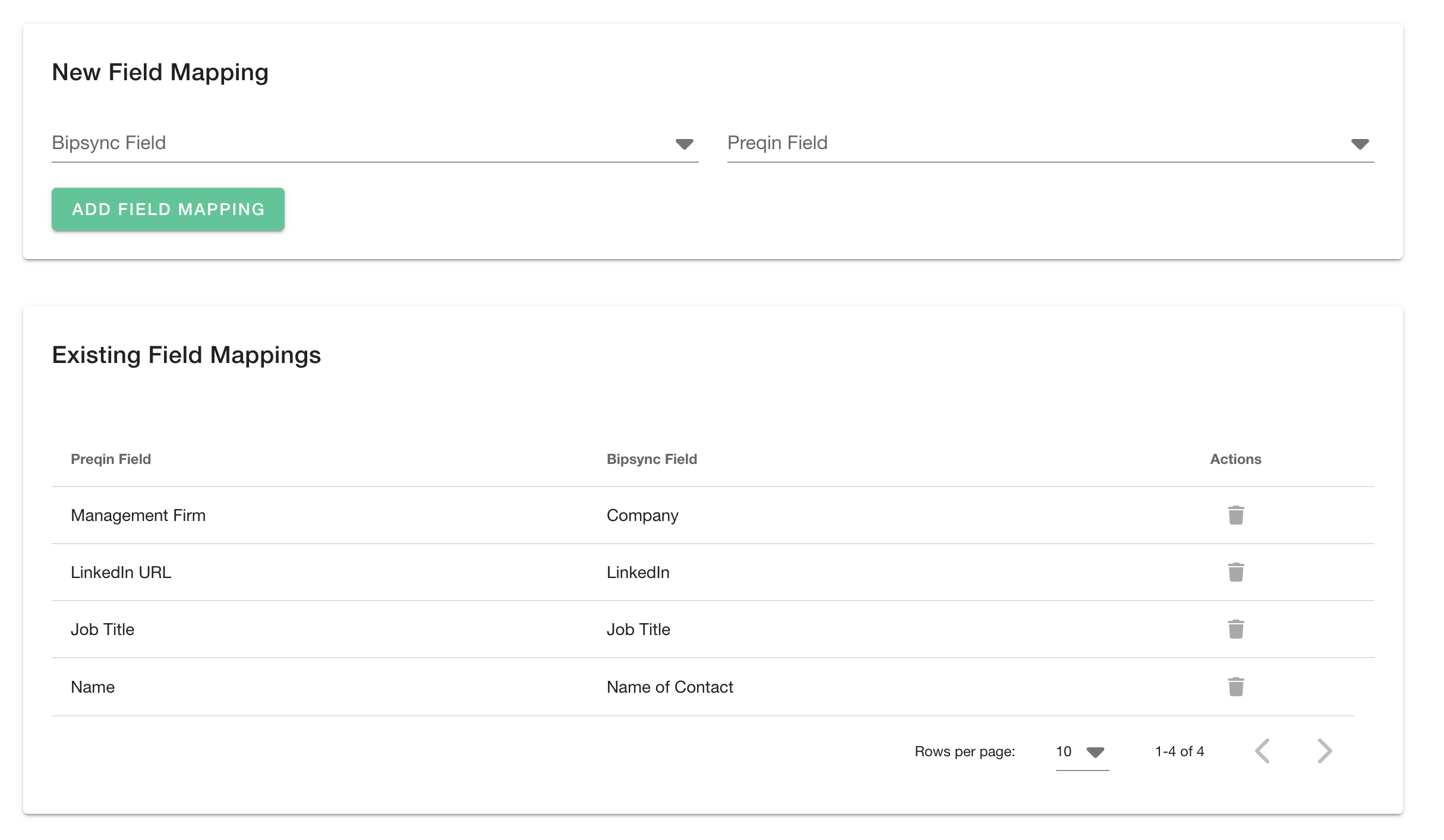
Adding a New Field Mapping
To add a new field mapping:
- Choose the Bipsync field from the left hand menu.
- Choose the Preqin field from the right hand menu. The fields listed here will depend on which asset classes your Preqin licence gives you access to.
- Choose Add Field Mapping.
- Your new mapping will be saved. The next time the sync runs, you Bipsync field data will be updated to reflect the new mapping.
Deleting an Existing Field Mapping
To delete a field mapping simply select the trash can icon next to the mapping.
Deleting a field mapping does not erase any data that has already been written to the field.
Creating Entities from Preqin
You can create entities from Preqin data directly in the web app:
- Open the web app in your browser.
- Navigate to the type of entity you'd like to create (fund, fund manager or contact).
- Choose the plus icon from the toolbar, then select New entity From Preqin. In the following example, a new fund manager is being created:
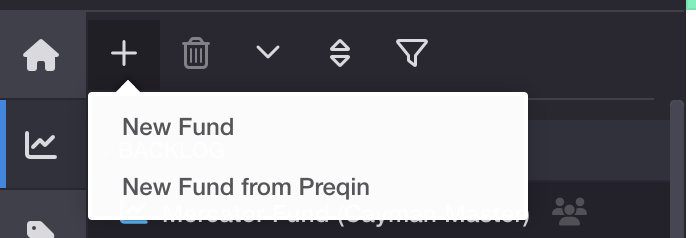
- You will see a dialog appear allowing you to search through Preqin data:
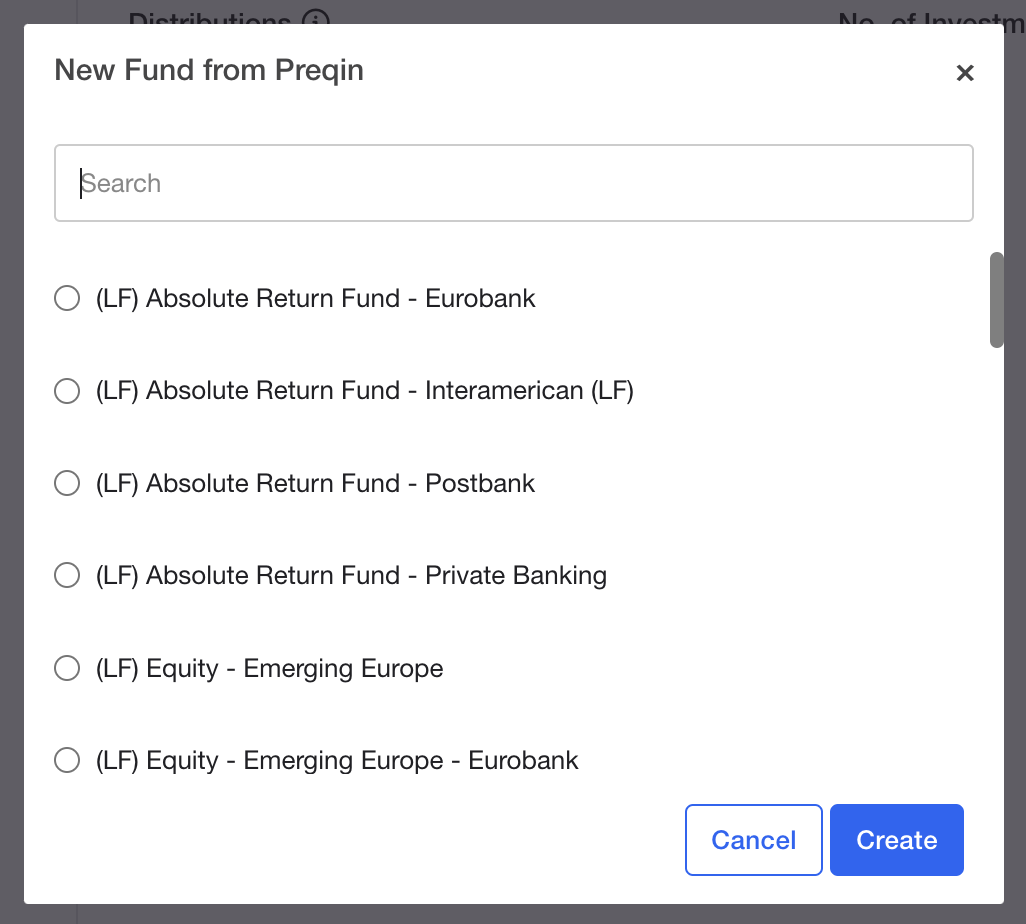
- Once you've found the entity you'd like to create, click Create.
- The entity will be created and field data will be synced in the background. This usually takes a few seconds, after which you will be given the option to reload the entity and display the up-to-date Preqin field data.
Linking Existing Entities to Preqin
If you have already created entities in Bipsync that you'd like to link to Preqin, you can do so via the web app:
- Open the web app in your browser.
- Find the entity that you'd like to link to Preqin.
- Click on the Integrations menu, then choose Edit:
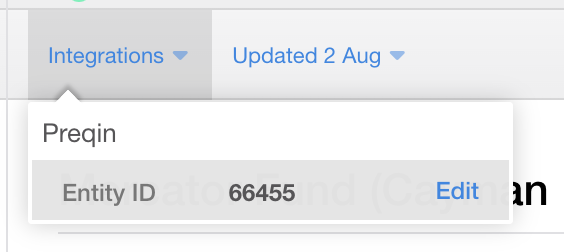
- Search for the entity in Preqin then select which one you'd like to link to.
- Click Save
- The entity will be updated and field data will be synced in the background. This usually takes a few seconds, after which you will be given the option to reload the entity and display the up-to-date Preqin field data.
Updated about 1 year ago