
Desktop App Debug Mode
Sometimes issues can arise that require Bipsync Support to request you to run the Desktop App in "Debug Mode", to do this the following steps are required:
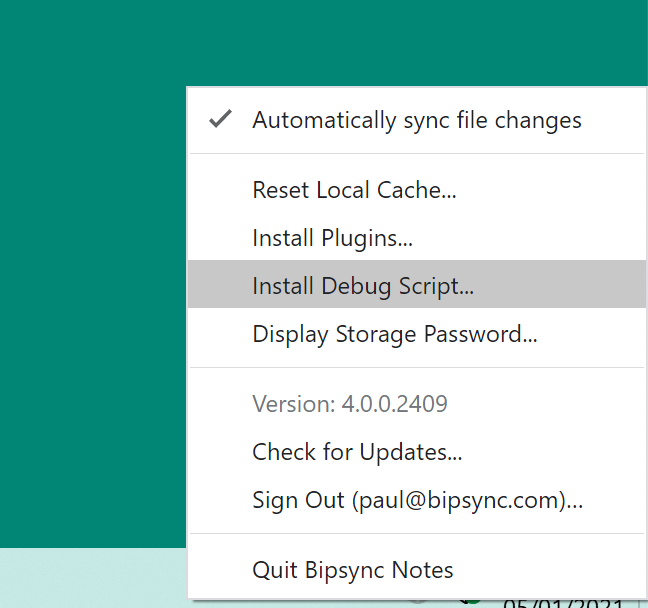
- With the app running and signed into an active account, right click on the system tray and select "Install Debug Script" from the menu.
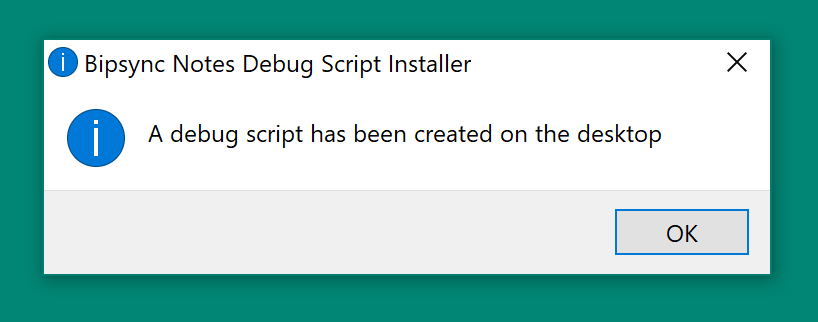
- After a short delay you should get the following message.
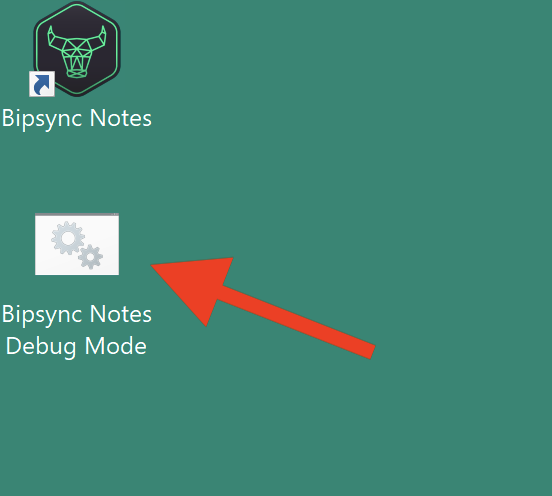
- Launch the app via double-clicking on this shortcut on your Desktop
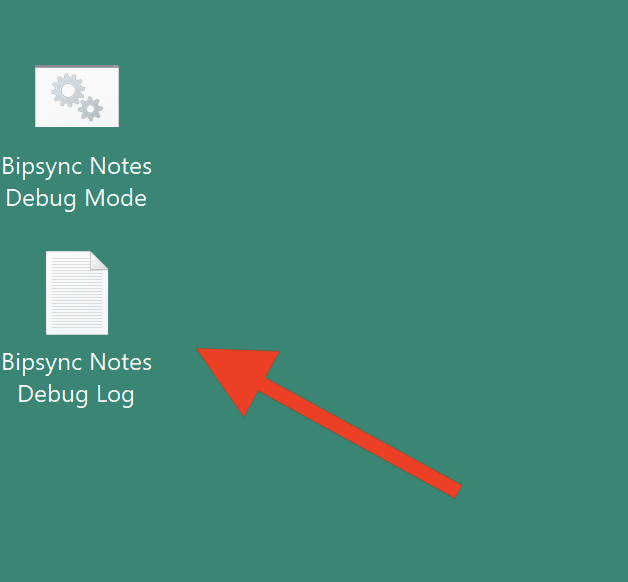
- A command prompt window (Black window) should appear, followed by the Bipsync Desktop App. After reproducing your issue please share the "Bipsync Notes Debug Log.txt" file with Bipsync Support, this file will also appear on your Desktop after launch.
If the app does not appear after a delay then start the app as normal and retry the process from Step 1.
Updated about 1 year ago