
Bloomberg Integration
Configuring Bipsync to fetch securities data from Bloomberg.
Bipsync is able to sync securities data from Bloomberg. The integration uses the Bloomberg Data License product to enrich company data within Bipsync.
Bloomberg data can be periodically synced into Bipsync and displayed on dashboard and grids.
Configuring the Integration
Obtaining Credentials from Bloomberg
To set up the integration you will need the following credentials:
- Client ID
- Client Secret
These can be obtained from the Bloomberg Enterprise Console:
- Open the Bloomberg Enterprise Console in your browser.
- Go to Developer Experience
- Click Register New App
- Give your application a name, e.g., "Bipsync Integration", then choose the product and account.
- Under Allowed IPs, add all of the Bipsync egress IP addresses. These can be obtained by contacting support.
- Under Credentials, click Add.
- Enter a credential name and alerting email.
- A credential file will be generated and downloaded.
Configuring Bipsync
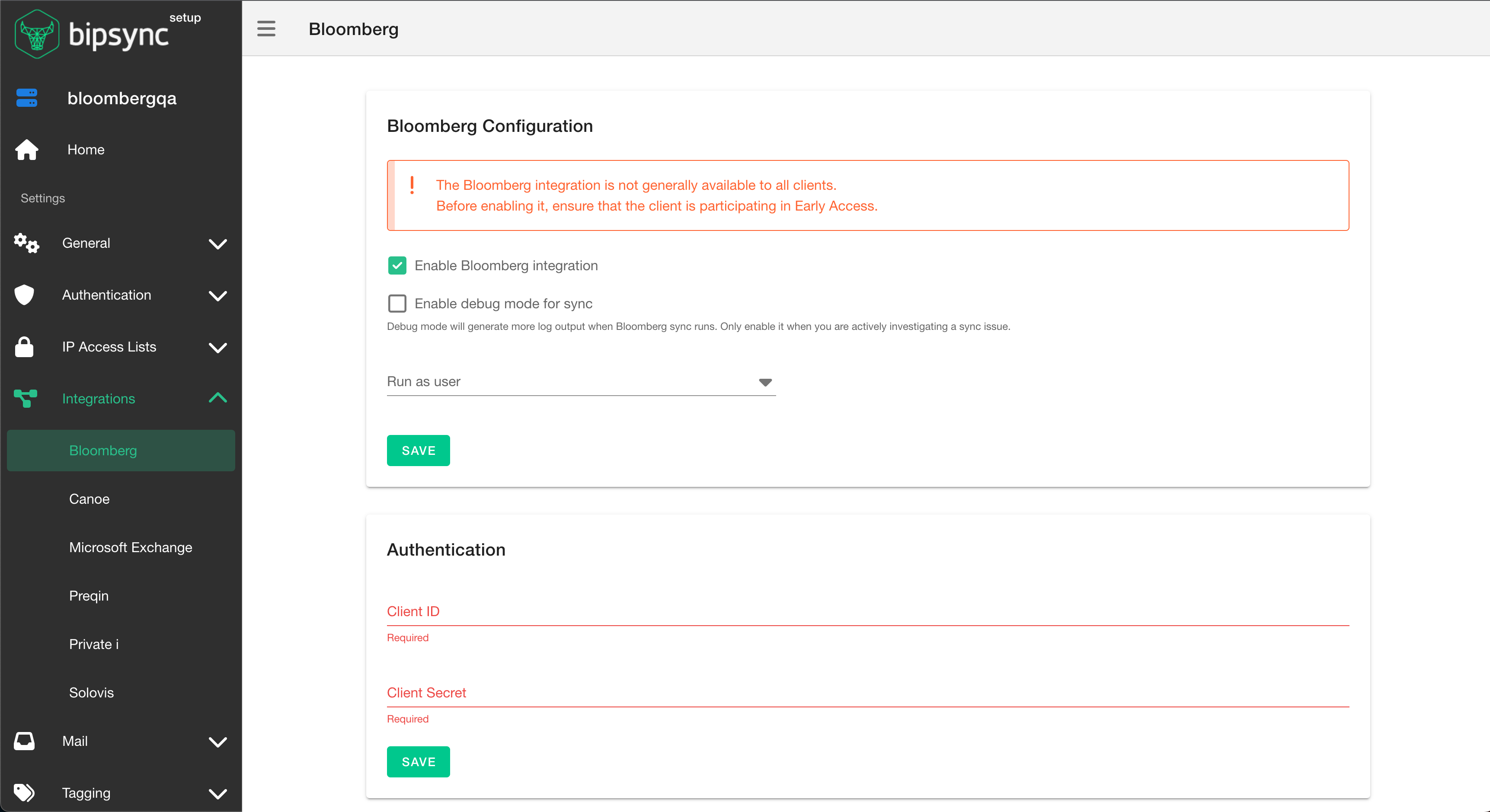
Configuration is performed in the Bipsync Setup app. From the menu, go to Integrations → Bloomberg. You'll see the following screen:
Enabling the Integration and Authentication
Check "Enabled Bloomberg integration" and specify which user the sync process should run as, then save. We recommend using a dedicated sync user, rather than an individual's user account.
Enter the Client ID and Client Secret that you have obtained from Bloomberg, then save.
If the credentials are correct, the Security Data Import section should show a dropdown list of company classifications:
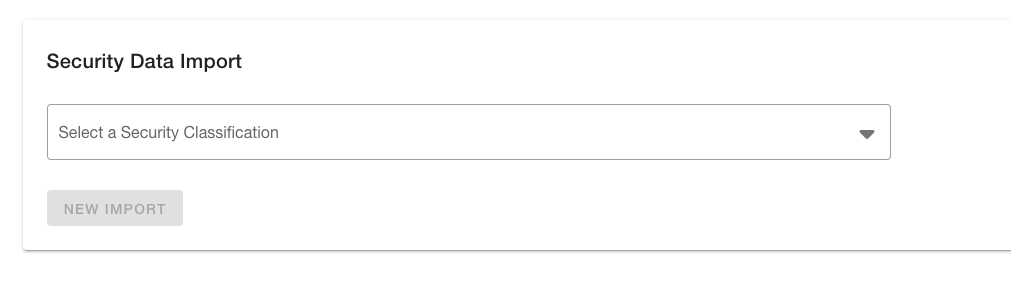
Choose a classification, then click New Import.
Classification and Field Mapping
When you create a new import, you will be redirected to the field mapping page:
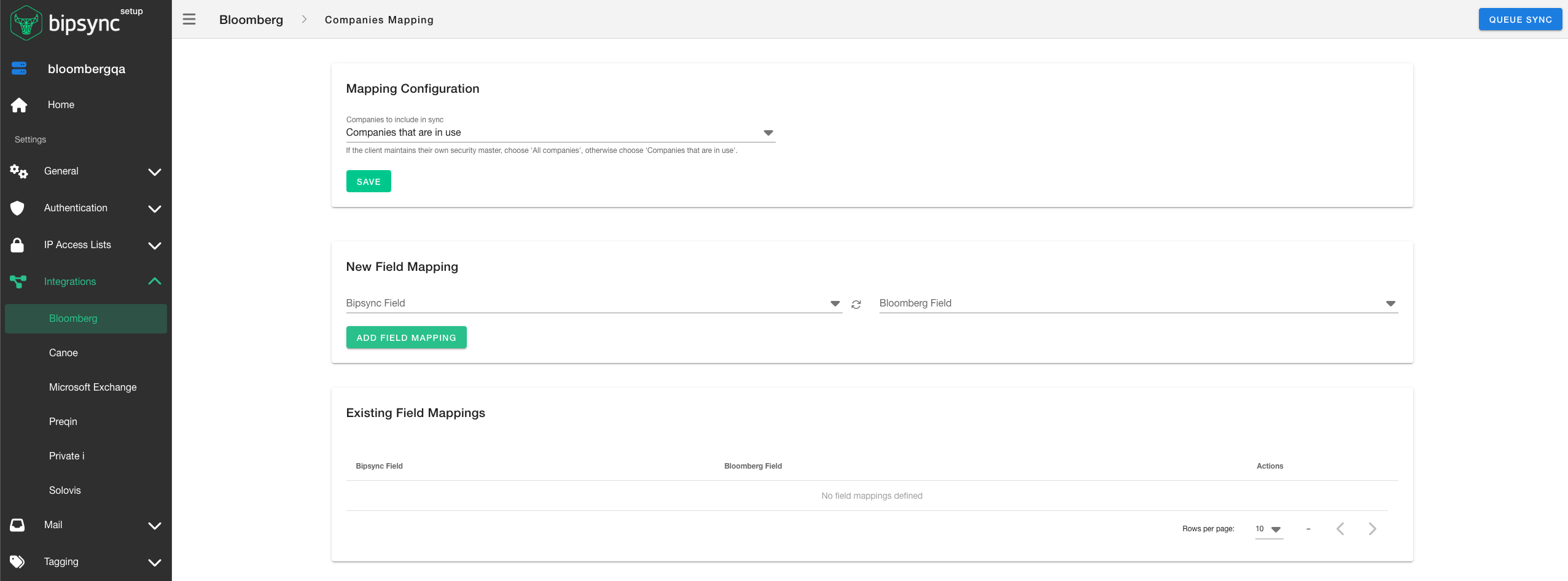
Firstly choose which companies you would like to include in the import. There are 2 options available:
- Companies that are in use - request Bloomberg data for companies that are in use; this includes companies that are tagged to other entities, and ones with field data.
- All companies - request Bloomberg data for every company in Bipsync
Next to each option you will see a number representing the total count of companies that would be included. The import is currently limited to a maximum of 80,000 companies.
Bloomberg feesThe Bloomberg API that Bipsync uses to fetch data charges per-security. The option that you choose for Companies to include in sync will have a direct impact on Bloomberg fees.
Next you will need to map Bipsync fields to Bloomberg fields:
- Under New Field Mapping, choose the Bipsync field from the left hand select box.
- Search for the Bloomberg field in the right hand select box. Results will be updated as you type.
- Click Add Field Mapping
Repeat this for all of the fields that you would like to map.
If you need to remove a mapping, you can do so by clicking the trash can icon next to the mapping in Existing Field Mappings.
Once you've finished mapping fields, you can run a Bloomberg data import by clicking Queue Sync in the top right of the page.
Updated about 1 year ago